
Tracking for X Ads
This guide shows you how to set up tracking for the following X Ads metrics in Northbeam:
- Spend
- Impressions
- Visits
- Conversion-based metrics attributed to X Ads
This involves 2 simple steps:
Step 1: Connect Your X Ad Account (required)
Step 2: Insert Northbeam UTM Parameters (required)
| Input | Output | If Input is missing... |
|---|---|---|
| X Integration (required) | The following data is pulled into your dashboard:
| Campaign, Ad Group, and Ad Names will be missing, along with Spend and Impressions. |
| Northbeam UTM Parameters (required) | Revenue, Transactions, and Visit attribution to your Campaigns, Ad Groups, and Ads. | Northbeam UTM Parameters create the linkage between your Ads and the conversions they drive. If missing, your ad spend and revenue may be reported on separate line items, making it difficult to draw insights. |
Step 1: Connect Your X Ad Account
What does the connection do?
Northbeam natively integrates with the X Ads API. This allows Northbeam to pull your current and historical Campaigns, Ad Groups, and Ads, along with key metrics.
Notably, we pull impressions, which fuel our view model and unlock our Clicks + Modeled Views attribution model. We also pull ad spend and X-reported conversion and creative metrics.
How to connect your Ad Account
- Onboarding Flow - If you're in our onboarding flow, navigate to Integrations.
- Activated Dashboard - If your dashboard is activated, open Connections.
For a visual walkthrough, reference the video below.
Step 2: Insert Northbeam UTM Parameters
In X Ads Manager, open Add URL tracking and enter the following values:
- Source:
twitter - Medium:
paid - Name:
{{campaign_name}} - Term:
{{adgroup_name}} - Content:
{{ad_name}}
Your final URL structure will look like:
https://www.yoursite.com/?utm_source=twitter&utm_medium=paid&utm_campaign={{campaign_name}}&utm_term={{adgroup_name}}&utm_content={{ad_name}}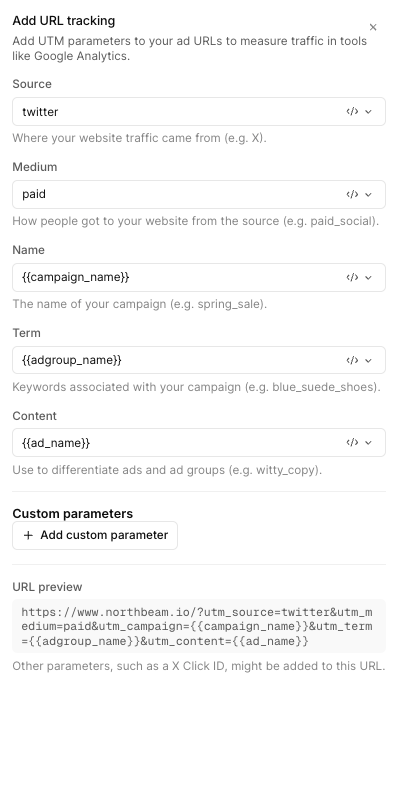
X Ads FAQ
1. How do I connect an extra account or remove an account?
Reference our step-by-step guide below:
2. Why do I see a data discrepancy?
Discrepancies in Revenue and Orders are expected. This is due to differences between Northbeam's attribution models and X's attribution model.
Each attribution model has its own method for assigning conversion credit.
For example, Northbeam's Clicks-Only model considers touchpoints across channels. X uses its own platform attribution logic and primarily has visibility into activity associated with X.
Attribution windows can also differ.
To get the most apples-to-apples comparison, compare data using similar attribution models and attribution windows when possible. Even then, the numbers should not be expected to match exactly.
Attribution Models and Windows
X:
- Attribution Model: Platform-defined
- Attribution Window: Based on your X Ads attribution settings
Northbeam:
- Attribution Model: Varies by selected model
- Attribution Window: 1-Day by default, with additional configurable options
3. Suspect a Tracking Issue?
Please reference Troubleshooting Northbeam Data.
- Connection: Make sure your Ad Account is still connected. Open Connections and check for any errors.
- UTMs: Ensure all X Ads contain the Northbeam UTMs listed under Step 2.
- Northbeam Pixel: Ensure the Northbeam Pixel is firing on your landing page.
- Purchase Pixel: Confirm that the Purchase Pixel is firing on your checkout page.
- A-Record Setup: Verify that the A-Record is correctly configured in your DNS settings.
Updated 4 days ago