

Northbeam MCP is available on every Northbeam plan.
- Connect Northbeam to Claude.
- Sign in with your Northbeam account.
- Verify that Claude can access your dashboards.
Before you start
You will need:- A Northbeam account you can sign in to.
- Access to Claude custom connectors or Claude Code. Custom connectors using remote MCP are available in Claude and Claude Desktop across Free, Pro, Max, Team, and Enterprise plans.
- The Northbeam MCP server URL:
https://mcp.northbeam.io.
If you’re on Team or Enterprise
If your Claude access is managed by your organization, an Owner or Primary Owner may need to add the Northbeam connector first. After that, each user enables the connector and signs in individually. If you’re on an individual plan, you can set up Northbeam yourself.Individual setup
Use these steps if you are on an individual Claude plan and can add your own custom connectors.Claude on the web (claude.ai) or Claude Desktop
- Open Claude and go to Customize → Connectors.
- Click the + button next to Connectors.
- Enter:
- Name:
Northbeam - URL:
https://mcp.northbeam.io - Advanced settings: leave blank
- Name:
- Click Add.
- When prompted, sign in with your normal Northbeam login.
- Finish the connection flow. Once complete, the connector should show as connected.
- (Optional) Choose Always allow for read-only tools.
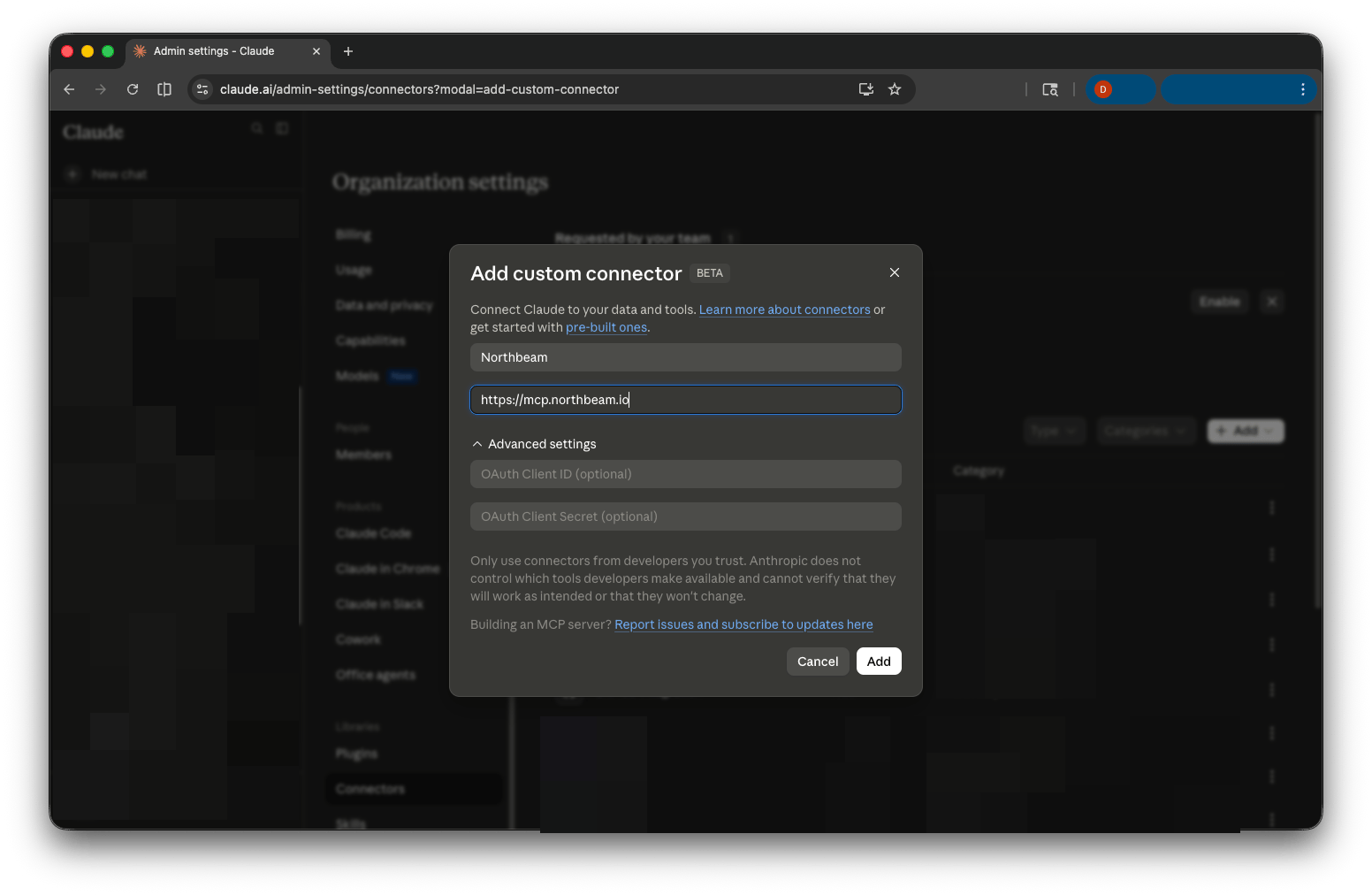
Adding a custom connector in Claude.ai.
Claude Code
- Run this command in your terminal:
- Open Claude Code.
- Run
/mcp. - Select Northbeam.
- Choose Authenticate.
- Complete the browser sign-in flow with your normal Northbeam login.
Failed to connect immediately after adding the server, that is expected. The connection becomes active after you complete authentication.
Verify the connection
Start a new chat and ask Claude:Use Northbeam to list my dashboards.If Claude returns your dashboards, the connection is working.
Team / Enterprise setup
If you are on a Claude Team or Enterprise plan, setup happens in two parts:- A plan Owner/Admin adds the connector for the organization.
- Each user enables the connector and signs in with their own Northbeam account.
Part 1: Admin setup
An organization Owner or Admin should:- Open Claude organization settings.
- Go to Organization settings → Connectors.
- Add a custom connector.
- Enter:
- Name:
Northbeam - URL:
https://mcp.northbeam.io
- Name:
- Save the connector.
Part 2: Individual user setup
Once your admin has added Northbeam for the organization, you can connect your Northbeam login to Claude.Claude on the web (claude.ai) or Claude Desktop
- Open Claude or Claude Desktop.
- Go to your Connectors settings.
- Find Northbeam in the available connectors list and click Connect.
- Sign in with your own Northbeam login.
- Finish authentication.
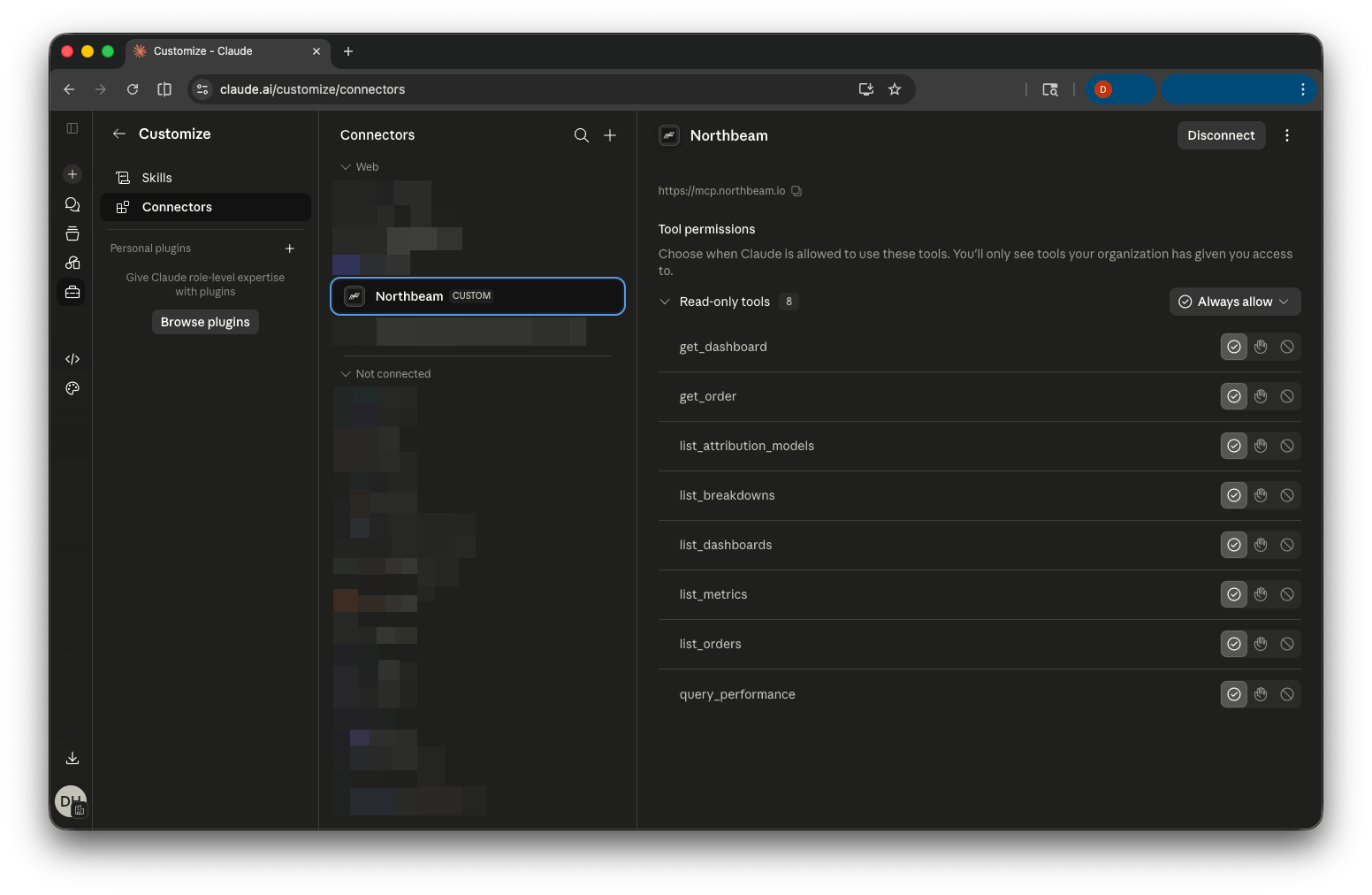
Connecting Northbeam to an individual Claude account.
Claude Code
- Open Claude Code.
- Run
/mcp. - Select
claude.ai Northbeamfrom the list. You may need to scroll down to see it. - Choose Authenticate.
- Complete the browser sign-in flow with your normal Northbeam login.
Verify the connection
Start a new chat and ask Claude:Use Northbeam to list my dashboards.If Claude returns your dashboards, you are connected.
What you can ask Claude
Once connected, Claude can pull live data from your Northbeam dashboards. Example prompts:List my Northbeam dashboards.What was my Meta ROAS last week vs the prior week?Show me my top 10 orders by revenue this month.Break down spend and revenue by platform for the last 30 days.