

Introduction
Order Segmentation makes it easy to break down attributed revenue and orders into meaningful groups directly within your Northbeam dashboard. You can create segmentations using:- Order tags
- Discount codes
- Shipping country
Promo Code
Segments:
- Podcast
- YouTube
- IG Influencers
- Friend Referrals
- How much revenue came from podcast promo codes?
- How many new customers came from influencer codes?
- How does CAC compare across different partner groups?
Before You Start
Order Segmentation is the easiest way to break down order groups directly within a single Northbeam dashboard. It is quick to set up and does not require custom development or coordination between your development team and Northbeam. Separate dashboards can offer more flexibility for specific use cases, but they require additional setup and development work on both sides and are only available on certain service plans.Current Limitations
- All attribution models except Clicks + Deterministic Views support segmented reporting. Clicks + Deterministic Views can still appear in your dashboard for overall performance, but they cannot currently be broken down by segment.
- Spend and Visits are not segmented. ROAS, CAC, and ECR use the row’s total Spend or Visits.
- Segmented metrics refresh once per day. For the cleanest comparison, use a date range that ends yesterday.
- Hourly reporting is not supported. Segmented metrics are available at the daily level.
Step 1: Open Order Segmentation
Open Order Segmentation. If you do not see Order Segmentation in your account, contact Northbeam and we can enable it for you.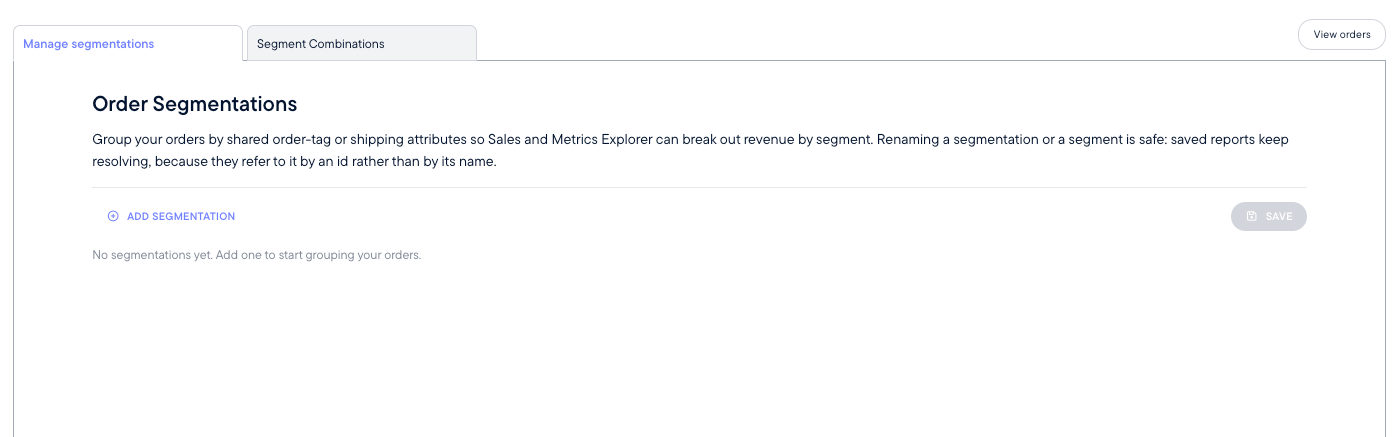
Step 2: Create Your Segmentation
Click Add Segmentation.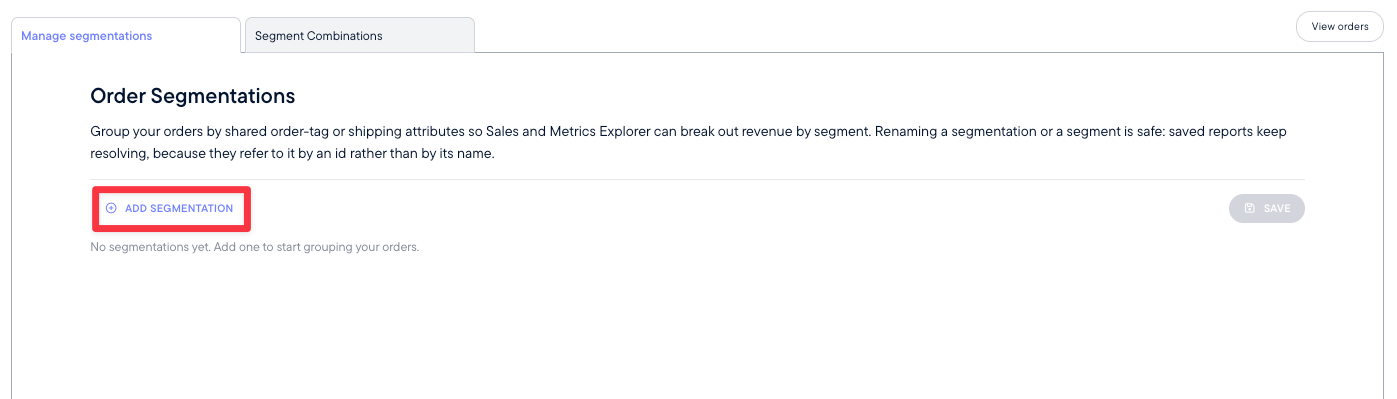
Promo Code
Segments:
- Podcast
- YouTube
- IG Influencers
- Friend Referrals
Step 3: Add Segment Rules
For each segment, define the rules Northbeam should use to match orders.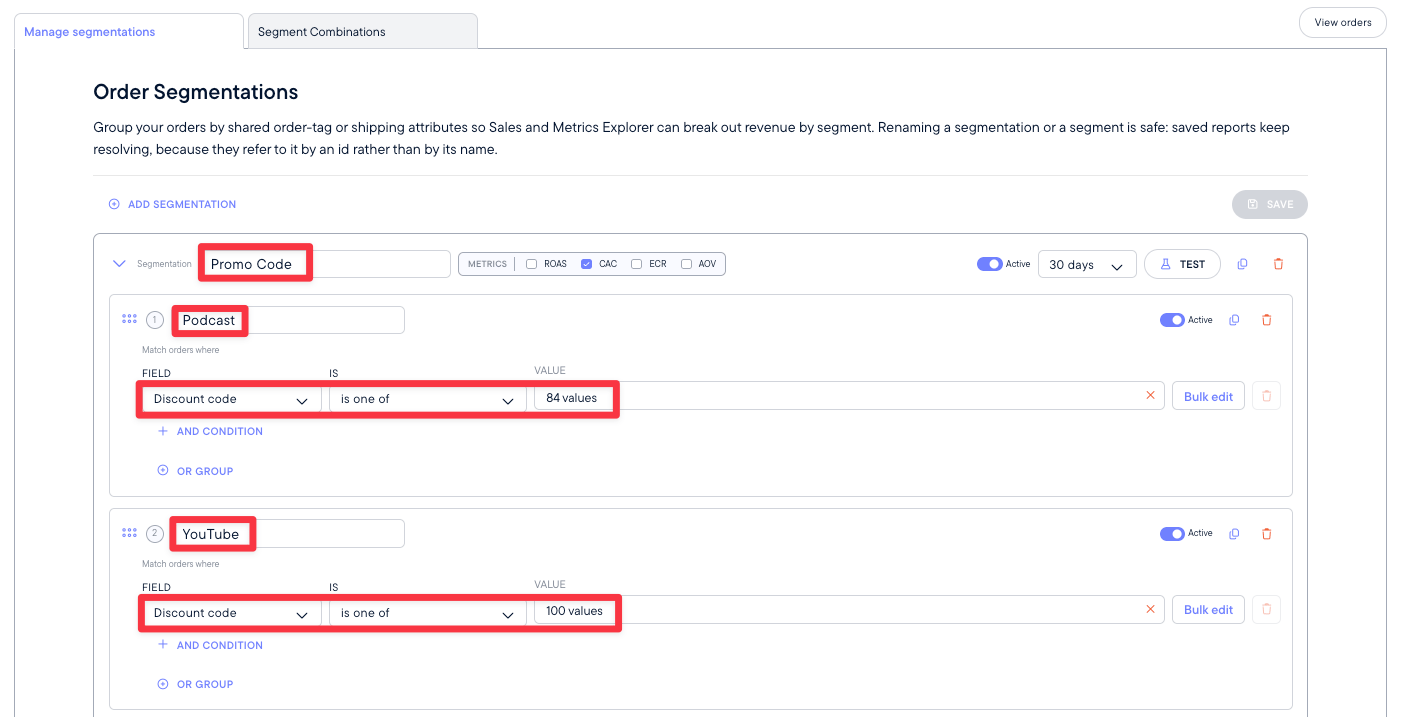
- Order tags
- Discount codes
- Shipping country code
Discount code → is one of → [list of podcast promo codes]
Use Bulk edit when adding a larger list of values.
You can also use:
- AND conditions when multiple conditions must be true
- OR groups when an order can match one of several sets of conditions
- Equals
- Contains
- Starts with
- Ends with
- Is one of
- Does not equal
- Does not contain
- Case-insensitive versions of supported operators
Order-level attributes only
Rules currently support order-level attributes.Rules based on SKU, product, or order value are not currently supported.Step 4: Set Segment Priority
Segments are evaluated from top to bottom. If an order matches more than one segment within the same segmentation, the first matching segment wins.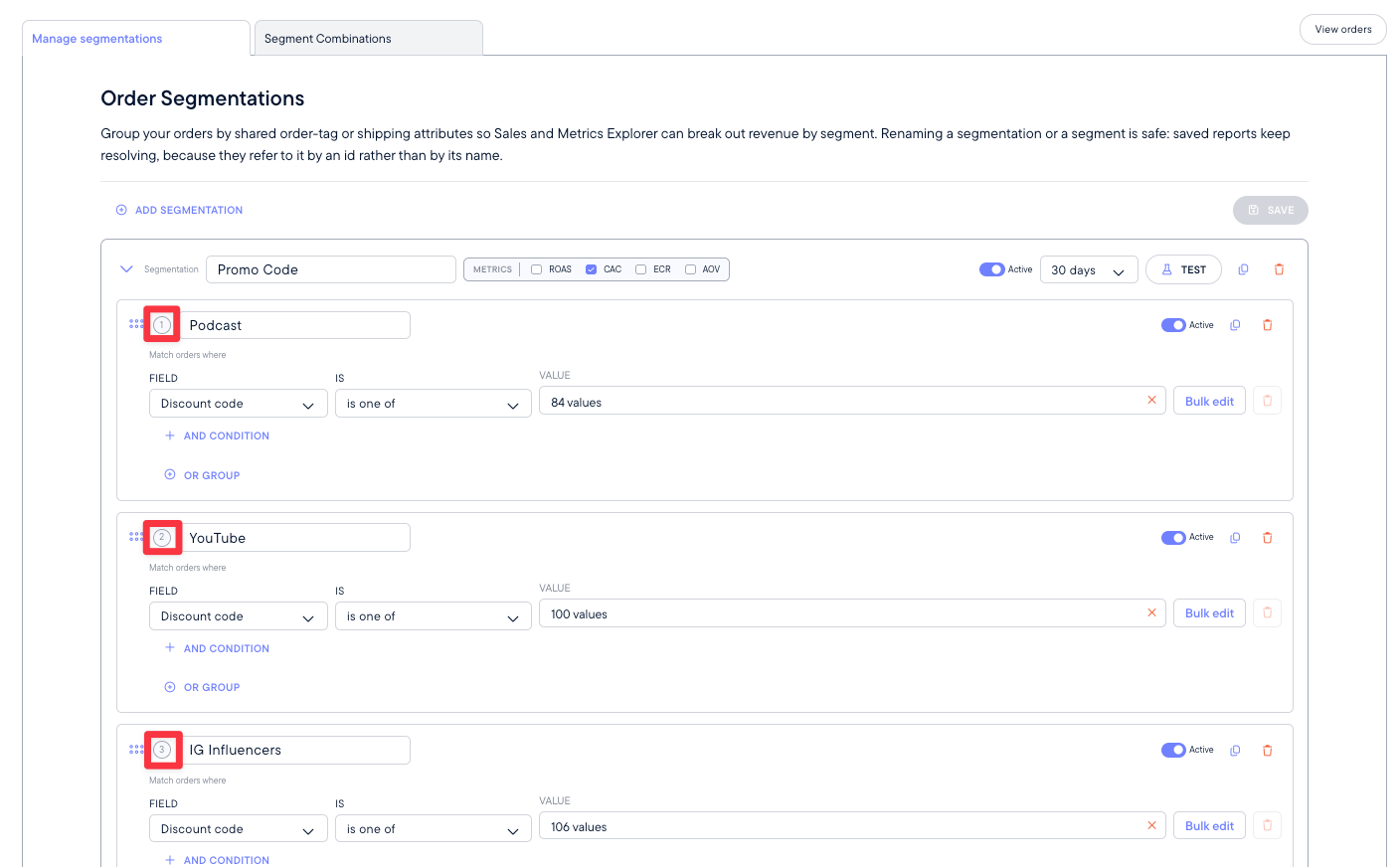
- Podcast
- YouTube
- IG Influencers
Promo Code: PodcastMarket: United States
Step 5: Test Your Segmentation
Before saving, click Test in the upper-right corner.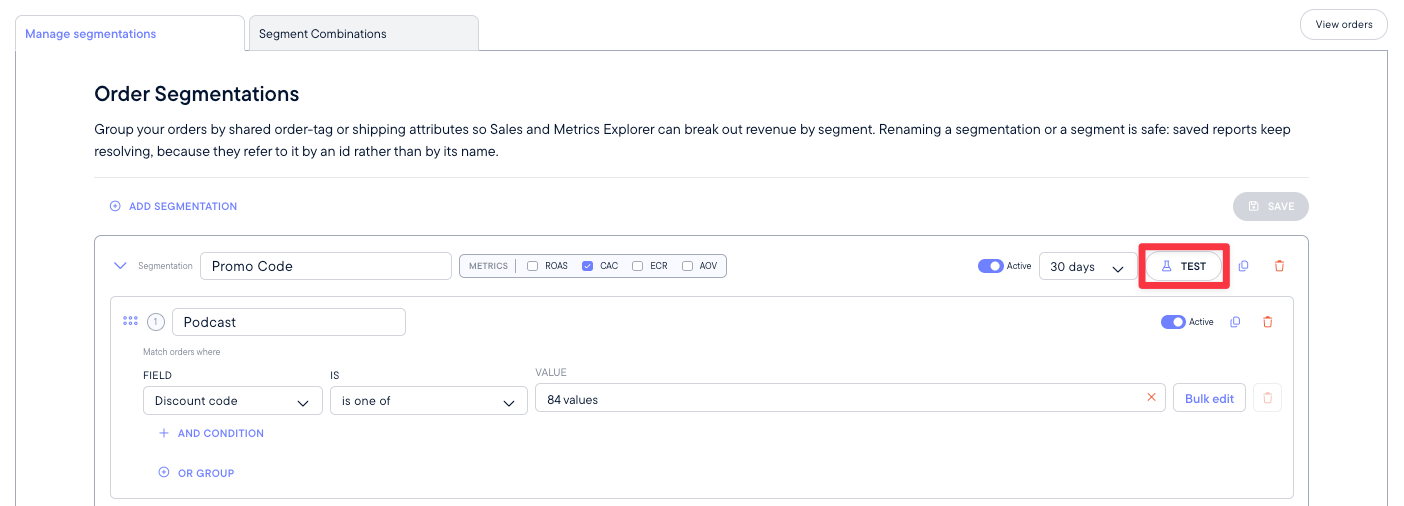
- 7 complete days
- 14 complete days
- 30 complete days
- 60 complete days
- 90 complete days
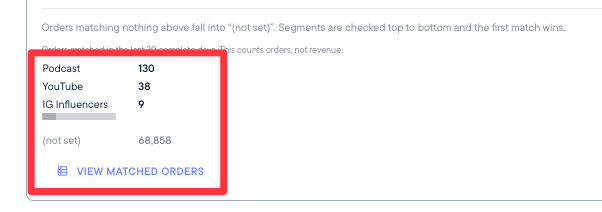
- Your rules match the orders you expect.
- Your segment priority is correct.
- Orders are not unexpectedly falling into
Uncategorized.
What does Uncategorized mean?
Uncategorized contains orders that did not match any segment in that segmentation.
If your counts look lower than expected, check Uncategorized first.
You can also click View matched orders to review the individual orders assigned to each segment.
Step 6: Choose Your Metrics
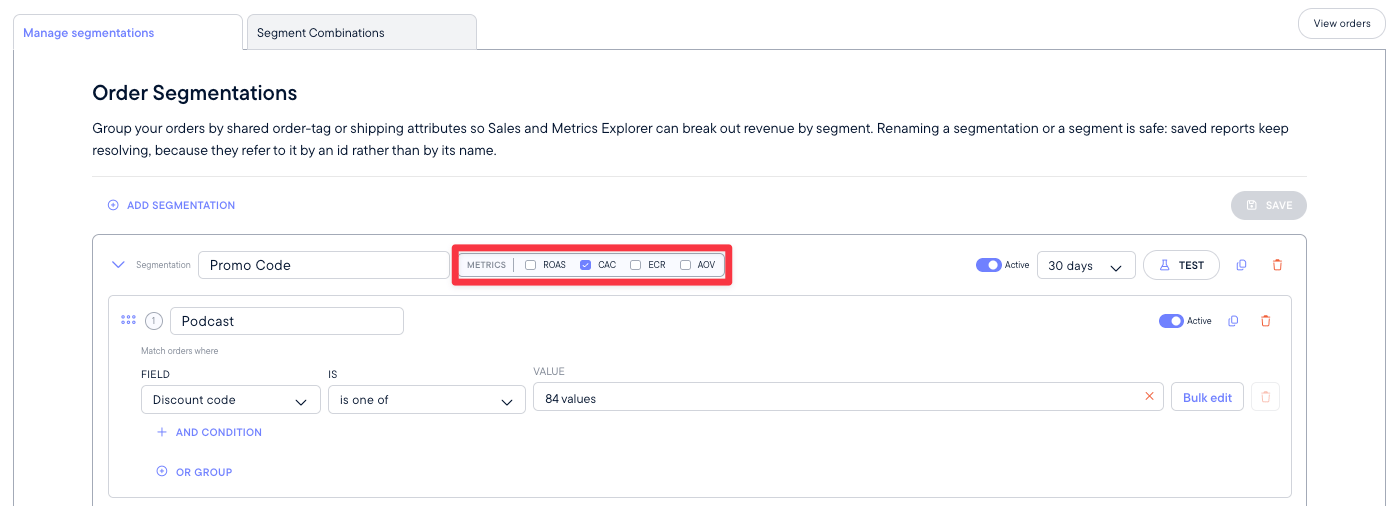
Revenue and Orders are available for each segment, including New and Returning customer variants. You can also enable:- ROAS
- CAC
- ECR
- AOV
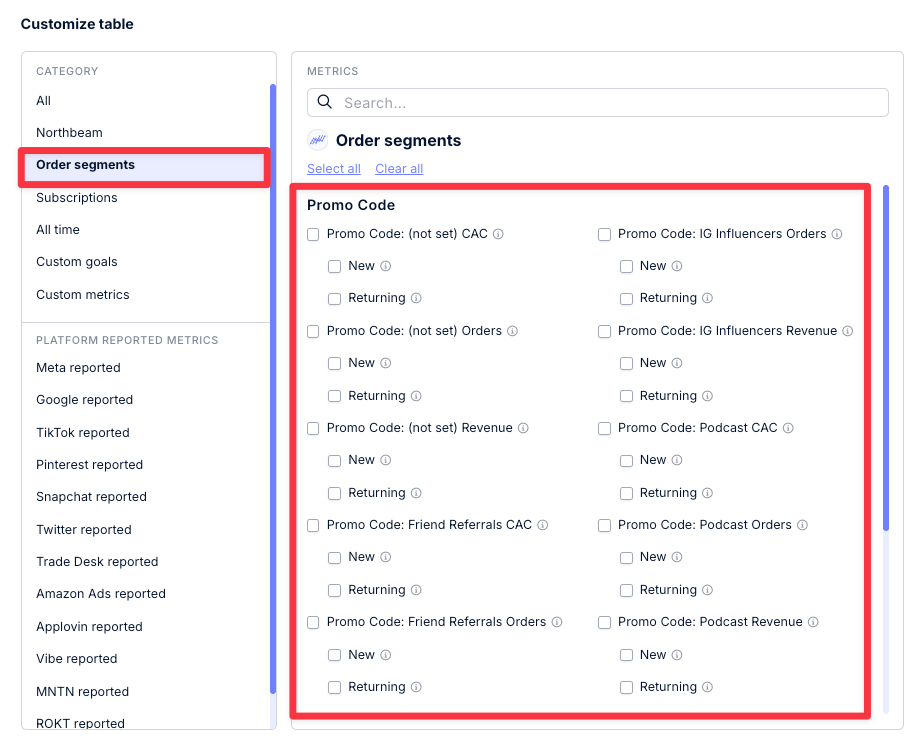
- Promo Code: Podcast Revenue
- Promo Code: Podcast Orders
- Promo Code: Podcast CAC
- Promo Code: YouTube Revenue
- Promo Code: IG Influencers Revenue
How Spend and Visit Metrics Work
Order Segmentation only splits conversion-based metrics, such as Revenue and Orders. It does not split:- Spend
- Visits
- Segment ROAS =
Segment Revenue / Total Spend - Segment CAC =
Total Spend / Segment Orders - Segment ECR =
Segment Orders / Total Visits
Step 7: Save and View Your Segments
Once your setup looks correct, click Save. Changes apply to historical orders immediately. There is no historical backfill to wait for because Northbeam evaluates the segmentation rules when the data is queried. To add segment metrics to the Sales page:- Open the Sales page.
- Click Customize Table.
- Find Order segments.
- Select the metrics you want to add.
Segment Combinations
Segment Combinations let you combine existing segments into a broader reporting group. For example, if your Promo Code segmentation contains:- Podcast
- YouTube
- IG Influencers
- Friend Referrals
Podcast + YouTube + IG Influencers
This lets you keep the individual segments while also reporting on the combined group.
To create a Segment Combination:
- Open the Segment Combinations tab.
- Select the segmentation.
- Select the segments you want to combine.
- Enter a name.
- Click Test.
- Click Save.
Supported Reporting
Order Segmentation is currently supported in:
Order Segmentation is not currently supported in:
- Data Export
- Scheduled Reports
- Profit Benchmarks
- MMM
- Incrementality
- LTV
- Model Comparison
- Performance Alerts / Monitor
- Hourly reporting
- Clicks + Deterministic Views
Important Constraints
Touchpoint-Based Metrics Refresh Once Per Day
Order Segmentation uses Northbeam’s touchpoint-based metrics. These metrics are rebuilt once per day. This is the same cadence used by other features that rely on touchpoint data. Examples include:- Order Segment metrics
- Clicks + Deterministic Views
- Custom Metrics that depend on touchpoint-based metrics
Attribution Model Support
Order Segmentation supports all attribution models except Clicks + Deterministic Views. Clicks + Deterministic Views can still appear in your dashboard for overall performance, but Northbeam cannot currently break those results down by Order Segment. For example, Northbeam can show your total Clicks + Deterministic Views Revenue, but cannot split that revenue into Podcast, YouTube, or other Order Segments.Unmatched Orders
Orders that do not match a defined segment fall into:Uncategorized
Include Uncategorized when reconciling segment totals.
Order Segmentation FAQ
Do I need to wait for a backfill?
No. New and edited segmentations can apply to historical orders immediately.What does Uncategorized mean?
Uncategorized contains orders that did not match any segment within that segmentation.
Can an order match multiple segments?
Within the same segmentation, no. If an order matches multiple segments, the first matching segment wins. Across different segmentations, yes.Can I change segment priority?
Yes. Drag and reorder your segments. Northbeam evaluates them from top to bottom.Can I preview a segmentation before saving?
Yes. Click Test to see how many orders match each segment. The test counts orders, not attributed revenue.Can I use segment metrics in Custom Metrics?
Yes. Supported Order Segment metrics can be used in Custom Metrics.Can I export segment metrics?
No. Segment metrics are not currently supported in Data Export or Scheduled Reports.Does Order Segmentation support hourly reporting?
No. Segmented metrics are available at the daily level and refresh once per day.Which attribution models support Order Segmentation?
Order Segmentation supports all attribution models except Clicks + Deterministic Views. Clicks + Deterministic Views can still be used for overall performance reporting, but cannot currently be broken down by Order Segment.Why don’t my segment totals match standard Revenue?
Check the following:- Does your date range include today? Segmented metrics refresh once per day, while some standard metrics may update more frequently.
- Are orders falling into
Uncategorized? IncludeUncategorizedwhen reconciling your totals.
Does Order Segmentation work with Amazon orders?
Partially. Shipping country and discount code rules can work with Amazon orders. Amazon does not provide merchant-created order tags in the same way Shopify does. Rules based on Shopify or Orders API order tags will generally not match Amazon orders and may fall intoUncategorized.
Amazon PII is also removed after 90 days, so keep this in mind when reviewing older Amazon order data.