

- “Why is my total revenue/orders in Northbeam different than what Shopify shows?”
My revenue still isn’t lining up. What’s going on?Check these in order:
1. Accounting Mode
Be sure to toggle to Cash accounting mode. The default view is Accrual.- Cash: revenue is reported on the day the order was placed. Use this mode when comparing against Shopify, since Shopify also reports based on time of purchase.
- Accrual: revenue is reported on the day(s) the contributory touchpoint(s) occurred.
- Example: If 3 touchpoints led to a sale, revenue is divided across those touchpoints. If the touchpoints happened on different days, revenue may be split across multiple dates.
2. Revenue Calculation
Northbeam calculates revenue differently than Shopify’s “Total Sales”:
The key difference is that Northbeam does not deduct refunds by default. However, your Northbeam revenue formula can be customized to:
- Exclude Shipping
- Exclude Taxes
- Deduct Refunds
- Add order-level Discounts back into the topline
No single Shopify metric matches Northbeam’s default. Always confirm which Shopify metric you’re comparing against:
Note: In the Shopify Orders export, “Gross Sales” appears as the Subtotal column.
Refunds
Refunds are an order value difference, not an order source difference. By default, Northbeam does not deduct refunds from revenue. If you want Northbeam revenue to align more closely with Shopify’s “Total Sales,” you may need to update your revenue formula to deduct refunds.Important to KnowIf refunds are deducted, historical revenue data will update when refunds are processed.For example, if an order is placed on January 1 but refunded on February 1, revenue for January 1 will update on February 1 to reflect the refund.
- Northbeam: Because we use Shopify’s API, refunds are tied to the initial order date.
- Example: If an order was placed on January 1 and refunded on February 15, the refund is recorded under January 1.
- Shopify Reports: In Shopify’s standard reports, refunds are tied to the refund processed date.
- Example: In the same scenario, the refund is reported on February 15.
Which Shopify data source should I compare to Northbeam?Only an export from the Shopify Orders page will align with Northbeam. Shopify reports will not match.Shopify’s standard reports, such as Total Sales, Net Sales, and GMV, apply internal calculations and transformations that are not available through Shopify’s API. Because of this, discrepancies may remain even if you adjust for refunds, taxes, or shipping.To export your Orders page: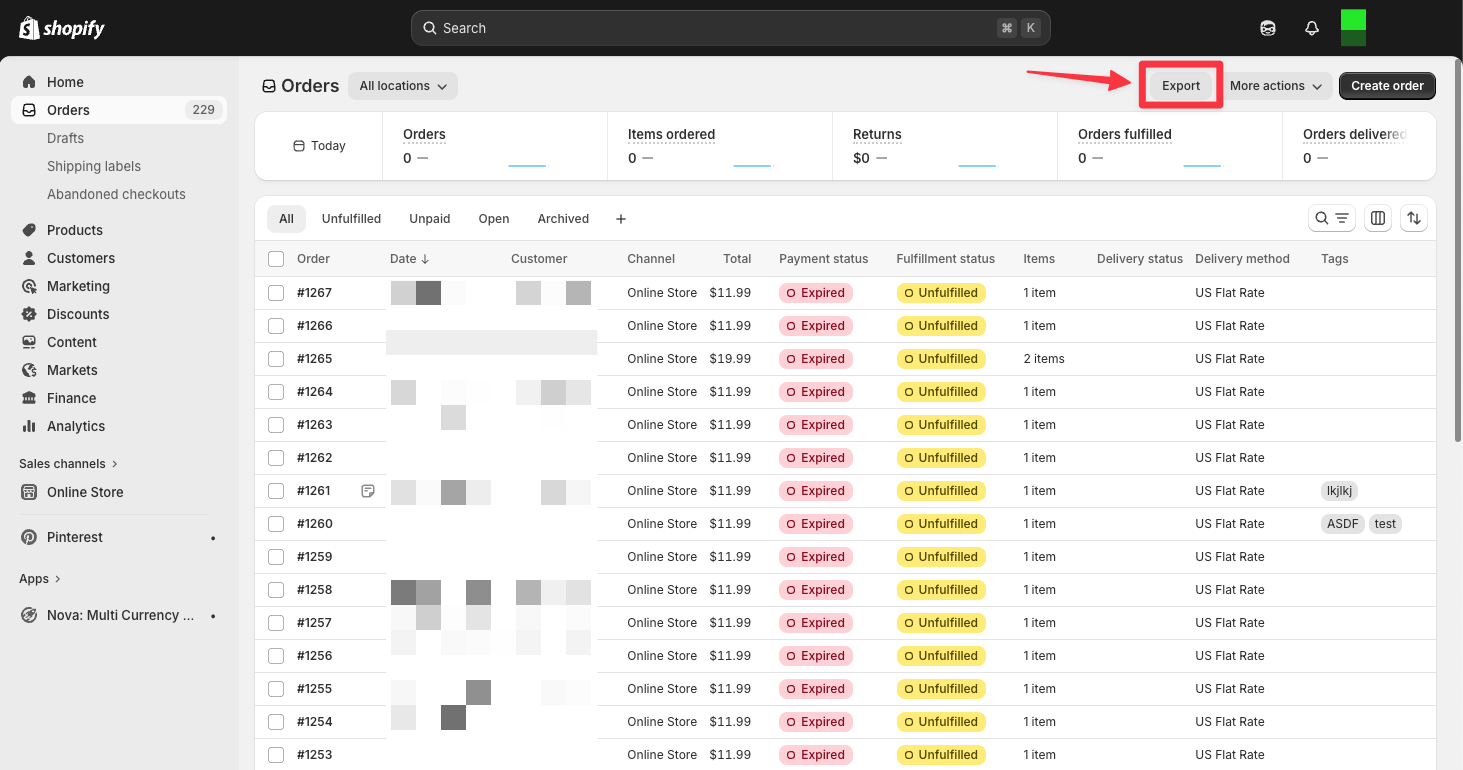
- Log into Shopify
- Click Orders
- Click Export
3. Omitted or Additional Order Sources
Some discrepancies happen because Northbeam and Shopify are not looking at the same set of orders. This is different from a revenue formula issue. In these cases, the order itself may be included in one system but not the other.Shopify POS and In-Person Orders
By default, Northbeam ingests your online Shopify orders. In-person orders processed through Shopify POS are not included by default. Typically, these are orders where Sales Channel is POS. If your store processes in-person or retail transactions through Shopify POS, those orders may appear in Shopify but not in Northbeam, making Northbeam lower. If this applies to your store and you’d like POS orders included, submit an inquiry here and our team can enable POS ingestion.Non-Shopify Revenue in Northbeam
Northbeam’s Total Revenue includes all connected revenue sources, not just Shopify. If you’ve connected Amazon Seller Central or another sales channel, Northbeam may be higher than Shopify by the value of that additional revenue. To isolate Shopify revenue in Northbeam:- On the Sales page, click Add Filters
- Click Tile Settings
- Click Add Filters
- Filter to your Shopify platform and click Apply
- On the Overview page, click the 3 dots (…) in any tile
- Click Tile Settings
- Click Add Filters
- Filter to your Shopify platform and click Apply
4. Orders Labeled as Excluded
Northbeam can label certain orders as Excluded based on order tags or other configured rules. However, these orders are not always automatically removed from every Northbeam view. In many cases, excluded orders are still visible in Northbeam and are simply labeled as Excluded. A user would need to intentionally filter them out for those orders to be omitted from the view they are looking at. Because of this, excluded order tags are usually not the most common reason for a Northbeam vs. Shopify discrepancy, but they are worth checking if the numbers still do not line up. Common examples of orders that may be labeled as excluded include:- Phone orders and customer-service-placed orders
- Wholesale / B2B orders
- Influencer gifting, replacements, and warranty orders
- 3rd-party retailer orders, such as Amazon, Walmart, Macy’s, etc.
- Open Excluded Orders.
- Find the Exclude Orders by Tag section
- Review the list of excluded order tags
5. Timezone
Minor differences are often caused by a mismatch between your Northbeam dashboard timezone and your Shopify store timezone. Orders placed near midnight may fall on different days in each system. To see your Northbeam timezone:- Open Profile.
6. Data Freshness & Recent Dates
Northbeam processes order data on a schedule, so the most recent day or two may not be finalized. Comparing today’s or yesterday’s numbers against Shopify, which updates in real time, may show a temporary gap. For the most accurate comparison:- Compare a closed date range that ended at least 1-2 days ago.
- Confirm data has processed by hovering over Last Processed. See Troubleshooting below.
Troubleshooting
If you’ve worked through the sections above and still suspect an issue, follow these steps.Step 1: Check your Connection
Hover over Last Processed to identify broken connections. Under Revenue, you’ll see the connection for your Shopify revenue source. A broken connection displays a red error message.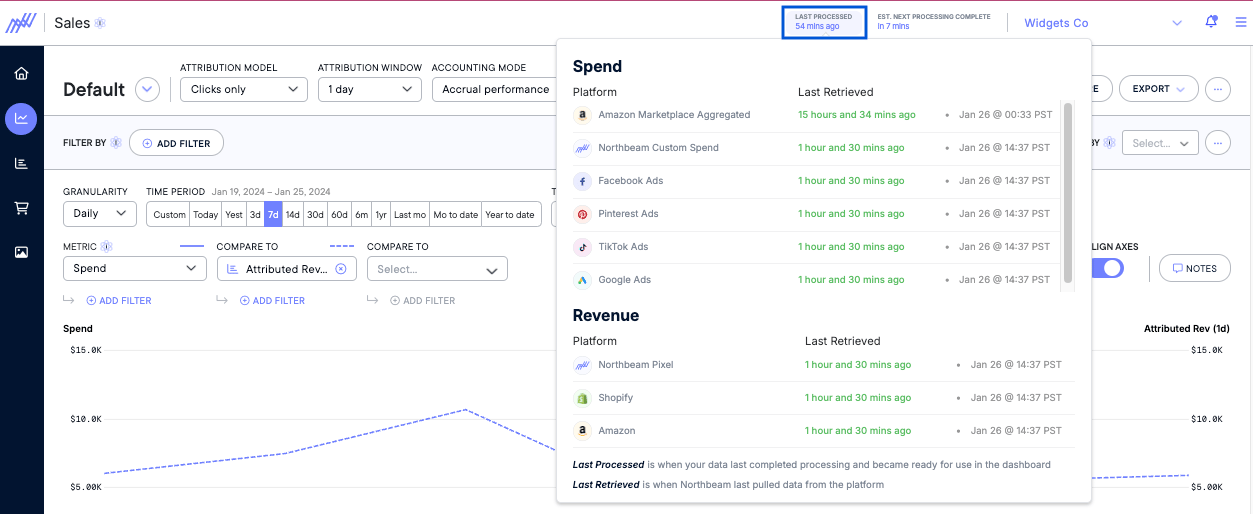
Step 2: Compare Northbeam Orders to your Shopify Orders
If the connection looks fine, do an order-level comparison to identify missing orders, extra orders, or revenue discrepancies. You do not need to pull every order. A small subset, such as a single day, is usually enough. To export your orders from Northbeam:- Open Orders.
- Filter for E-Commerce Platform = Shopify
- Click Export Data
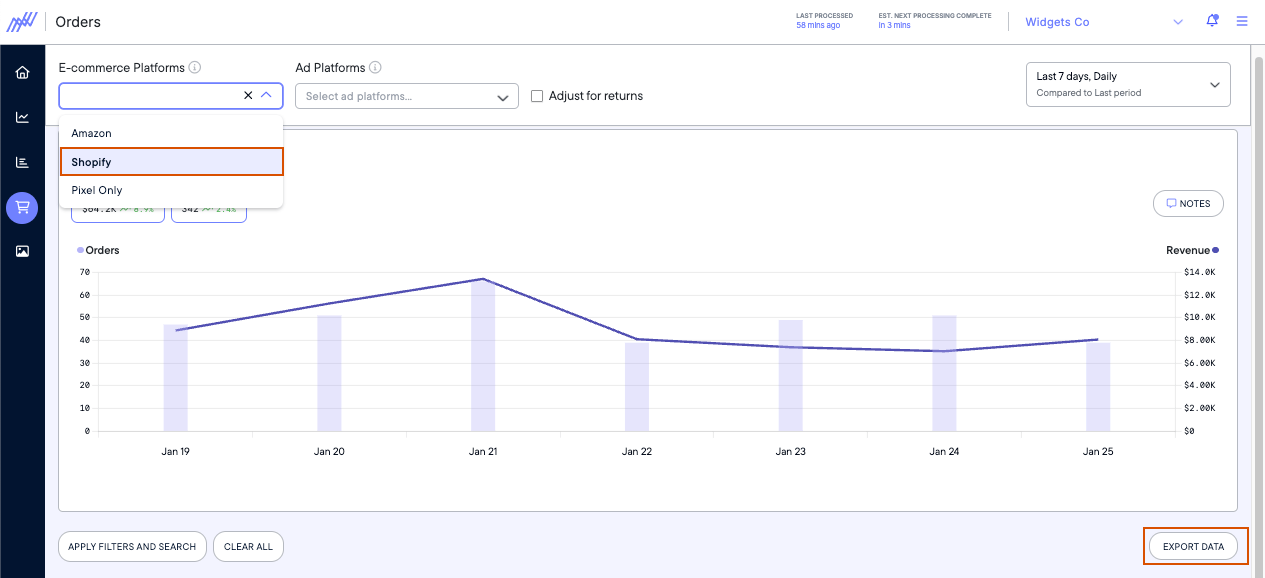
Apply your revenue formula line-by-line. See Revenue Calculation, sum it, and compare to Northbeam’s Order Value. They should match.