
Tracking for LiveIntent
Table of Contents
- Introduction
- How LiveIntent data maps to Northbeam
- Step 1: Connect Your LiveIntent Account
- Step 2: Add Northbeam Tracking Parameters
- LiveIntent FAQ
Introduction
This guide will show you how to set up LiveIntent tracking in Northbeam.
The LiveIntent integration currently supports:
- LiveIntent spend and platform reporting
- Click-based attribution using Northbeam tracking parameters
- Campaign- and creative-level reporting
Support for deterministic impression and view-through attribution is planned for a future release.
| Input | Output | If Input is missing... |
|---|---|---|
| LiveIntent Integration | LiveIntent platform data is pulled into Northbeam, including:
| LiveIntent platform metrics and campaign details will not appear in Northbeam. |
| Northbeam Tracking Parameters | Visits, transactions, revenue, and other conversion metrics attributed to LiveIntent campaigns and creatives | Spend and platform metrics may still appear, but Northbeam may not be able to attribute visits and conversions to the corresponding LiveIntent campaigns and creatives. |
How LiveIntent data maps to Northbeam
Once connected, LiveIntent data appears in Northbeam using the following hierarchy:
| LiveIntent Level | Northbeam Level |
|---|---|
| Campaign | Campaign Level |
| [Placeholder Value] | Adset Level |
| Creative | Ad Level |
LiveIntent performance is reported at the Campaign and Ad levels. The Adset level displays a placeholder to preserve Northbeam’s reporting hierarchy.
Step 1: Connect Your LiveIntent Account
1A: Find your LiveIntent credentials
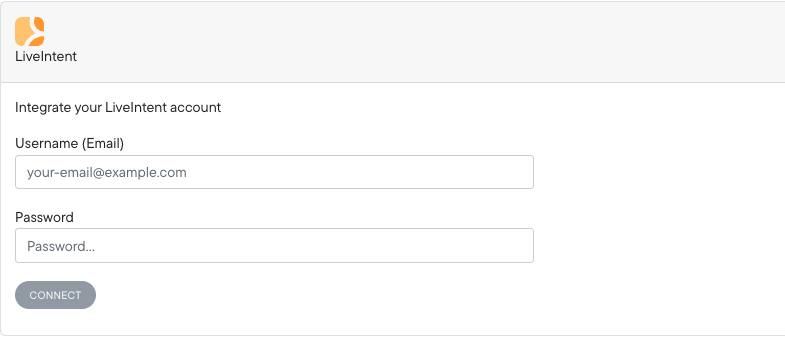
Northbeam connects to LiveIntent using your:
- LiveIntent username
- LiveIntent password
Use credentials that have access to the advertiser account you want to connect.
Northbeam uses these credentials to authenticate with LiveIntent and retrieve an access token.
1B: Connect in Northbeam
- During onboarding: Go to Integrations > LiveIntent
- From your dashboard: Open Connections and select LiveIntent.
Enter your LiveIntent username and password.
If authentication is successful:
- Select the appropriate LiveIntent advertiser
- Click Save
Step 2: Add Northbeam Tracking Parameters
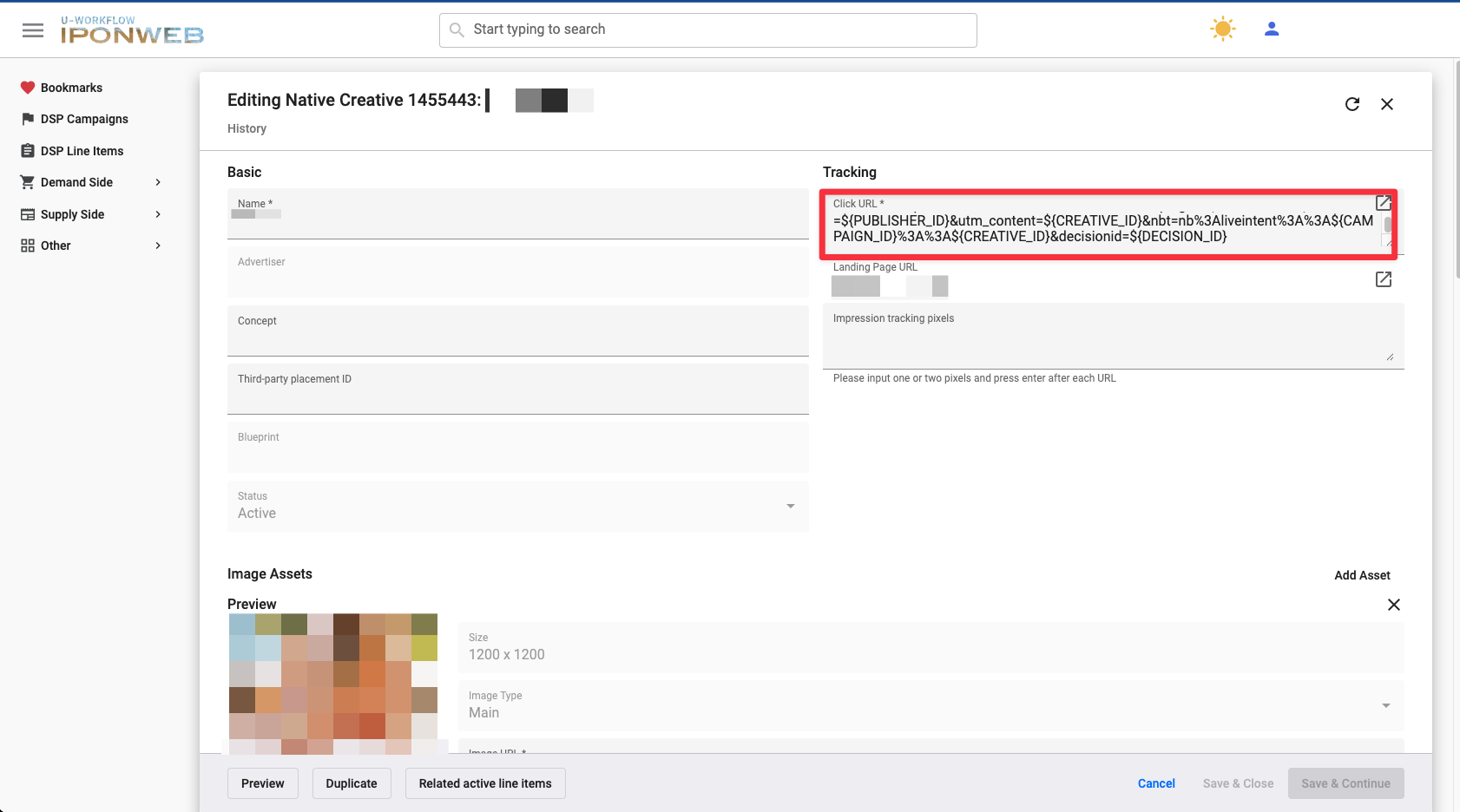
Add the Northbeam tracking parameters to the click URL for every LiveIntent creative.
For more instructions on configuring click URLs, see Zeta Global’s Click-URL Macros and Accepted Characters documentation.
Append the following string to each click URL:
nbt=nb%3Aliveintent%3A%3A${CAMPAIGN_ID}%3A%3A${CREATIVE_ID}&decisionid=${DECISION_ID}
How to append the parameters:
Use ? if the click URL does not already contain parameters
https://example.com?nbt=nb%3Aliveintent%3A%3A${CAMPAIGN_ID}%3A%3A${CREATIVE_ID}&decisionid=${DECISION_ID}
Use & if the click URL already contains parameters:
https://example.com?utm_source=liveintent&nbt=nb%3Aliveintent%3A%3A${CAMPAIGN_ID}%3A%3A${CREATIVE_ID}&decisionid=${DECISION_ID}
LiveIntent FAQ
1. Why is there no LiveIntent adset-level reporting?
LiveIntent line items ("adsets") are primarily used as an internal optimization layer rather than a standard customer-facing reporting level. Accordingly, Northbeam supports LiveIntent attribution at the Campaign and Ad levels.
A placeholder appears at the Adset level to preserve Northbeam’s reporting hierarchy, but performance should be evaluated using the Campaign and Ad views.
2. Do I need to add the tracking parameters to every creative?
Yes.
LiveIntent click URLs are configured at the creative level. Every existing and newly created creative must include the Northbeam tracking parameters.
Northbeam does not automatically add or update these URLs through the LiveIntent API.
3. Can I use other UTM parameters alongside Northbeam's parameters?
Yes.
The nbt and decisionid parameters can be used alongside standard parameters such as:
utm_sourceutm_mediumutm_campaign- Other analytics or tracking parameters
Make sure each parameter is separated using &.
4. Why do my Northbeam results differ from LiveIntent?
Differences are expected because LiveIntent and Northbeam use different attribution methodologies.
LiveIntent reports conversions based on the attribution settings configured for the advertiser and may credit both post-click and post-view conversions. Northbeam evaluates LiveIntent alongside the customer’s other marketing touchpoints, which may result in fewer conversions being attributed to LiveIntent.
LiveIntent attribution settings may vary by advertiser. Contact your LiveIntent account team to confirm the windows and post-view credit settings applied to your account.
5. Why do I see spend but no attributed revenue?
The LiveIntent connection and Northbeam click tracking serve different purposes.
The connection imports platform reporting such as spend, impressions, and clicks. The Northbeam parameters connect LiveIntent clicks to visits and conversions.
If spend appears without attributed revenue:
- Confirm every creative contains both
nbtanddecisionid. - Confirm the macros were not URL-encoded.
- Confirm the Northbeam pixel fires on the landing page.
- Confirm the URL parameters are not removed by a redirect.
- Confirm purchase tracking is working.
6. Why is hourly LiveIntent data different from the LiveIntent dashboard?
LiveIntent does not provide hourly reporting through the API used by Northbeam.
LiveIntent reporting is imported daily, and any hourly breakdown displayed in Northbeam is derived downstream. Because of this, hourly bucketing may not match the LiveIntent interface exactly.
7. How long does LiveIntent data take to populate?
Initial LiveIntent reporting may take several hours to appear after the account is connected.
LiveIntent data may continue updating for up to 48 hours. Northbeam waits three days before considering the reporting stable.
8. I think there's an issue with tracking. What should I check?
- Connection: Open Connections and check the LiveIntent connection for errors.
- Advertiser: Confirm the correct LiveIntent advertiser was selected.
- Click URLs: Confirm all creative URLs contain
nbtanddecisionid. - Macros: Confirm
${CAMPAIGN_ID},${CREATIVE_ID}, and${DECISION_ID}were not URL-encoded. - Redirects: Confirm redirects preserve the URL parameters.
- Northbeam Pixel: Confirm the Northbeam pixel fires on the landing page.
- Purchase Tracking: Confirm Northbeam receives purchase events from the checkout.
If the issue continues, please submit a support ticket.
Updated 21 days ago