Sales Page Export

Export the performance data shown on the Sales page as a CSV download or straight into your own Google Cloud Storage bucket, once or on a schedule.

The Sales page export returns the performance data you are already looking at — the chart or the table — as a file. It requires no API key and no engineering work, which makes it the right choice for most one-off analysis and recurring reports.

For row-level touchpoint data, use the Touchpoints Export instead. To build a pipeline, use the Data Export API.

👍

One-time or scheduled

  • One-time: select your metrics, click Export Now, then open Documents to download the file.
  • Scheduled: click Schedule Report and choose daily, weekly, or monthly. You will receive an email with a link to each completed file.

Export a CSV

  1. Open the Sales page.
  2. Click Export.
  3. Select Chart Values or Table Values:
    • Chart Values exports the data behind the line chart.
    • Table Values exports the data in the table.
  4. If you selected Table Values, click CSV Export.
  5. Use the Report Builder to configure the report.
  6. Click Export Now for a single file, or Schedule Report for a recurring export.
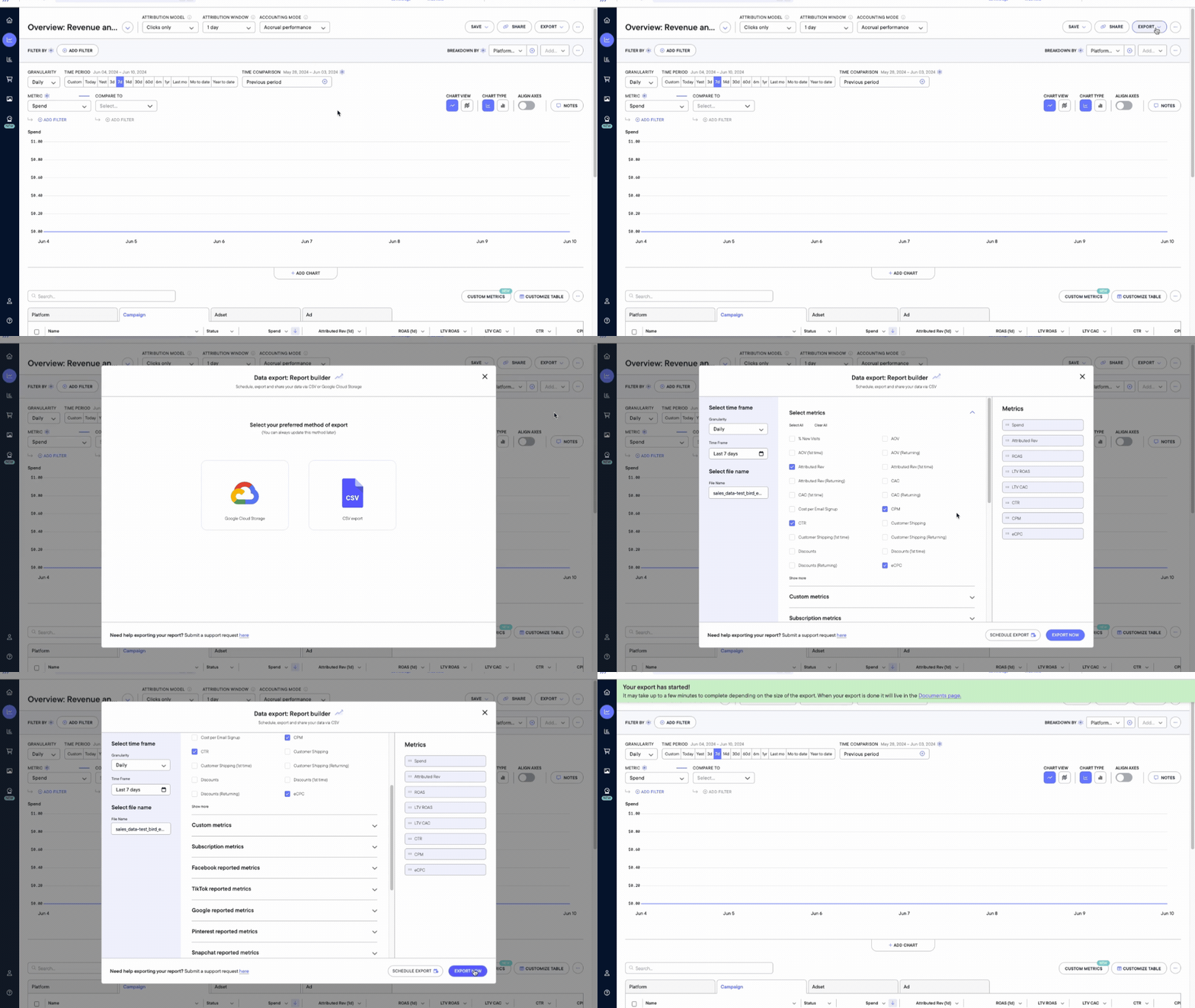
Table export options

These options appear in the Report Builder when you export Table Values.
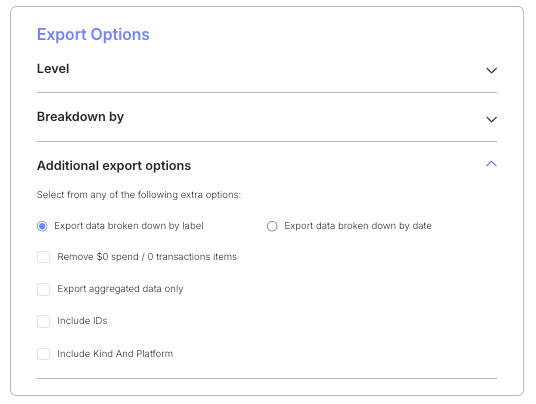
OptionWhat it does
Export data broken down by labelGroups data by the selected labels without breaking it out by date.
Export data broken out by dateBreaks data out using the selected granularity. Daily is the default; weekly periods run Sunday through Saturday.
Remove $0 / 0 transaction itemsRemoves rows valued at $0 or with zero transactions.
Export aggregated data onlyConsolidates the selected level instead of returning its individual rows. With Campaign level selected, all campaigns are combined.
Include IDsAdds Campaign, Ad Set, or Ad ID columns, depending on the level selected.
Include Kind and PlatformAdds Northbeam-specific columns describing the traffic source.

Export to Google Cloud Storage

Use this when you want the Sales table export delivered directly to your own GCS bucket rather than downloaded.

  1. Open the Sales page.
  2. Click Export.
  3. Select Table Values.
  4. Click Google Cloud Storage.
  5. Grant Storage Object Admin access to [email protected] in your bucket's IAM settings.
  6. Under Add Your Bucket, enter your bucket name.
  7. Click Validate to confirm Northbeam can reach the bucket.
📘

Chart Values cannot be sent to GCS — this option is available for Table Values only.


Did this page help you?