This guide does not cover full order or customer data migration into Shopify..
Why this matters
Shopify generates its own unique Customer IDs when customer records are imported. Northbeam relies on consistent Customer IDs to determine whether a customer is New or Returning. Without this step, every existing customer will appear as a New customer in Northbeam — because Shopify-generated IDs have never been seen before. To prevent this, you’ll store your historical Customer IDs in a Shopify customer metafield, which Northbeam’s engineering team will then map to your existing customer records.Before You Start
Make sure you have:- Access to your Shopify admin
- A customer export from your previous system with Customer IDs and email addresses intact
- Your Northbeam pixel still active on your storefront
Step 1: Create a Customer Metafield in Shopify
Do this before starting your migration.-
Login to your Shopify store at shopify.com if you haven’t already
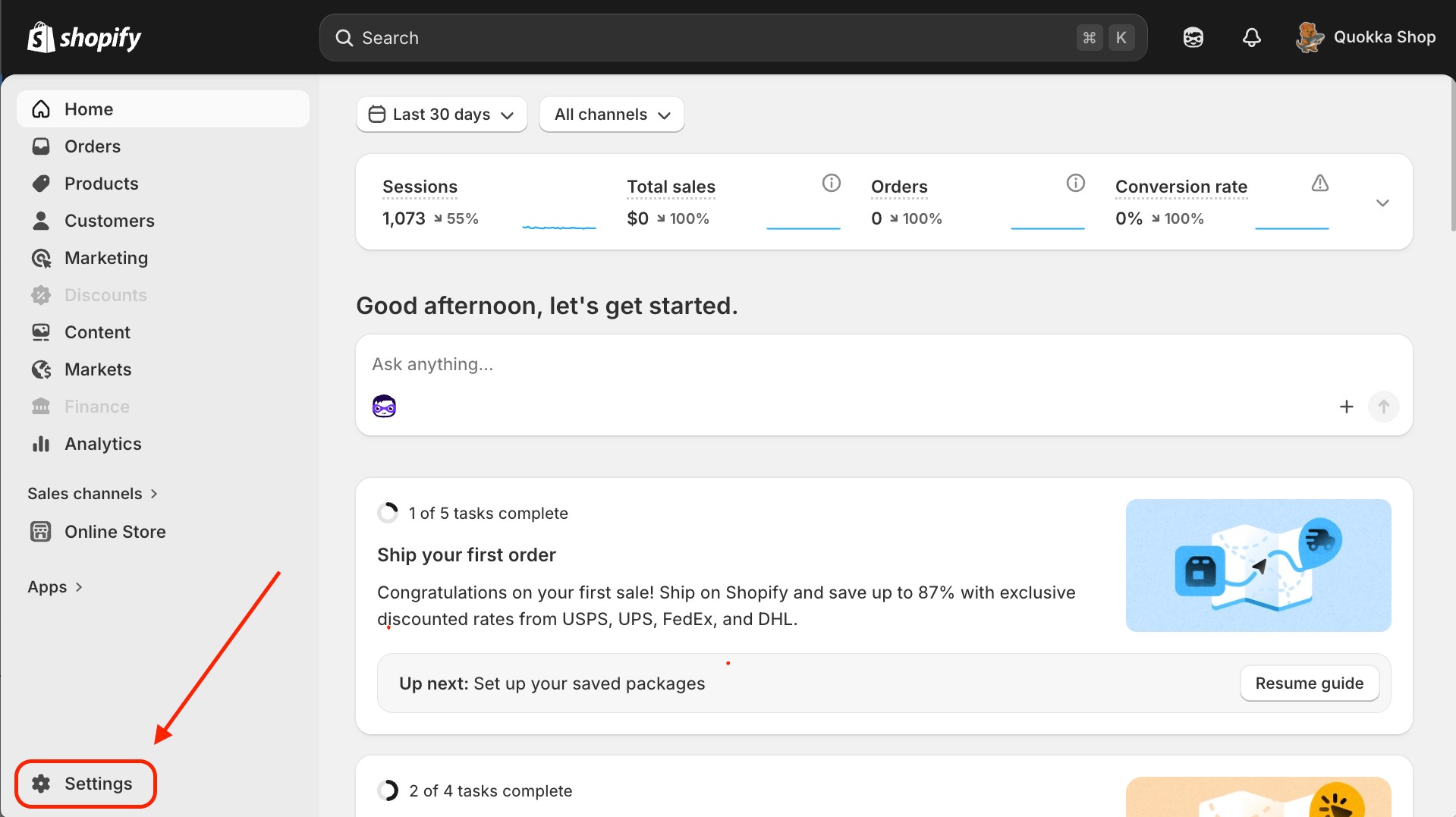
- Click on Settings — find this in your Shopify homepage on the bottom left corner

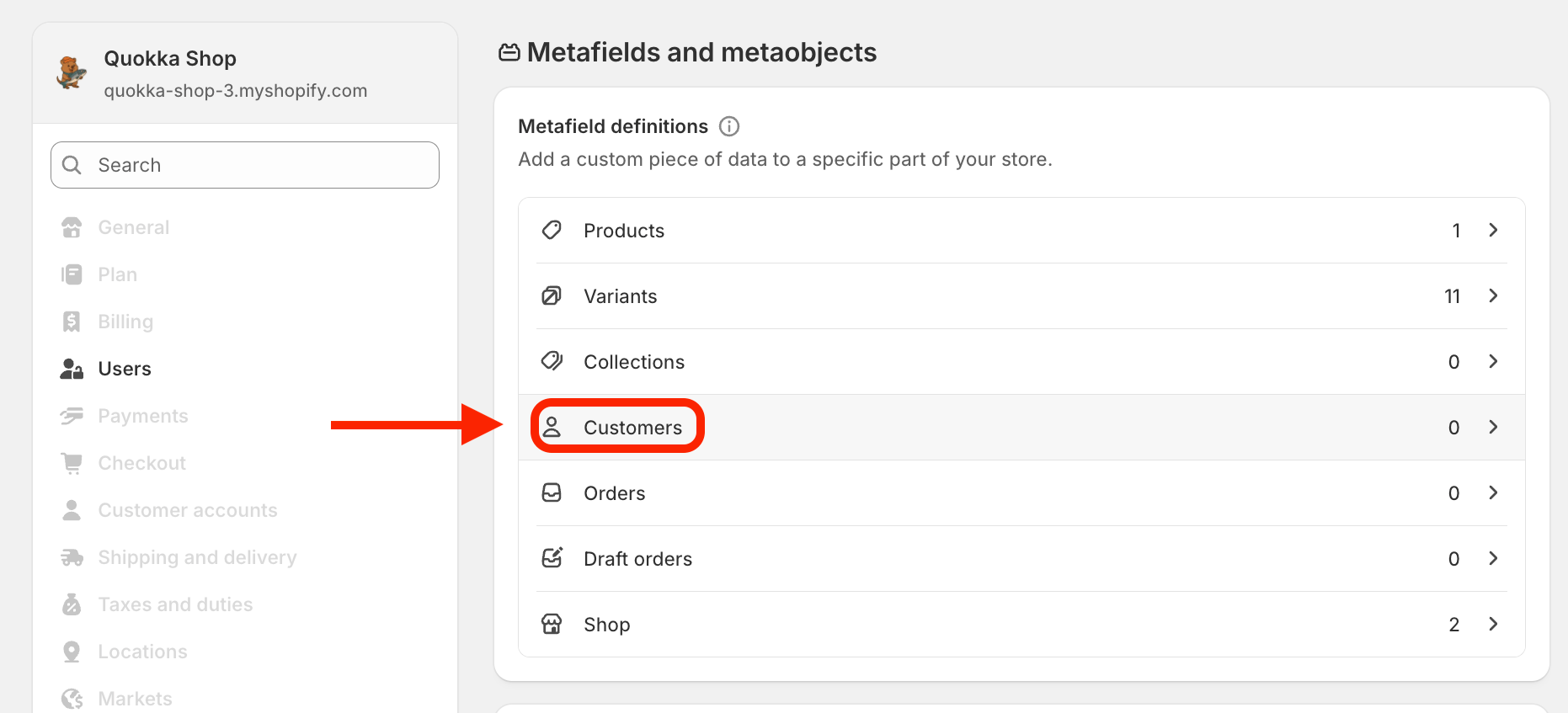
Metafields and metaobjects should be on the left in your settings menu
-
Click on Customers
-
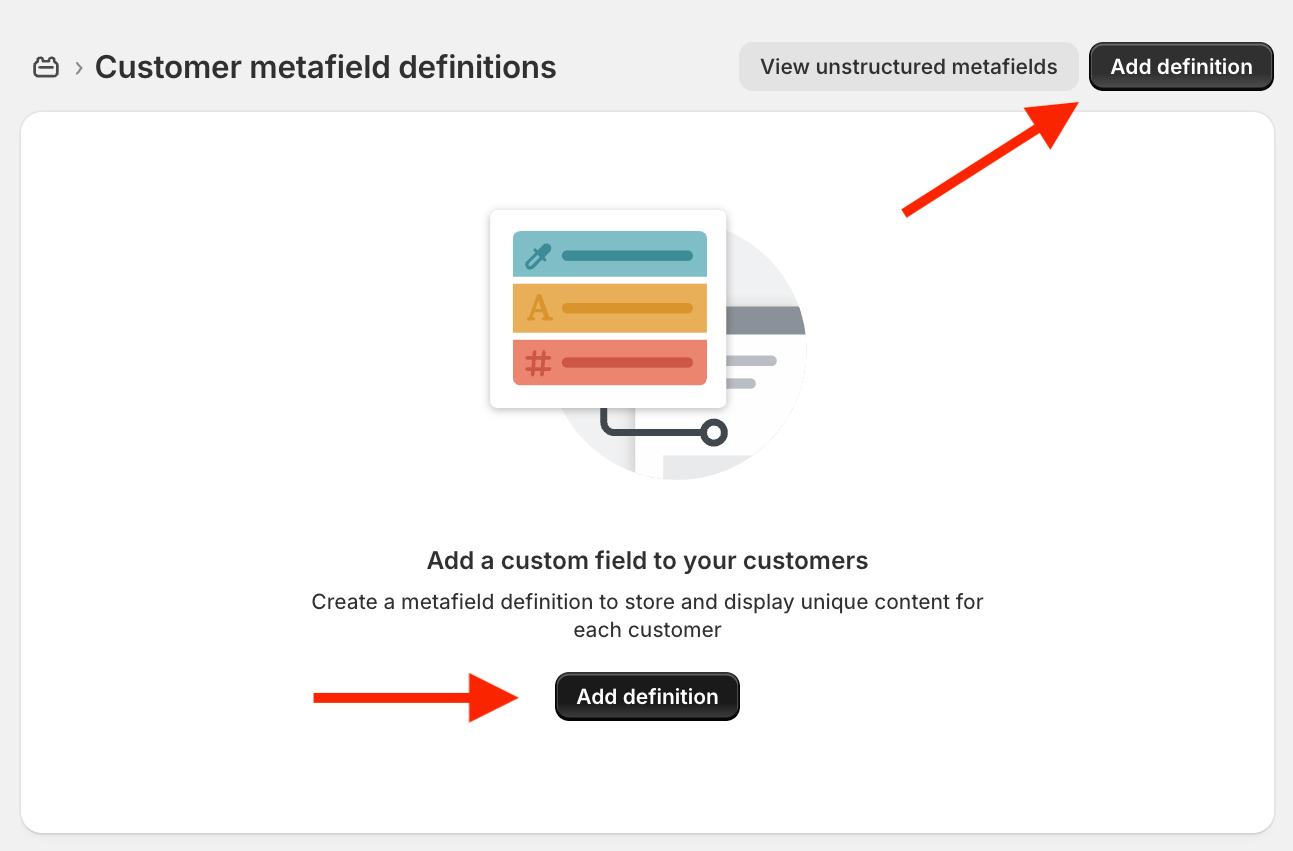
Click Add definition If you haven’t added one before, this button will be center-stage!
-
Customer Metafield Details
- Name:
legacy_customer_id— note this name exactly, you’ll need it later. - Type: Single line text
- Validation: minimum of 1 and max of 256
- Name:
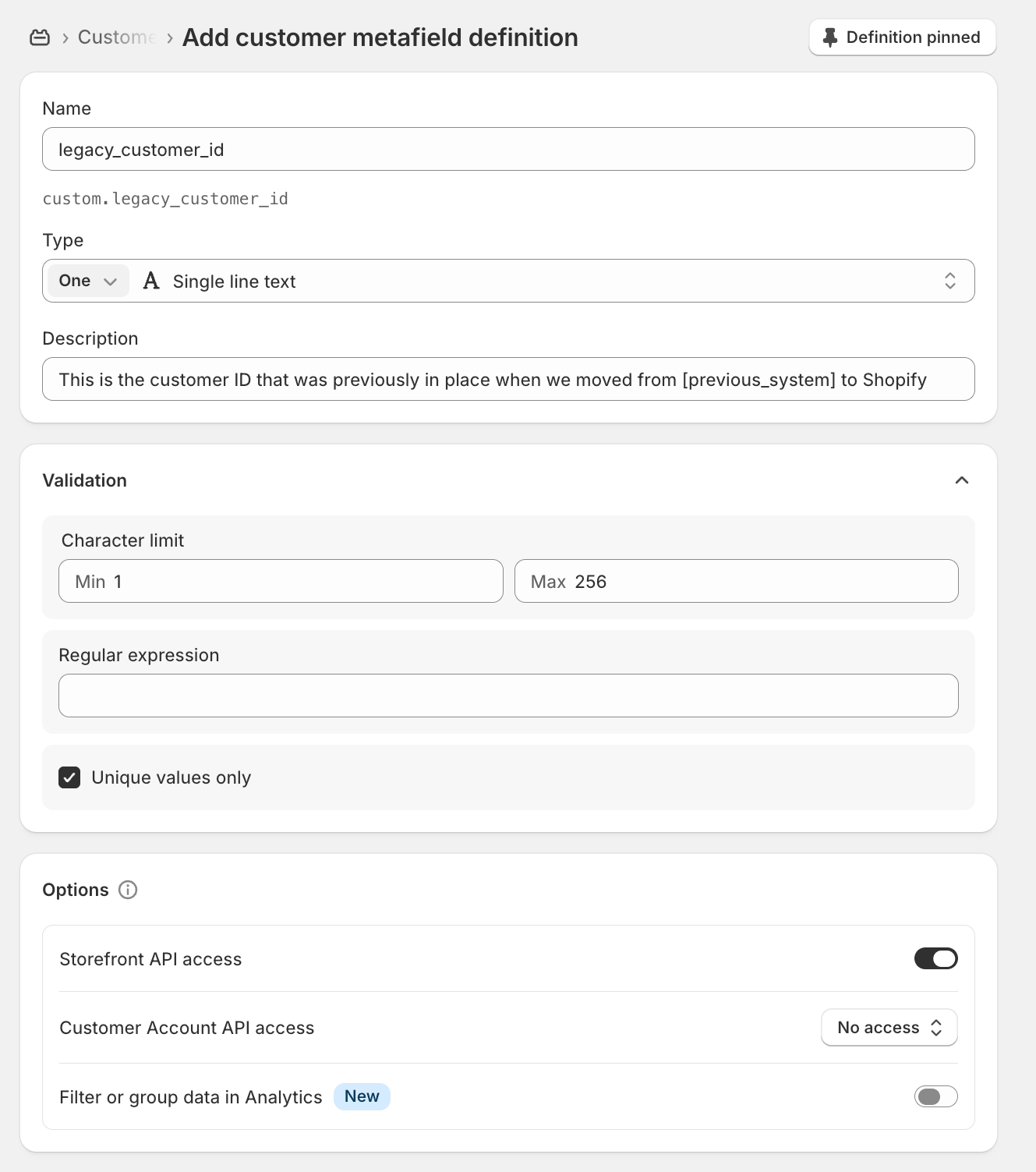
- Click Save
custom, making the full field key customer.metafields.custom.legacy_customer_id
This is the column header you’ll use in your CSV import.
Step 2: Export customer data from your current system
Before disconnecting your old system, export your customer list. At minimum, your export must include:- Customer ID (from your legacy system)
- Email address
Step 3: Format Your Customer List for Shopify
Use the Northbam Shopify Import Template to format your data The most common formatting mistake is getting the metafield column name wrong. It must be exactly:customer.metafields.custom.legacy_customer_id
Step 4: Import your Customers into Shopify
Proceed to your Customers page in Shopify.- In the top left corner, click Import:

-
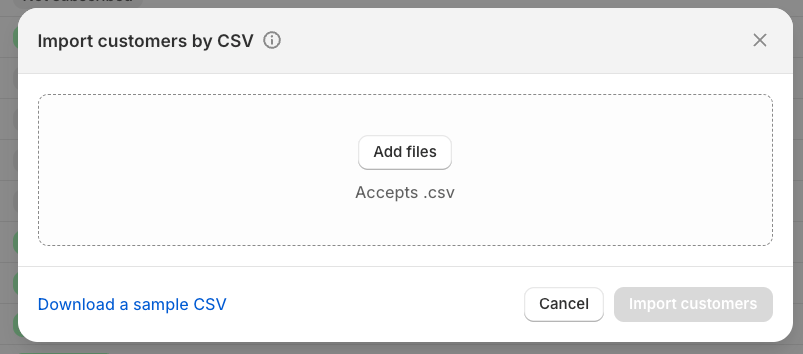
Import your CSV files!