

Overview
For platforms with native integrations (e.g., Meta, Adwords, TikTok, Pinterest, Snapchat), Northbeam fetches all your Campaign, Adset, and Ad data through our Standard API integration and reports it in your dashboard. We ingest all your metadata (e.g., Campaign, Adset, Ad IDs) to tie those sessions back to the ad that drove it — along with any conversions that occurred in that session. But if you’re using channels without a native integration — like Affiliates, Podcasts, Newsletters, Influencers, or Email — you can still achieve the same accurate, campaign-level reporting in Northbeam. It just takes a little extra setup.Expectation Setting
- No view-through conversions — only click-based models will be available (First Touch, Last Touch, LNDT, Clicks-Only)
This is a 3-Step Process
- Send us your spend data using the Spend API
- Attach UTM parameters on your ad links that match the spend data
- Create a custom label in Northbeam to align the spend and revenue data
Step 1: Setting Up the Spend API
1A: What is the Spend API?
The Spend API is how you automatically send daily ad spend to Northbeam from platforms we don’t connect with directly. It lets you send your own ad spend data from your internal database (or your client’s) into Northbeam. It’s most commonly used for:- Podcasts
- Newsletters
- Influencer campaigns
- Affiliate or email programs
- Any non-integrated channel
Important Note!
This is not a plug-and-play integration. It’s an API endpoint — you’ll need a developer to set up automated POST requests that deliver your spend data.1B: How Do I Set Up The Spend API?
Important Links:- Spend API Docs
- Endpoint:
https://api.northbeam.io/v1/spend
- API Key
- Client ID

Settings > API keys
1C: Required Fields in Your Payload
Each spend record must include the following fields:dateplatform_namecampaign_idcampaign_namespendspend_currency
Impression and Clicks
Do not sendimpressions or clicks. These fields are reserved for future use and currently ignored.1D: Structuring campaign_name
If your goal is to measure performance beyond just the platform level — like campaign-level, influencer-level, or any custom grouping — then campaign_name is essential.
It’s important to use the same values in campaign_name and utm_campaign (Step 2).
This is how Northbeam ties your spend (via the Spend API) to your traffic and conversions (via UTMs).
The labels (Step 3) will match the spend and revenue by linking…
campaign_name from your Spend API payload
to
utm_campaign from your UTM parameters
1E: What Values Should I Use?
You can technically use any values forcampaign_name, but we strongly recommend using a clean numeric ID like 12345.
Why Numeric Values Are Better Than Names
Using human-readable names likeSpring_Sale_2025 might feel more intuitive, but they often include special characters like spaces, %, $, or #.
When used in URLs (UTMs), those characters get automatically encoded, which creates mismatches — even if the values look visually similar.
For instance, a campaign named Holiday Sale $50 CPA might be encoded as:utm_campaign=holiday%20sale%20%2450%20cpa This leads to:
- Broken label rules
- Unmerged Spend + Revenue rows — making it very challenging to see any metric that includes revenue and spend (ex. CAC, ROAS, etc.) at the campaign-level in the dashboard.
1F: Spend API Responses
If your request returns a 201 status, your spend data has been received and stored.
It will become visible in your Northbeam dashboard after the next data processing run.curl before setting up automated jobs — and confirm that you’re receiving a 201 success response.
Step 2: Setting up UTM Parameters
In Northbeam, UTMs are captured in real-time at the moment a visitor lands on your site. This tracking is handled by our pixel and cannot be changed after the fact, so it’s important to get your UTM setup right from the start.2A: Required UTM Parameters
utm_sourceutm_mediumutm_campaign
utm_campaign matches the campaign_name from the Spend API, your spend and revenue will align correctly.
You can use any values for utm_source and utm_medium, but we recommend using the platform name for one or both fields to clearly indicate where the traffic came from. While not required, keeping these values consistent makes it easier to group and label performance data in Northbeam.
That said, if you already follow a specific structure for tools like Google Analytics, it’s totally fine to keep using it — as long as each platform’s traffic can be uniquely identified (e.g. with a distinct source + medium combo), you’ll be in good shape.
2B: Other Requirements
- Make sure the Northbeam Pixel is firing on your landing page
- Your landing page must be on the same top-level domain as the domain connected to Northbeam (for first-party tracking).
- Subdomains (like
shop.example.comifexample.comis connected) are fully supported - To check your connected domain, open Profile in the Northbeam dashboard.
- Subdomains (like
UTM & Spend Field Mapping Example
Step 3: Creating Custom Labels
Once your spend and UTM data are both flowing into Northbeam, you’ll see them appear in the dashboard — but initially, they will show up as separate rows in the Sales table. This happens because spend data (from the Spend API) and revenue data (from UTMs) come in through different sources and aren’t automatically grouped. As a result, performance metrics like ROAS and CAC will be split across rows and calculated incorrectly. Example of of Separate Rows:
To consolidate spend and revenue into one row, you’ll need to create a custom label that groups them under a shared identifier. Once applied to your view, this label will allow you to see merged metrics — like ROAS and CAC — correctly.
3A: Creating a New Breakdown Label
Follow these steps to build the label:- Open the Sales page in your Northbeam dashboard.
- Click the three dots (…) next to Breakdown By, then click Manage Breakdowns. You can also open Breakdowns directly.
- Click Add Breakdown.
📊 Example Data Structure
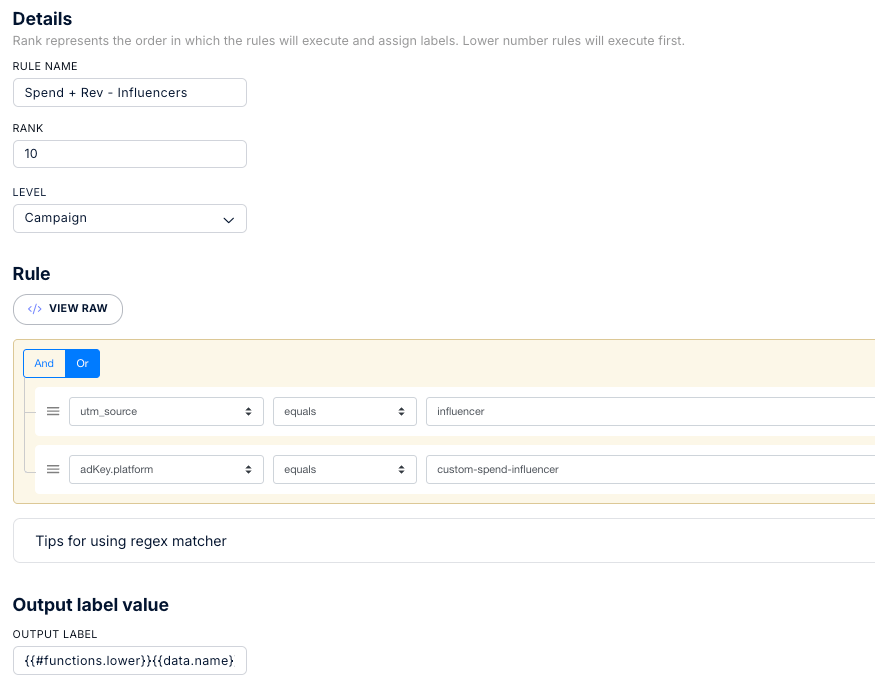
3B: Breakdown Rule Logic
Use OR logic to group matching revenue and spend sources:3C: Output Label Logic
The Output Label Rule is how the matching criteria will be labeled.🧾 Example Output (After Label Applied)
Based on the example logic above, once your label is applied, your data will be grouped like this in the Sales page:
Example in the UI
Optional: Make Your Breakdown Rule Logic More Flexible
equals requires an exact match — including case and spacing — which can be too strict for UTMs.
Instead, feel free to use use:
contains– Matches if the value includes a substring
Example:utm_campaign contains 12345matchesnb_12345_email_blastmatches regex– Best for case-insensitive and flexible matching
Example:This matches any version ofinfluencer(e.g.,Influencer,influencer_campaign_1)
Step 4: Viewing Your Merged Data
Once you’ve created and applied your custom breakdown, you can now view your unified spend and revenue data in the Sales dashboard. Here’s how to do it using the “Spend + Rev – Influencers” breakdown as an example:- Open the Sales page in your Northbeam dashboard.
- Click the dropdown next to Breakdown By, then select your breakdown (ex. “Spend + Rev – Influencers”)
- Click into the Influencer platform (or any relevant platform you’re labeling).
- Toggle the view to Campaign-level.
- You should now see merged rows that align spend (from the Spend API) and revenue (from UTMs) under the same campaign name.