

Introduction
This guide will show you how to set up Paramount Ads spend tracking and deterministic view attribution in Northbeam. Once the Paramount pixel is installed and the account is connected, Northbeam will receive:- Spend data from Paramount Ads
- Deterministic impression and view data used for Clicks + Deterministic Views attribution
- Paramount revenue and ROAS reporting when eligible views can be matched to orders
Step 1: Install the Paramount Pixel
Before connecting the integration, install the Paramount pixel on the website where customers place orders. The pixel is required for Paramount view data to be matched to Shopify orders. Open the Paramount Ads Manager pixel setup page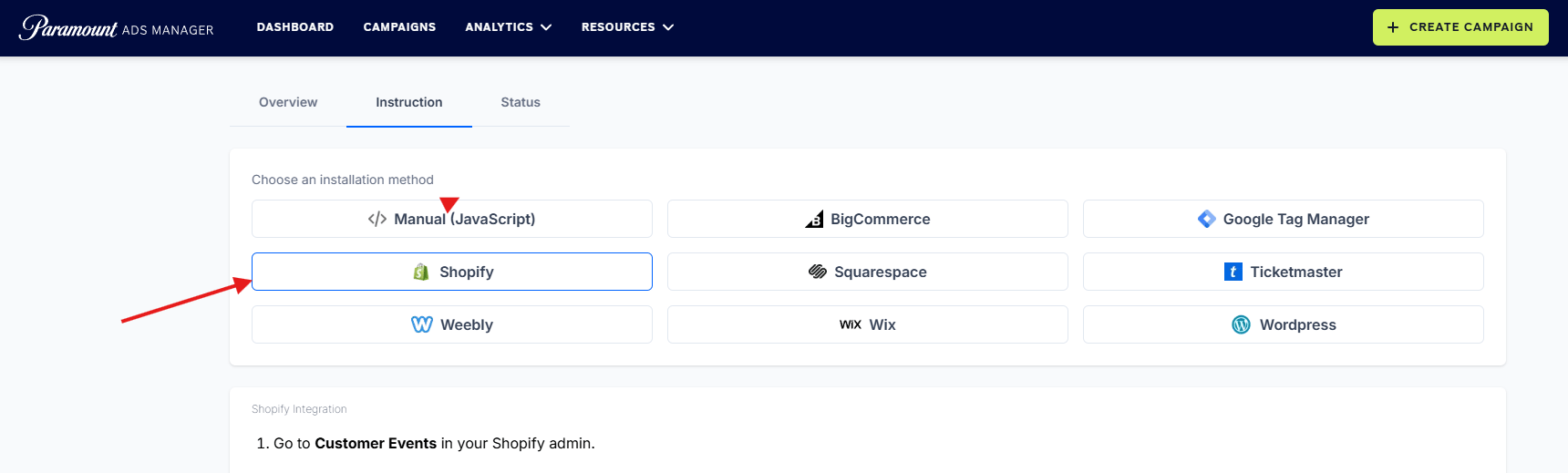
Sign in required: You must be signed in to Paramount Ads Manager to open the pixel setup page.
Step 2: Connect Your Paramount Ads Account
Northbeam connects to Paramount Ads through an authorization flow.- Onboarding: Go to Integrations → Paramount Ads.
- Dashboard: Open Connections and select Paramount Ads.
-
Click Connect on the Paramount Ads integration card.

-
Sign in using your Paramount Ads Manager email address and password.
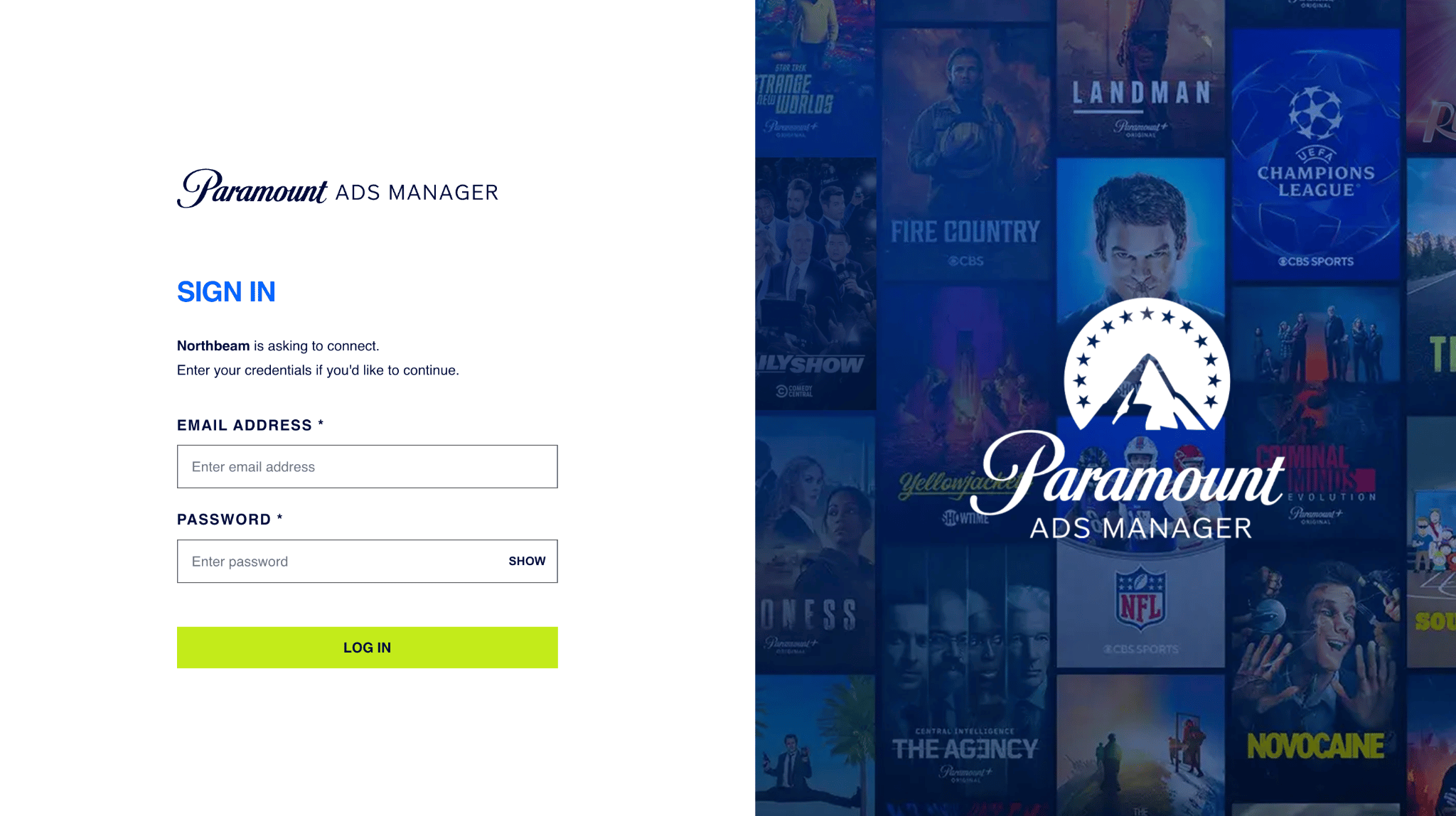
-
Review the requested permissions and click Allow Access.
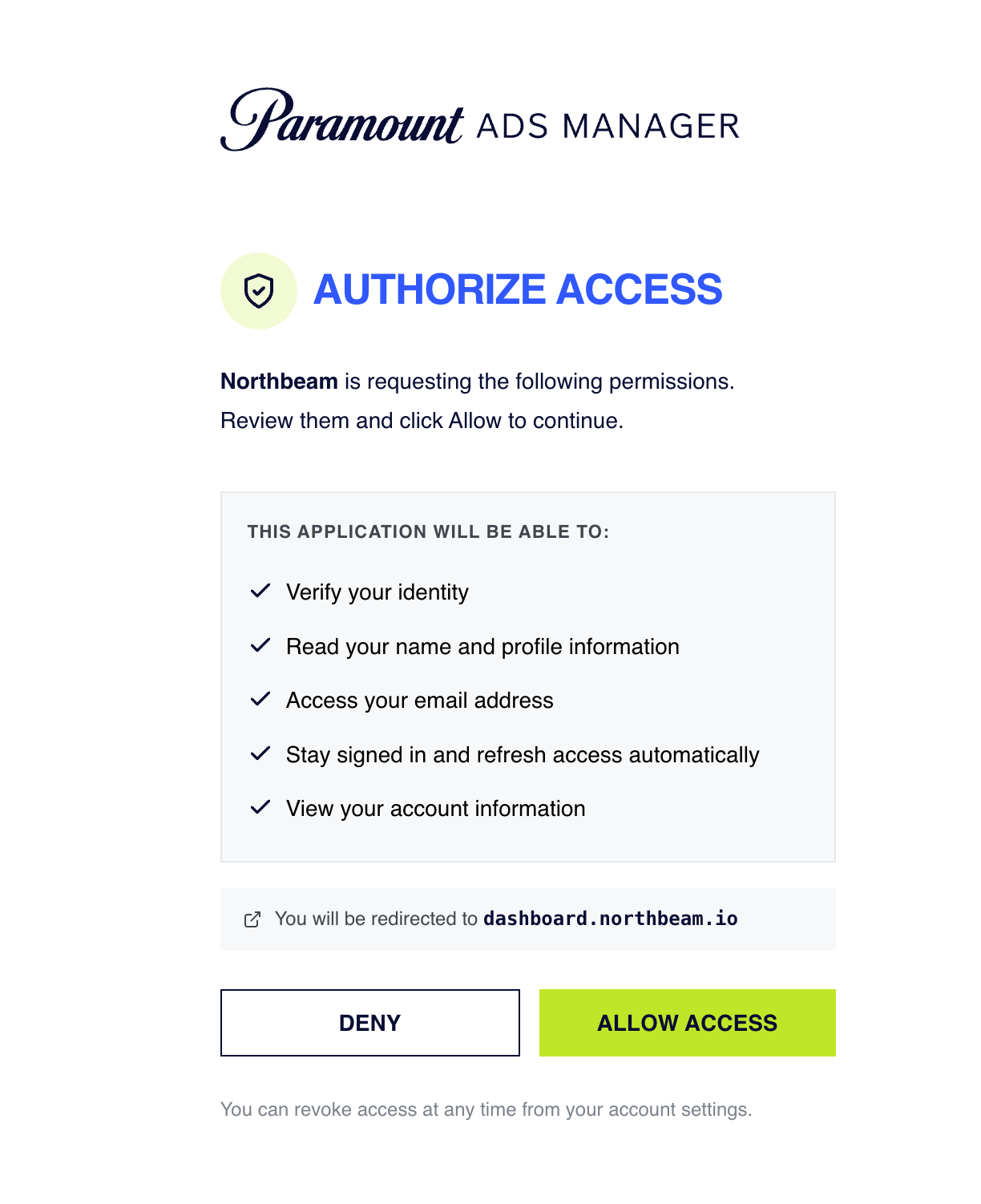
-
After you are redirected to Northbeam, confirm that the correct ad account appears under Linked accounts.
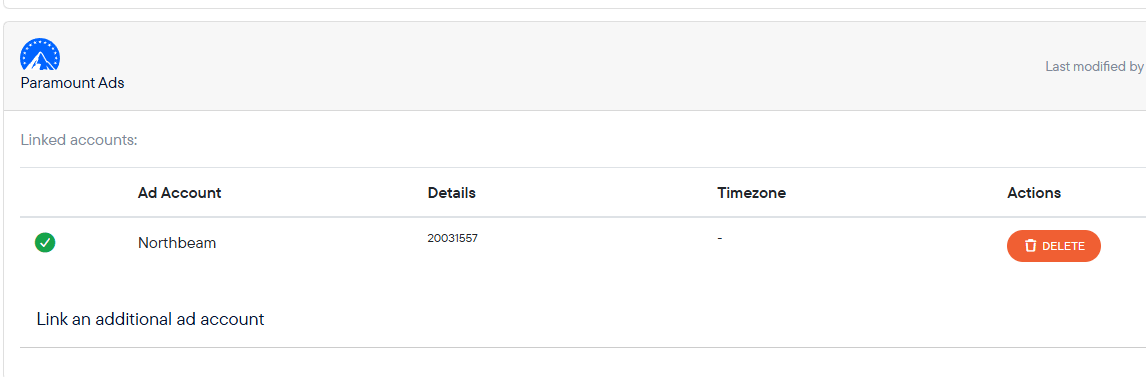
To connect another account, select Link an additional ad account.
Step 3: Verify the Integration
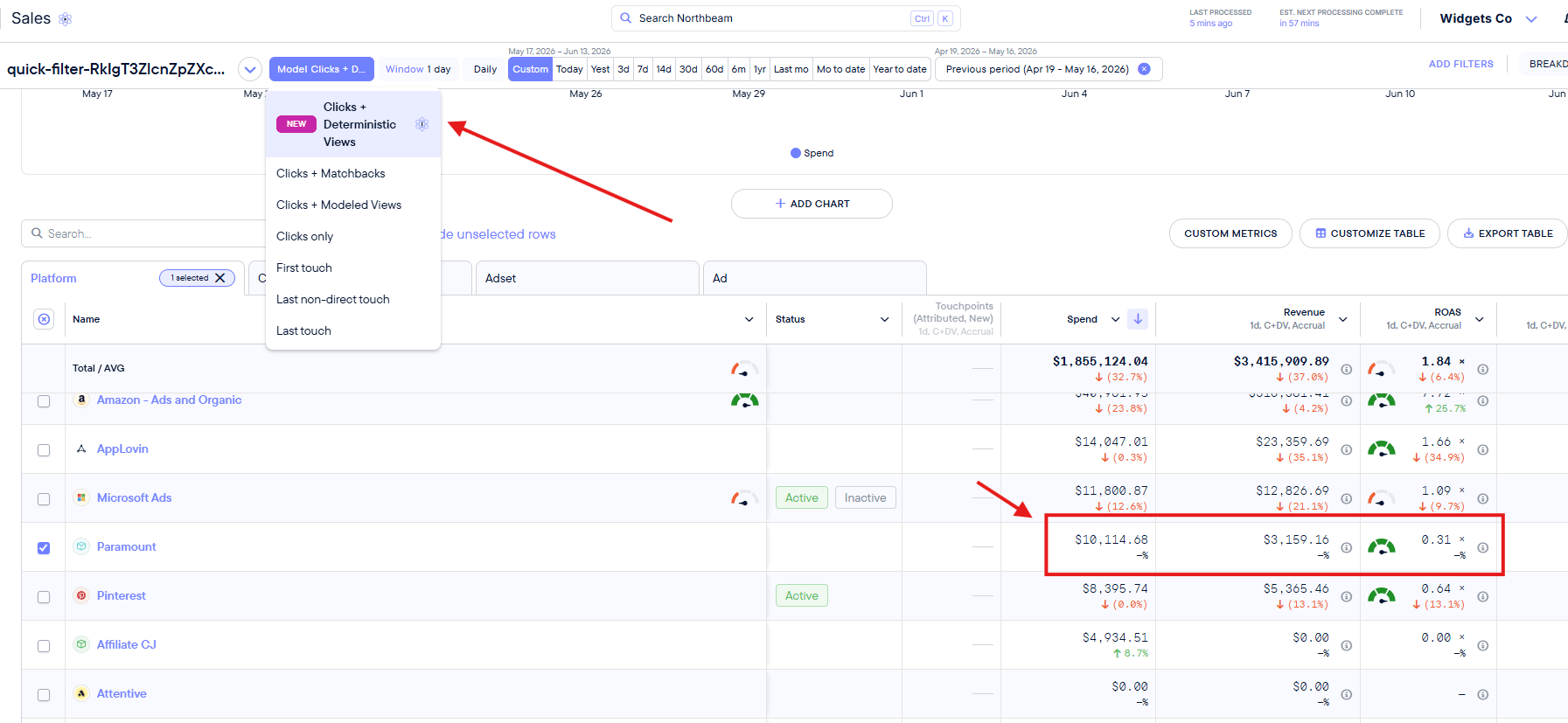
Allow up to 24 hours after setup for Paramount spend and view data to appear. You can then verify the integration from the Sales Attribution or Model Comparison page.- Select the Clicks + Deterministic Views model.
- Confirm that Paramount spend is present for the expected date range.
-
Confirm that Paramount revenue and ROAS populate when deterministic views are matched to orders.
Paramount Ads FAQ
1. Does the Paramount Ads integration support attribution or revenue tracking?
Yes. Paramount supports Clicks + Deterministic Views attribution when the Paramount pixel is installed and the account is connected. It does not support click based attribution because Paramount does not provide click data for this TV integration.2. Does Paramount require UTMs or NBT parameters?
No. Paramount is a view based TV platform in this integration, so UTMs and NBT parameters are not required or supported.3. Which Northbeam attribution model should I use for Paramount?
Use Clicks + Deterministic Views. Clicks Only, Last Click, First Click, Linear, and Clicks + Modeled Views are not supported for Paramount attribution.4. How far does Paramount spend backfill?
When the account is first connected, the integration can backfill the full available spend history provided by Paramount.5. Why might Paramount reporting differ from Northbeam?
Paramount uses a 30 day attribution lookback period in its platform reporting and may assign full credit to conversions it attributes to Paramount. Northbeam uses its own attribution methodology, selected attribution window, and cross channel touchpoint data. Differences between the two platforms are therefore expected.6. Why don’t I see Paramount data yet?
Paramount spend and view data may take up to 24 hours to appear after the integration is connected. If the data is still missing after 24 hours:- Open Connections and check the Paramount Ads connection for errors.
- Confirm that the Paramount pixel is installed on the website where orders are placed.
- Reconnect the integration if the authorization has expired.
- Confirm that the correct Paramount Ads account is linked.
7. I think there’s an issue with my Paramount integration. Please help!
Please reference Troubleshooting Northbeam Data.- Connection: Open Connections and check for any errors on the Paramount Ads connection.
- Authentication: Reconnect the integration if authorization has expired
- Data Sync Timing: Spend data may take some time to appear after connecting, depending on Paramount Ads data sync timing