

Before you start, make sure you have:
- A login to ROKT One Platform (
my.rokt.com) so you can generate API credentials - A ROKT account lead you can contact to add the Northbeam UTMs
1. Connect the account
Generate an App ID and App Secret in ROKT and add them in Northbeam.
2. Add Northbeam parameters
Ask your ROKT account lead to add the Northbeam UTMs.
3. Confirm tracking
Check that UTMs and the connection are working.
Connect your ROKT account
Generate your API credentials in ROKT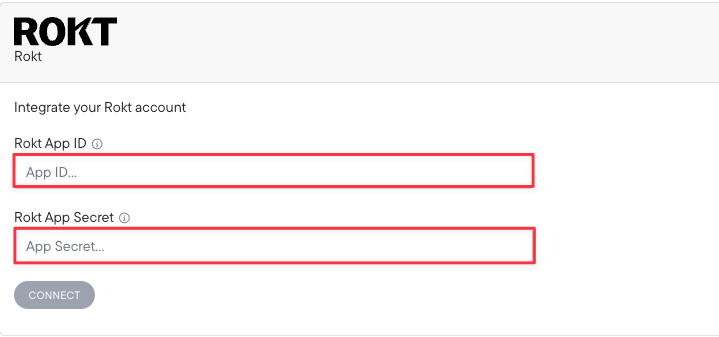
- Sign in to One Platform at
my.rokt.com. - Open Profile Settings (under your account icon at the bottom left).
- Scroll to Generate Personal API Credentials.
- Enter a name for your app and click Generate. ROKT creates an App ID and App Secret.
Northbeam. It’s only for your own reference. See ROKT’s guide to generating an App ID and App Secret.Enter the credentials in Northbeam- Open Connections and select ROKT.
- Paste your App ID and App Secret.
- Click Connect.
Settings > Connections > ROKT
Add Northbeam parameters to your ads
You don’t add these yourself. Contact your ROKT account lead, and they’ll add the Northbeam UTM parameters for you.
Confirm tracking
Once the connection is live and the UTMs are on your ads:
- Parameters captured: follow Checking UTM tracking to confirm the Northbeam parameters reach your landing pages.
- Connection syncing: follow Checking platform connections to confirm the account shows as connected and data is arriving.
Supported attribution models
The ROKT integration supports these Northbeam attribution models:- First Touch
- Last Touch
- Last Non-Direct Touch
- Clicks-Only
- Clicks + Modeled Views (C+MV)
Need help?
Troubleshooting Northbeam data
Start here if a check above fails.