

Google Ads FAQ
1. How do I connect an extra account or remove an account?
Reference our step-by-step guide below:Adding an Extra Google Ads Account
Google Ads lets you manage multiple ad accounts under one Manager Account (MCC). Before adding an extra account in Northbeam, you’ll need your Manager Account ID handy.Before you start: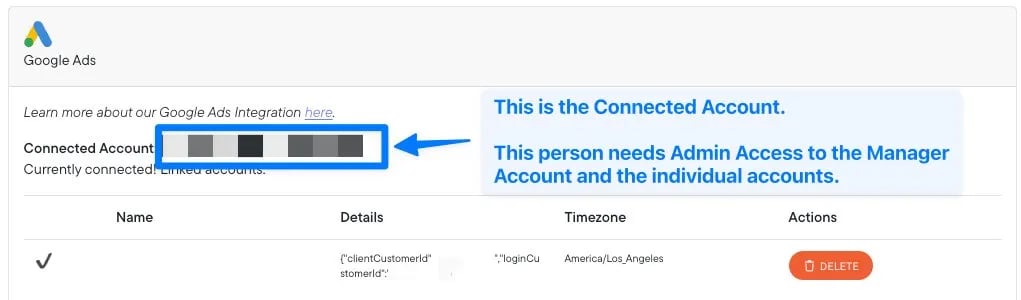
- All Google Ads accounts you want to connect to a single Northbeam dashboard must be under the same Manager Account.
- The user shown next to Connected Account in your Connections Page is the one who authenticated the integration. This person must have Admin access to both the Manager Account and each individual account being added. Without this, the connection will fail.
Step 1: Find your Manager Account ID
Log into Google Ads and go to Accounts. Your Manager Account ID is the number in the top header (e.g.651-XXX-XXXX).
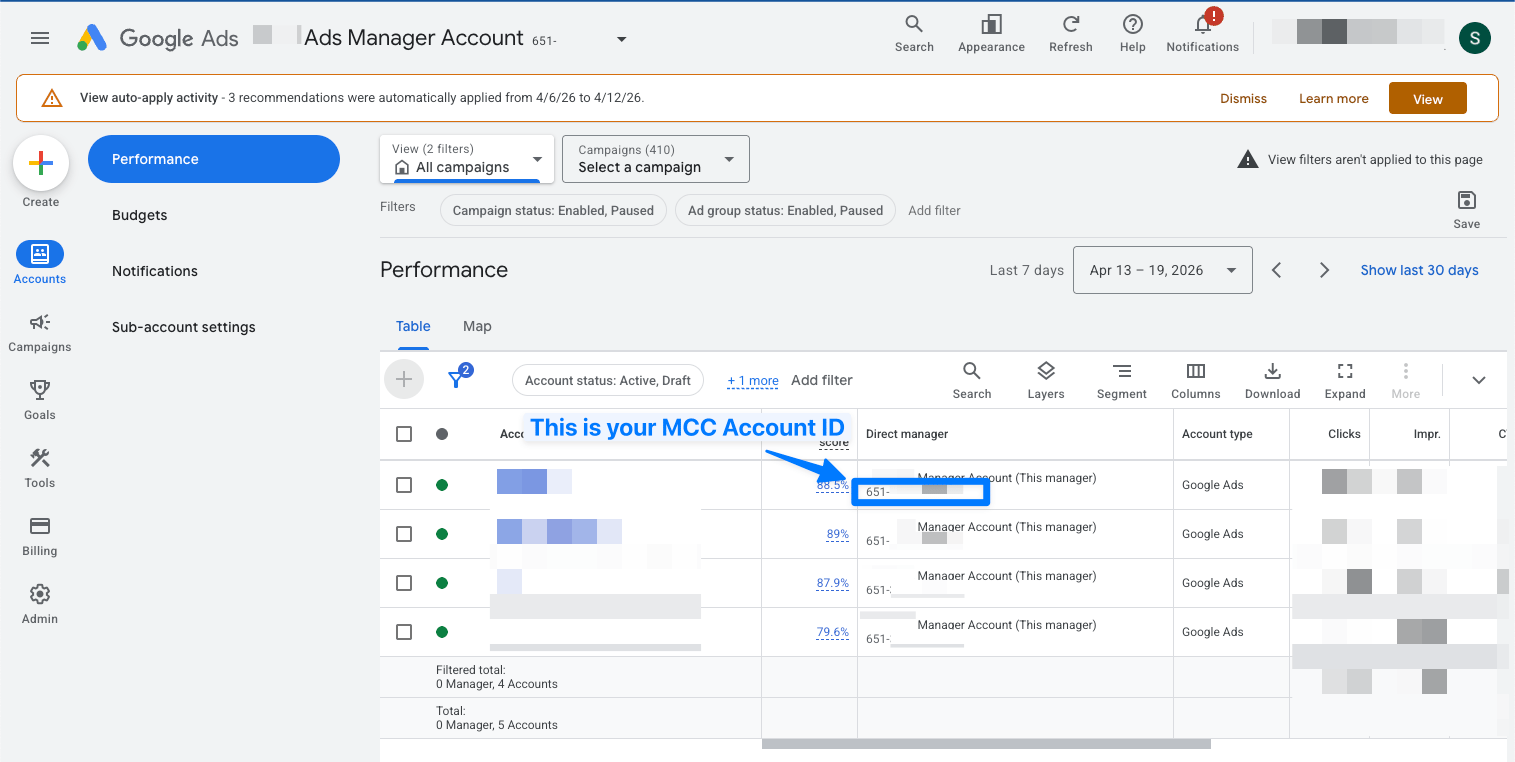
Log into Manager Account > Accounts
Step 2: Update the MCC ID in Northbeam
- Open Connections and select Google Ads.
- In the field labeled “Update your login customer id (parent MCC account)”, replace the existing value with your MCC Account ID.
- Click Save
- Once saved, click Add another account to expand the search panel
- Search for and select the account you want to add
- Confirm the connection
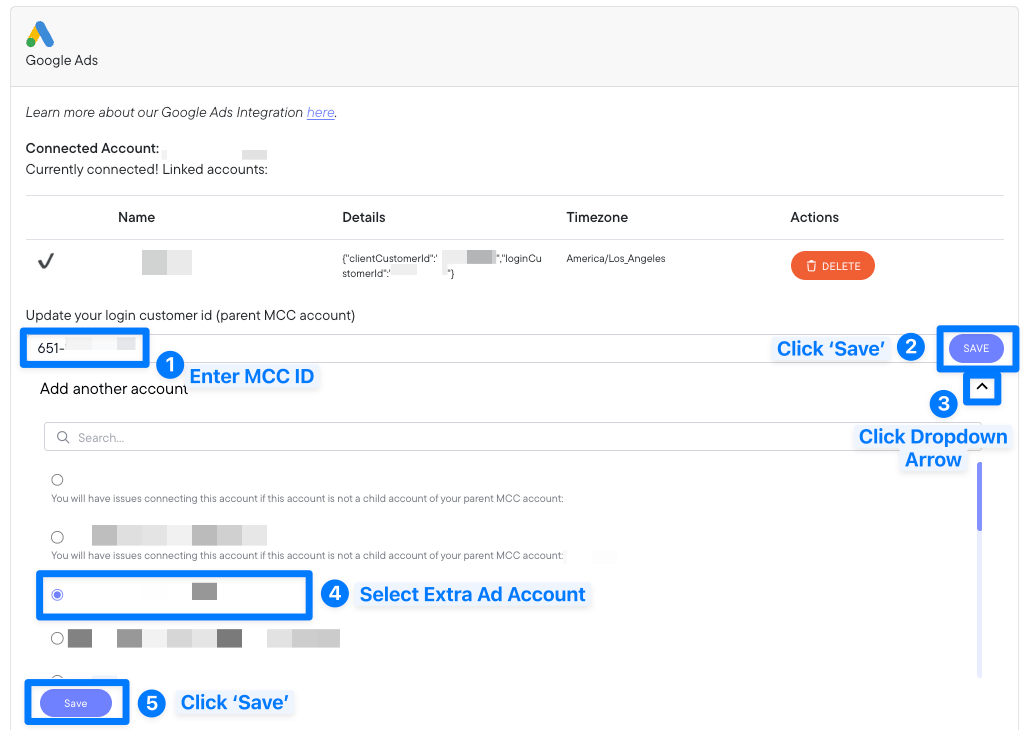
Seeing a warning?It usually means your Manager Account ID doesn’t match the account you’re trying to add. Double-check the ID and try again.
Removing an Account
To remove a connected account, click the Delete button next to the account name in the Connections panel.2. Why do I see a data discrepancy?
Discrepancies in Revenue, Orders, and Visits are expected. The reason for this lies in the differences between Northbeam’s attribution model and the corresponding platform’s attribution model. Each attribution model has a unique method of allocating credit. For example, Northbeam’s Clicks-Only model divides credit across all touchpoints and tries to push credit to your upper funnel channels. Let’s say your in-platform model uses Last Click, which gives credit to the last touchpoint in the journey. This is going to cause a discrepancy. To take it one step further, let’s say both Northbeam and in-platform are using Last Click. Northbeam is unique in that we recognize all touchpoints from every single channel. Whereas most platforms only recognize touchpoints from that same platform. In addition, there’s often a difference in the attribution window. By default, Northbeam leverages a 1-Day window, which is different than many other platforms’ default. To get the most apples to apples comparison, be sure to compare data using same Attribution Model and Attribution Window. But keep in mind, it will never be exact.Attribution Models and Windows
Google:- Attribution Model: Last Click (default)
- Attribution Window: 30-Day Click (default)
- Attribution Model: Varies (default is Clicks-Only)
- Attribution Window: 1-Day (default, can extend to an infinite lifetime value)
3. I think there’s an issue with tracking. Please help!
Please reference our Correct System Setup FAQ.- Connection: Make sure your Ad Account is still connected. Open Connections and check for any errors. Connections could break for a variety of reasons, but most commonly, the User losing access to the Ad Account.
- UTMs: Ensure all your ads contain Northbeam UTMs, as listed in the UTM step above.
- Northbeam Pixel: Ensure the Northbeam Pixel is firing on your landing page. Note that some site themes may not automatically transfer to landing pages on certain third-party apps, necessitating manual pixel placement.
- Purchase Pixel: Confirm that the Purchase Pixel is firing on your checkout page.
- A-Record Setup: Verify that the A-Record is correctly configured in your DNS Settings.