

Verify the integration
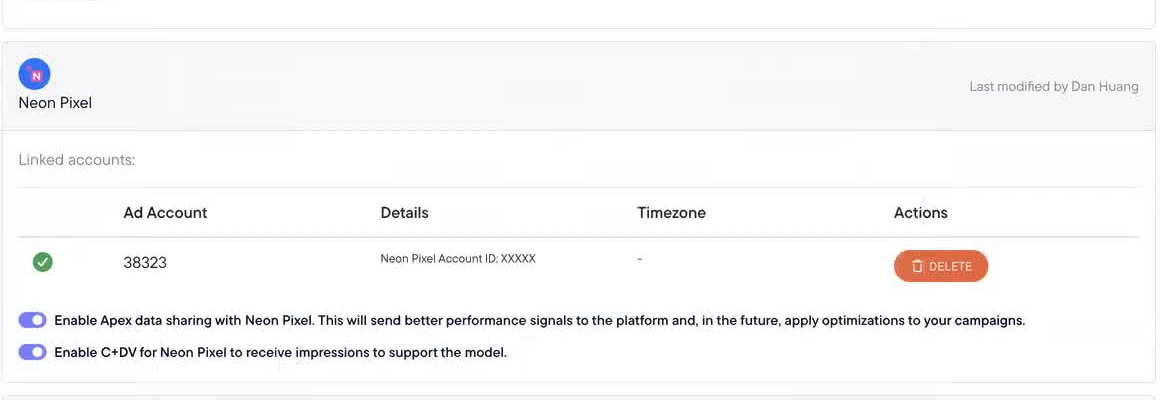
Return to Settings > Connections > Neon Pixel and confirm that:- The connection card displays a green confirmation icon.
- The correct Neon Pixel ad account ID is linked.
- Enable C+DV for Neon Pixel is turned on.
- Apex data sharing reflects your preferred setting.
- Confirm that Clicks + Deterministic Views and Neon Pixel are both enabled in Model Settings.
- Confirm with your Neon Pixel representative that impression setup is complete.
- Allow approximately 48 hours for data to begin flowing.
- Open Sales Attribution and select the Clicks + Deterministic Views model.
- Confirm that Neon Pixel spend appears for the expected date range.
- Confirm that revenue and ROAS populate when eligible impressions are matched to orders.
After switching: items to review
Historical data from the previous connection is not deleted. However, Northbeam automatically updates only built-in platform references — it does not rewrite user-created configurations. Review the following after switching, since saved views and columns that reference the inactive platform may appear blank:- Custom metrics
- Breakdowns
- Saved views
- Scheduled exports
- Marketing Mix Modeling mappings