
Migrating to Shopify
This article is for existing Northbeam customers who currently use Orders API with their existing Orders Management System who are migrating over to Shopify.
This guide is not an exhaustive guide on how to migrate all your data from your system to Shopify
This guide is focused only on transferring and preserving your legacy customer ids so Northbeam can continue to correctly identify if a Customer is New or Returning.
What are we doing here and why?
Shopify has their own definition of Customer IDs. By default, when you import your old data into Shopify, they will create new unique Customer IDs. Northbeam relies on the uniqueness of a Customer ID to determine if a customer is New or Returning.
If you migrate to Shopify without preserving and importing your old Customer IDs, your existing customers making purchases will now appear to Northbeam as New customers as Shopify's new customer IDs have not been seen by your Northbeam dashboard before.
We recommend migrating your order management system to Shopify without losing Northbeam customer stages.
This guide walks you preparing to configure Shopify to preserve your old Customer IDs with a custom metafield on the Customer object in your Shopify instance.
Its important to note that this article only covers the preservation of Customer Stages in Northbeam through the preservation of your historical Customer IDs and will not cover the nuances of migrating all your data from your old system to Shopify.
Step 1: Before you migrate
Complete these steps before starting your migration:
-
Login to your Shopify store at shopify.com if you haven't already
-
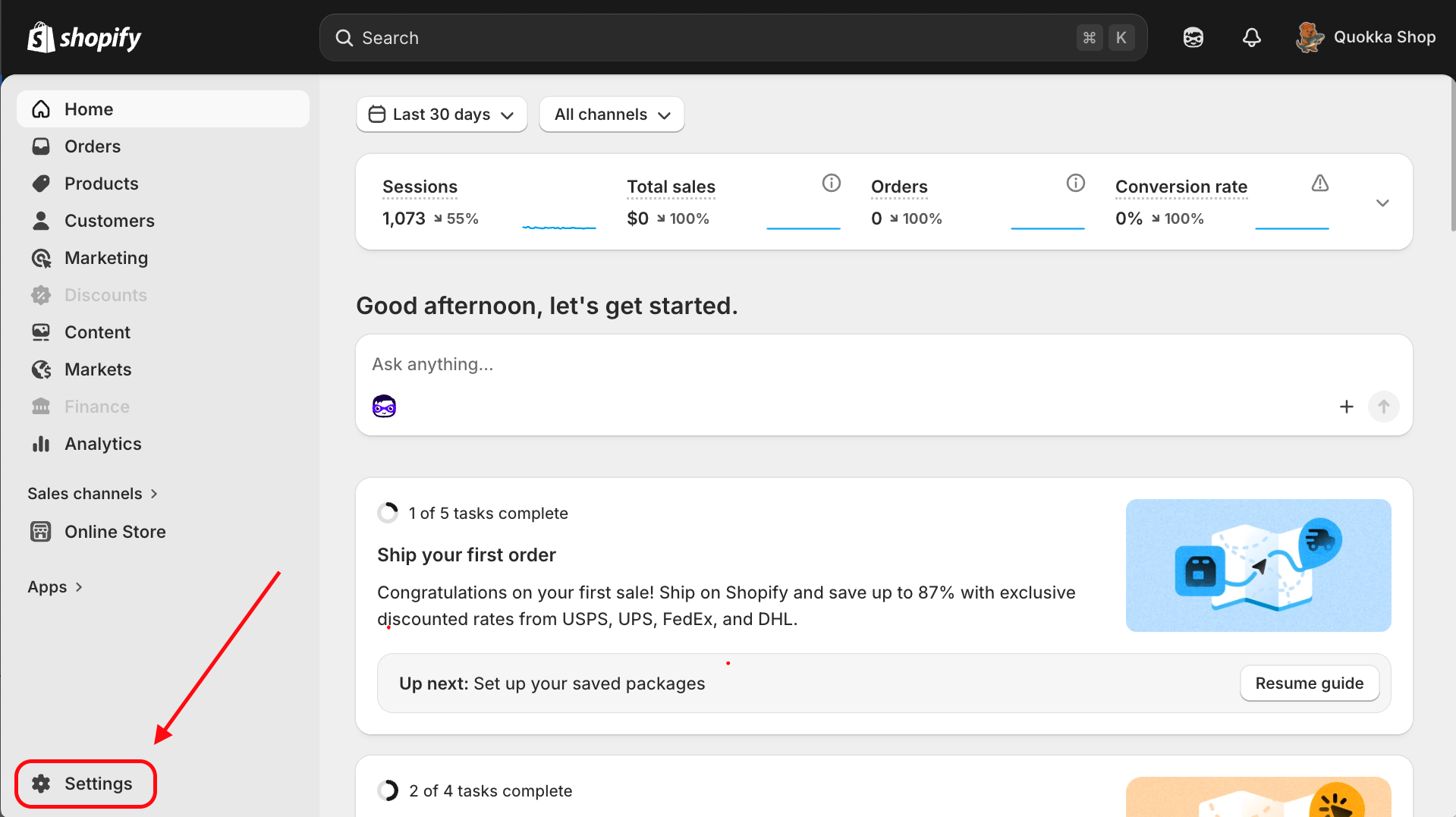
Click on Settings — find this in your Shopify homepage on the bottom left corner
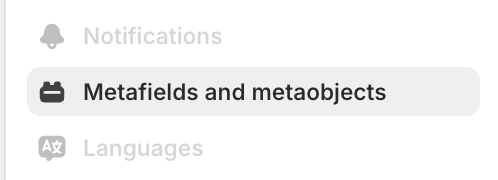
Metafields and metaobjects should be on the left in your settings menu
-
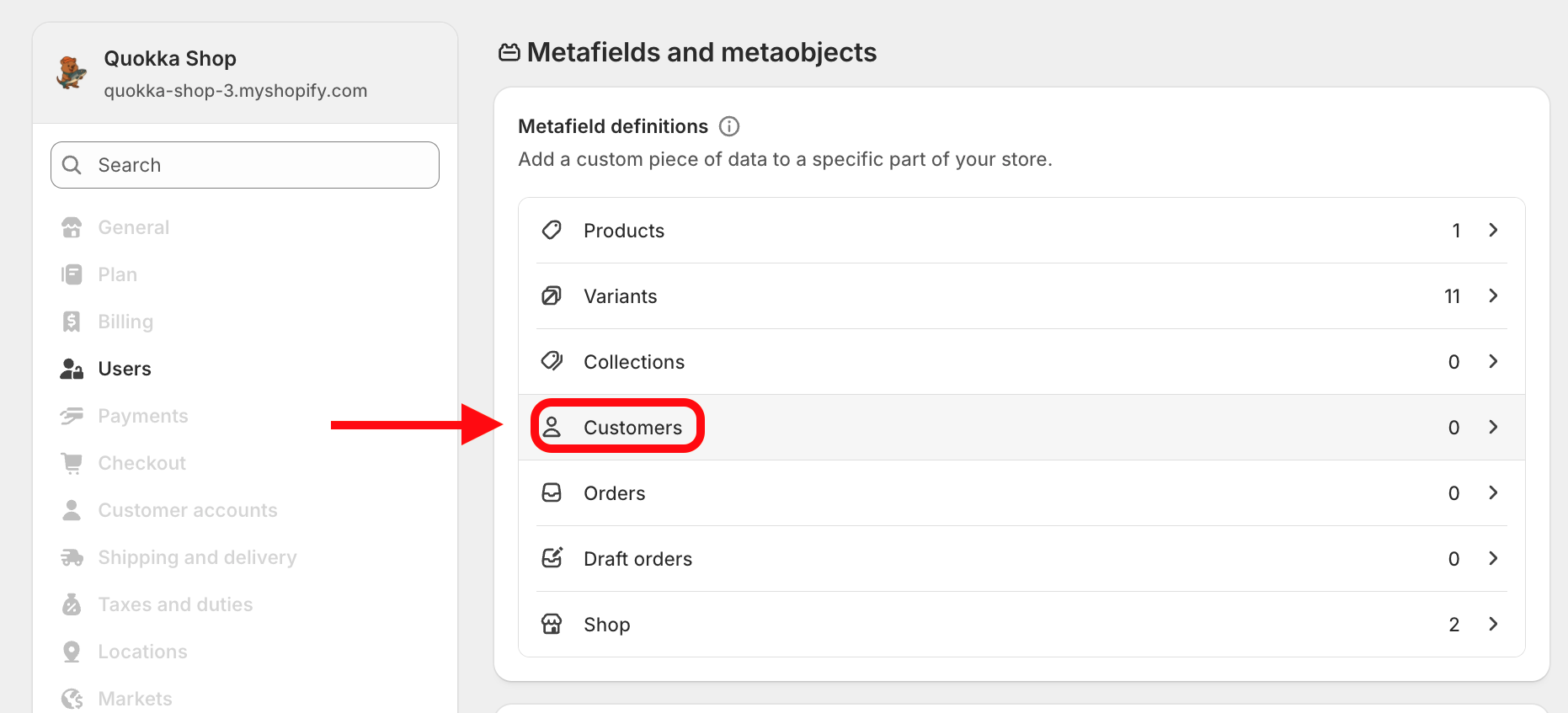
Click on Customers
-
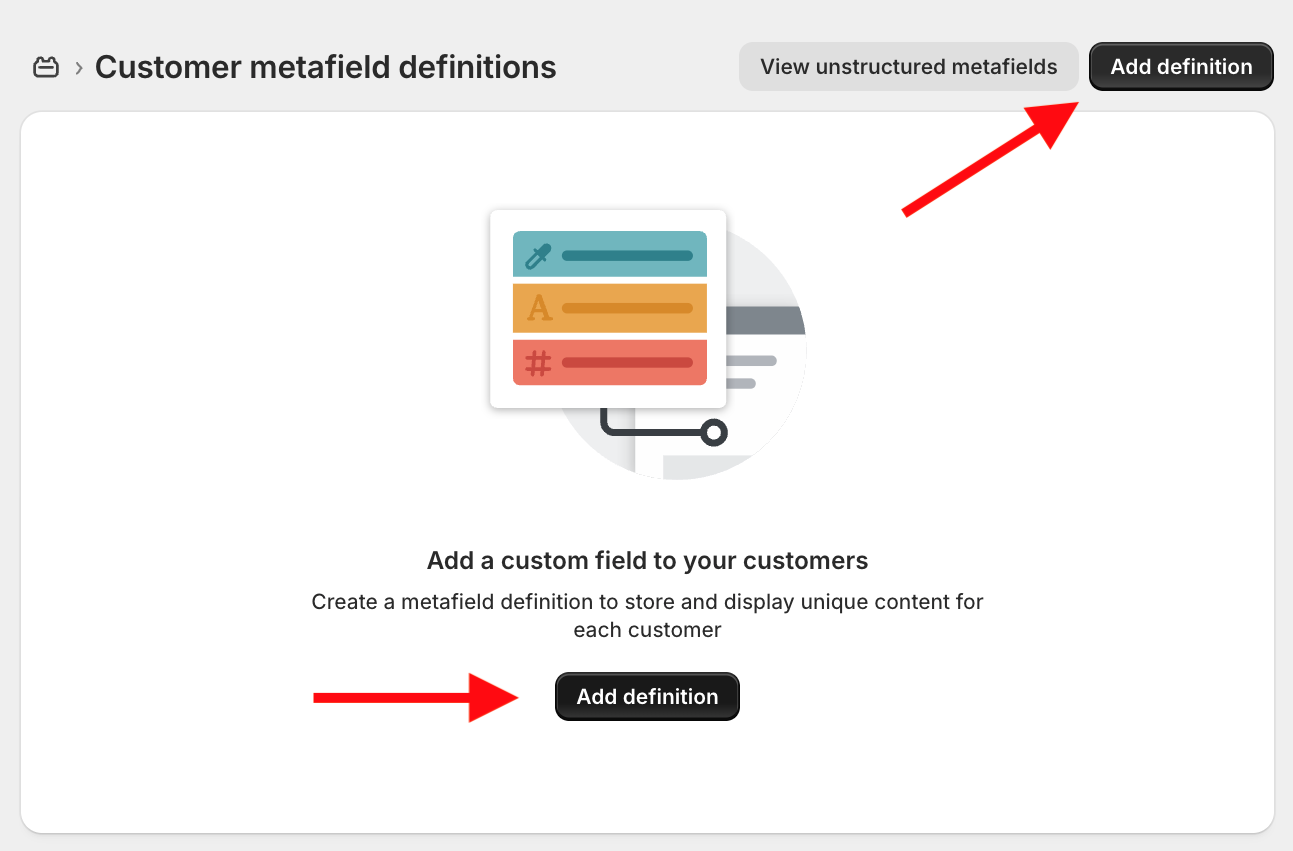
Click Add definition If you haven't added one before, this button will be center-stage!
-
Define your metafield We recommend legacy_customer_id or something similar - just make sure to know what you've called your old customer ids and let your contact at Northbeam know!
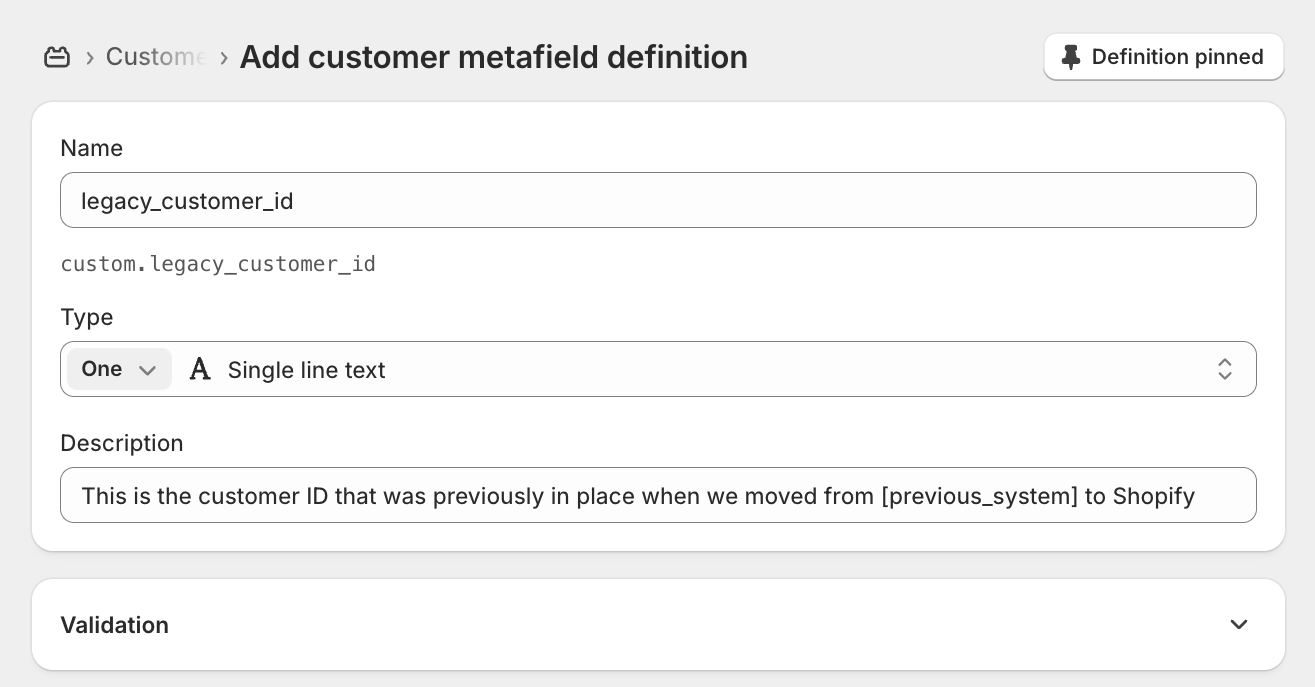
-
Adjust the Validation settings, a minimum Character limit of 1 and max of 256 is appropriate in most cases.** You can ignore the Options settings and use the supplied defaults:**
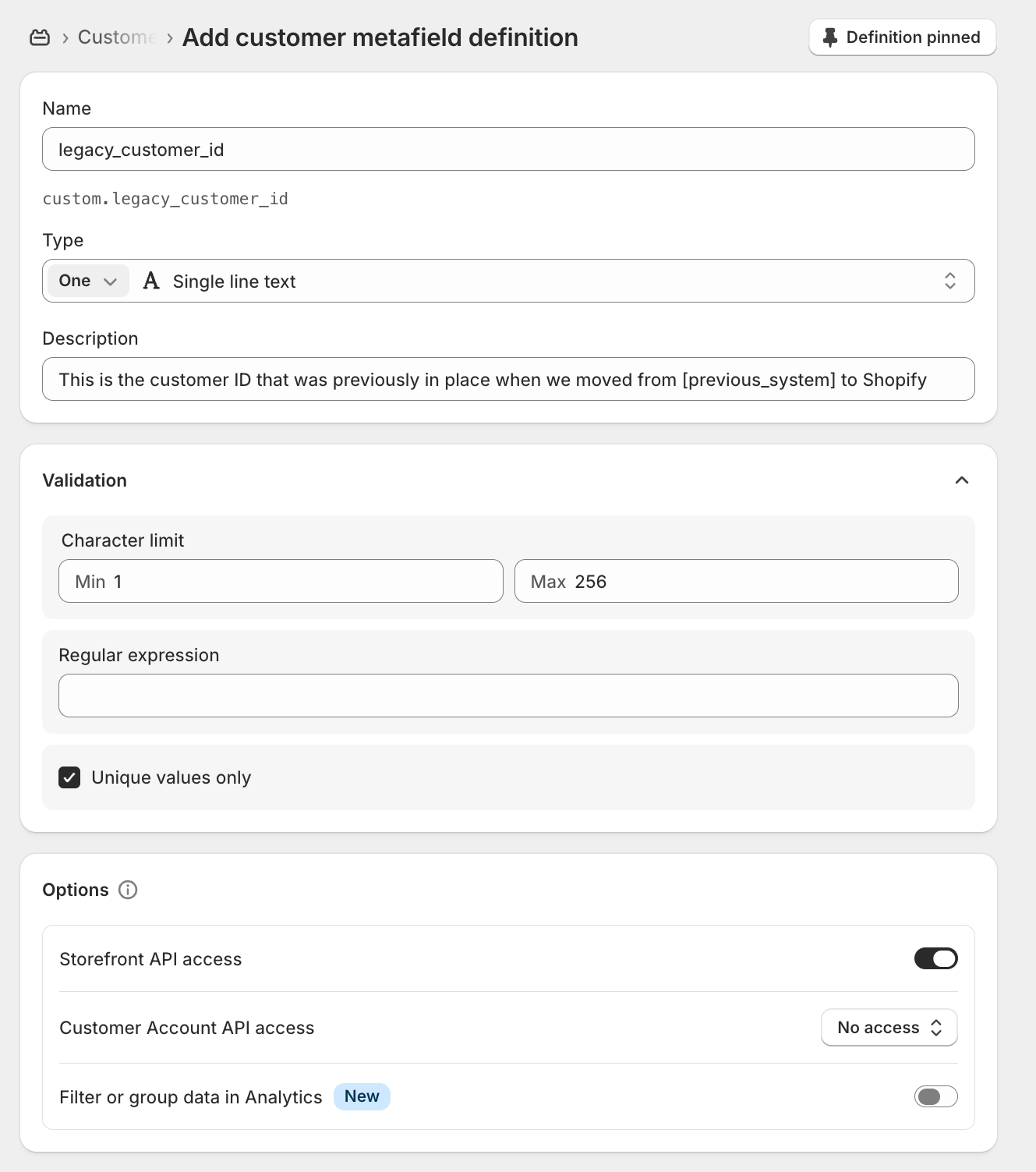
Step 2: Export customer data from your current system
Before disconnecting your old order management system, preserve your historical data.
Export your customer list with email addresses — most importantly, ensure that the customer_id and email addresses are intact.
Store these exports securely. You'll use them in Step 4 to verify that your Shopify data aligns with your historical records.
Do not remove the Northbeam pixel from your website until your Shopify integration is fully verified. Running both in parallel during the transition prevents gaps in attribution data.
Step 3: Format your customer list for Shopify.
Use the following template for your Shopify data import for the column definitions
The gotcha is the formatting for metafields, the column name must be in the format of customer.metafields.custom.legacy_customer_id.
Step 4: Import your Customers into Shopify
Proceed to your Customers page in Shopify.
- In the top left corner, click Import:

-
Import your CSV files!
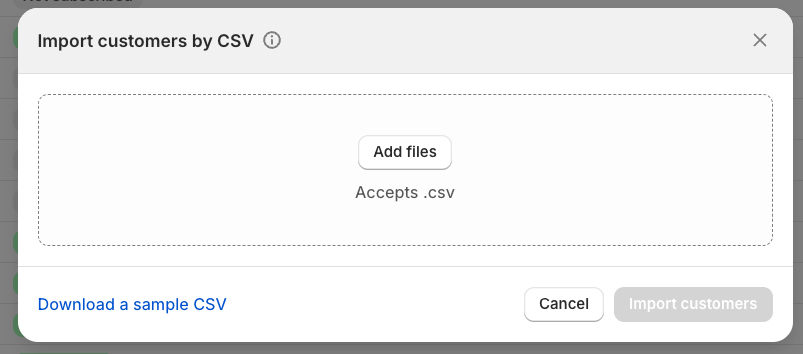
We do recommend following the following template for guidance as the template that Shopify provides does not account for Customer metafields and has less humor
Step 5: Notify your CSM at Northbeam
Once your data has been uploaded, inform your CSM at Northbeam along with the name of your legacy customer_id field. Once we have this, the Northbeam engineering Team can map your old Customer IDs into your dashboard, preserving customer stages.
We hope your migration has been as painless as possible!