> ## Documentation Index
> Fetch the complete documentation index at: https://docs.northbeam.io/llms.txt
> Use this file to discover all available pages before exploring further.
# Subscription Analytics
### Subscription Analytics offers powerful insights that will help you optimize campaigns to capture subscribers and increase revenue for faster, sustained growth.
You can now:
* Optimize marketing campaigns for New Subscriptions and see associated efficacy metrics
* Understand your Take Rate, or "% of customers that convert into New Subscriptions"
* Distinguish between your Subscriptions and One-Time Orders
## How do I set up my Subscription Analytics?
Order Tags are the most important part of setup.
Tags allow us to understand which orders are First-Time Subscriptions and Recurring Subscriptions -- which ultimately inform our Subscription metrics.
***
## Step 1: Preparing your Order Tags
**Two order tags are needed:**
1. Order Tag for First-Time Subscription Orders
2. Order Tag for Recurring Subscription Orders
The process in which Order Tags are set up depends on your eCommerce platform.
For Shopify Stores
**Many subscription apps (ex. Recharge) automatically tag your First Time and Recurring Subscriptions.**
How to double check your tags:
* In Shopify: Find a Subscription Order and check the [order tags](https://help.shopify.com/en/manual/shopify-admin/productivity-tools/using-tags) for First Time and Recurring tags.
* In Northbeam: In the Orders page, use the Order Tag filter and check for First Time and Recurring tags (See video for a walkthrough)
**If order tags are missing, please make sure tags are set up. Many customers use automation apps like[Shopify Flow](https://apps.shopify.com/flow) or [SC Order Tags & Flows](https://apps.shopify.com/ordertagger) to do so**
### For Custom Stores
**Order tags will need to be sent through`order_tags` field using the [Orders API](https://northbeam-orders-api.readme.io/reference/post_orders)**
Once sent, please make sure they are in Northbeam: In the Orders page, use the Order Tag filter and check for your tags.
**Please use unified order tags for your First Time and Recurring Subscriptions.**
| Order Tag Method | Pass / Fail |
| :- | :- |
| All First Time Subscriptions tagged with "First Time Subscription" | ✅ |
| All Recurring Subscriptions tagged with "Recurring Subscription" | ✅ |
| Different tags are used: "First Time #1001"; "First Time #1002", "First Time #1003" | ❌ |
| Different tags are used: "First Time"; "First Time Sub"; "First Time Subscription" | ❌ |
***
## Step 2: Assigning the Tags
1. Click **Settings** in the bottom left corner
2. Click **Subscription Order Tags**
3. Please ensure:
1. Your **First Time tag is assigned to the First Time subscription category**
2. Your **Recurring tag is assigned to the Recurring subscription category**
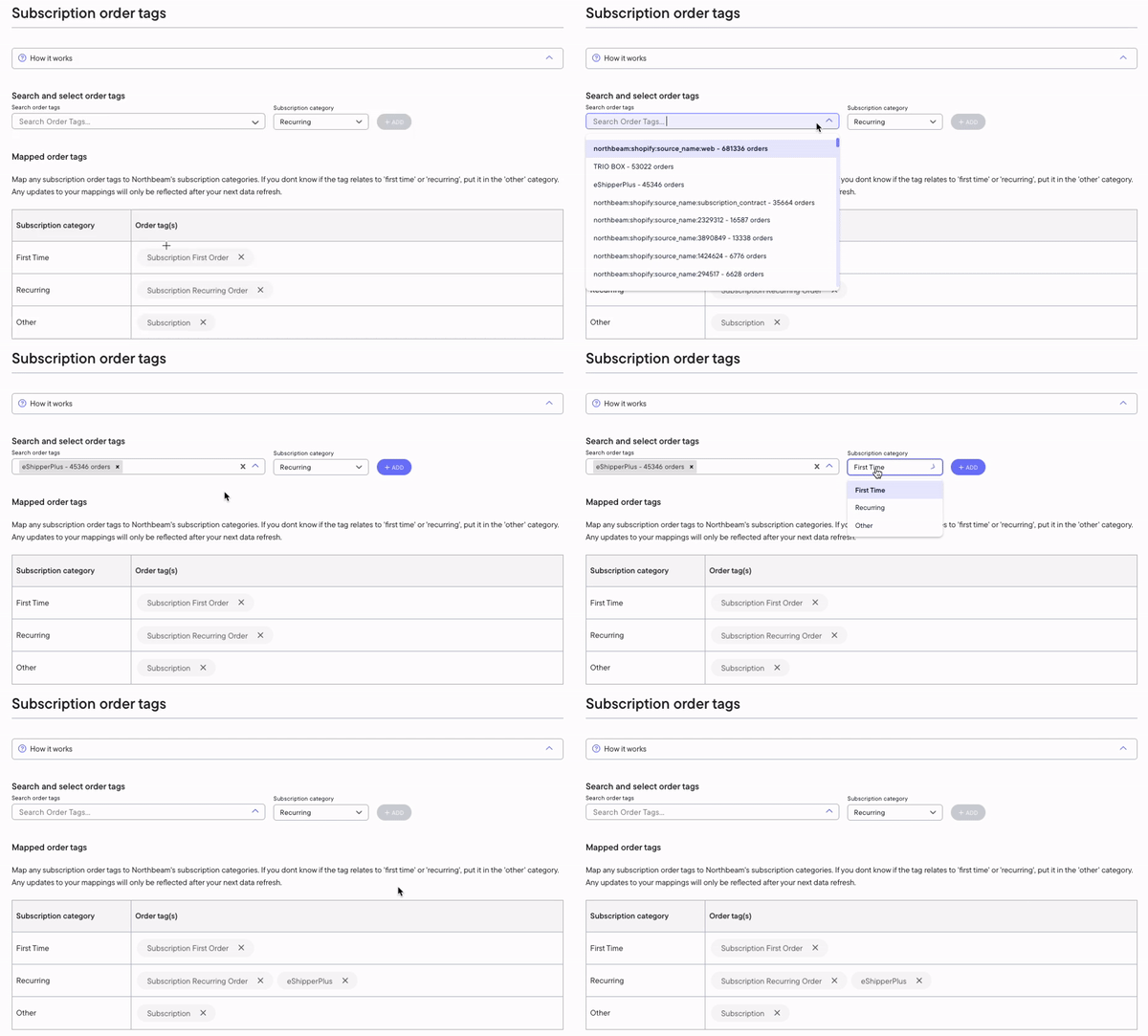 Note: We pre-populate all dashboards with the tag assignments:
* First Time: "Subscription First Order"
* Recurring: "Subscription Recurring"
* Other: "Subscription"
We've found that these are the most common Order Tags created by common Shopify Subscription apps.
***
## Step 3: Set up your Subscription Analytics
You're all set! Find your Subscription Metrics metrics under **Subscriptions** in the Customize Table pop-out.
Note: We pre-populate all dashboards with the tag assignments:
* First Time: "Subscription First Order"
* Recurring: "Subscription Recurring"
* Other: "Subscription"
We've found that these are the most common Order Tags created by common Shopify Subscription apps.
***
## Step 3: Set up your Subscription Analytics
You're all set! Find your Subscription Metrics metrics under **Subscriptions** in the Customize Table pop-out.
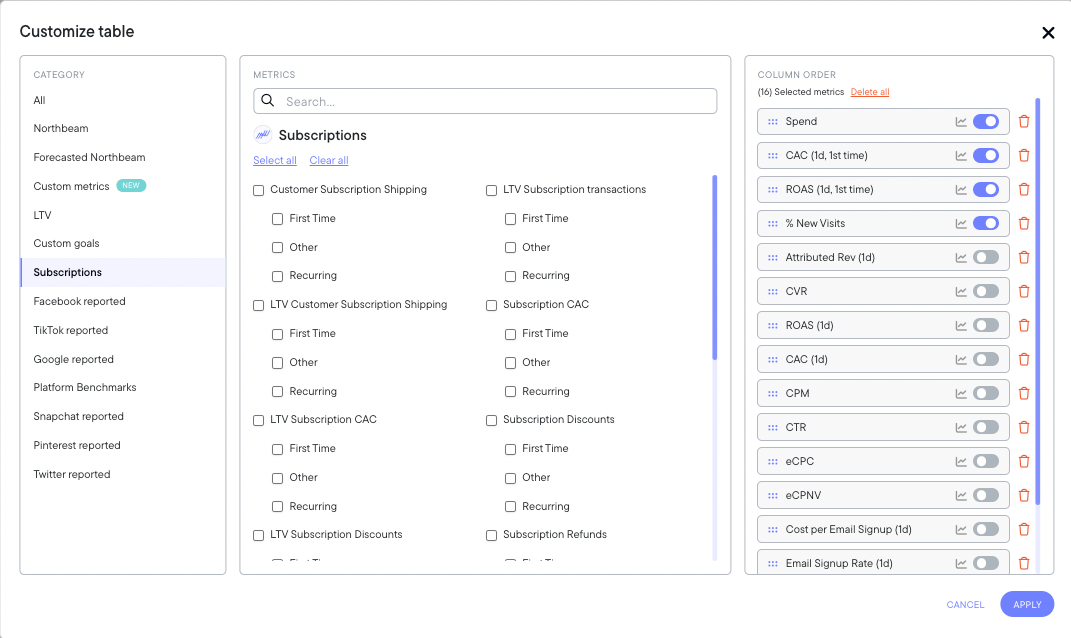 First Time vs Other vs Recurring
We offer 3 types of every Subscription Metric:
* First Time
* Other
* Recurring
These correspond to the order tags from Step 2.
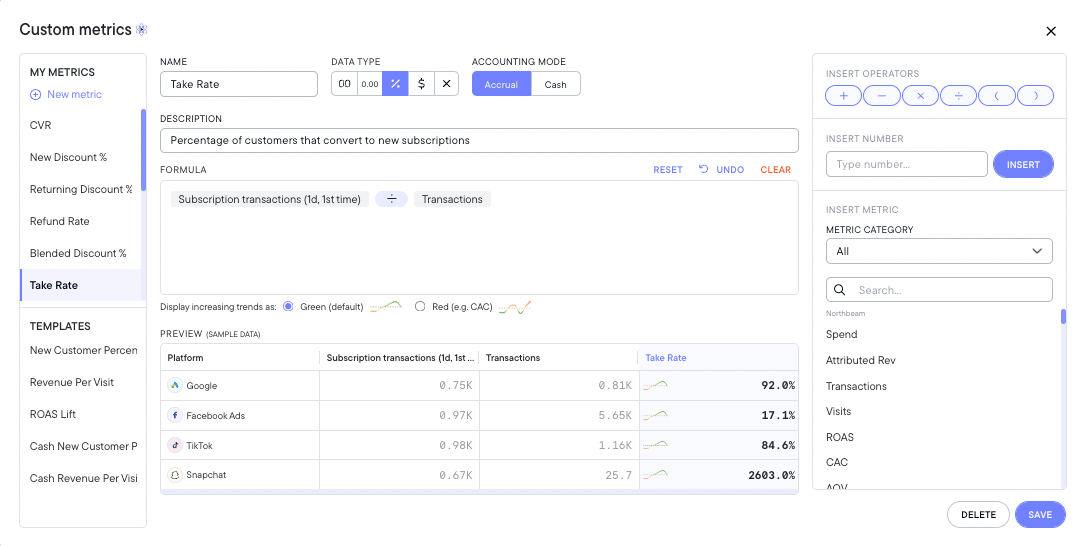
### Want to calculate your Take Rate?
Take Rate refers to the percentage of customers that convert into new subscriptions. This is a useful metric to understand channels driving incremental growth for your business.
We could create Take Rate using a **Custom Metric**.
1. Navigate to the **Sales** page
2. On the right side, click **Custom Metrics**
3. Click **Create New Metric**
4. Enter the following formula: **Subscription Transactions (1d, 1st time) ÷ Transactions**
5. Click **Save**
First Time vs Other vs Recurring
We offer 3 types of every Subscription Metric:
* First Time
* Other
* Recurring
These correspond to the order tags from Step 2.
### Want to calculate your Take Rate?
Take Rate refers to the percentage of customers that convert into new subscriptions. This is a useful metric to understand channels driving incremental growth for your business.
We could create Take Rate using a **Custom Metric**.
1. Navigate to the **Sales** page
2. On the right side, click **Custom Metrics**
3. Click **Create New Metric**
4. Enter the following formula: **Subscription Transactions (1d, 1st time) ÷ Transactions**
5. Click **Save**