> ## Documentation Index
> Fetch the complete documentation index at: https://docs.northbeam.io/llms.txt
> Use this file to discover all available pages before exploring further.
# Custom Goals
> Track other actions on your site, like sign-ups, add-to-carts, or form submissions.
Custom Goals let you track actions that happen on your website, beyond page views and purchases. For example:
* Email or SMS sign-ups
* Add-to-carts
* Checkout starts
* Quiz or lead form submissions
Each goal shows up as a metric on your Sales page. Custom goals count how many times an action happens. They don't record revenue or other values.
## Which setup you need
Custom Goals work the same way on Shopify and custom stores. You add a short script wherever the action happens, then register the goal in your dashboard.
**Custom goals must happen in the browser.** The script has to run on your website, on the same domain as the Northbeam Pixel, while the visitor is on the page.
| Works | Doesn't work |
| :- | :- |
| Button clicks | Backend or webhook events |
| Form and quiz submissions | Server-side API calls |
| Add-to-carts and checkout starts | Offline or CRM-triggered events |
***
## Set up a custom goal
The [Northbeam Pixel](/docs/add-pixel) must be running on the page where the action happens, and it must load first. Custom goals won't track without it.
Add this script so it runs **when the action happens**, for example after a form submits successfully or after an add-to-cart click:
```javascript theme={null}
```
Replace `your_goal_id` with your own Goal ID. You can add the script through Google Tag Manager (easiest for most stores) or directly in your site's code.
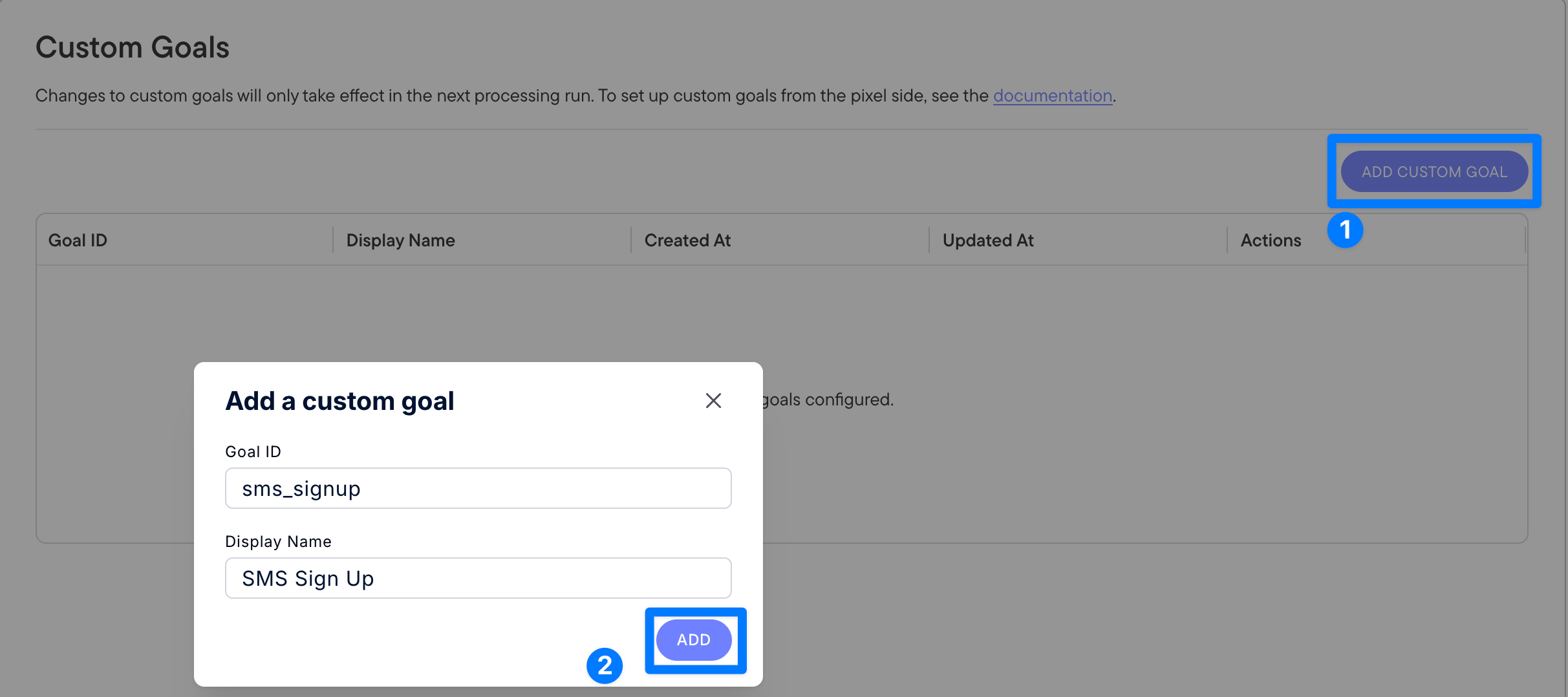
Go to [Settings → Custom Goals](https://dashboard.northbeam.io/settings/custom-goals) and click **Add Custom Goal**. Fill in:
* **Goal ID:** the exact Goal ID from your script. If it doesn't match exactly, the goal won't show up.
* **Display Name:** the metric name you'll see in your dashboard (for example, `SMS Sign Up`).
Then click **Add**. New or changed goals take effect after the next data processing run.
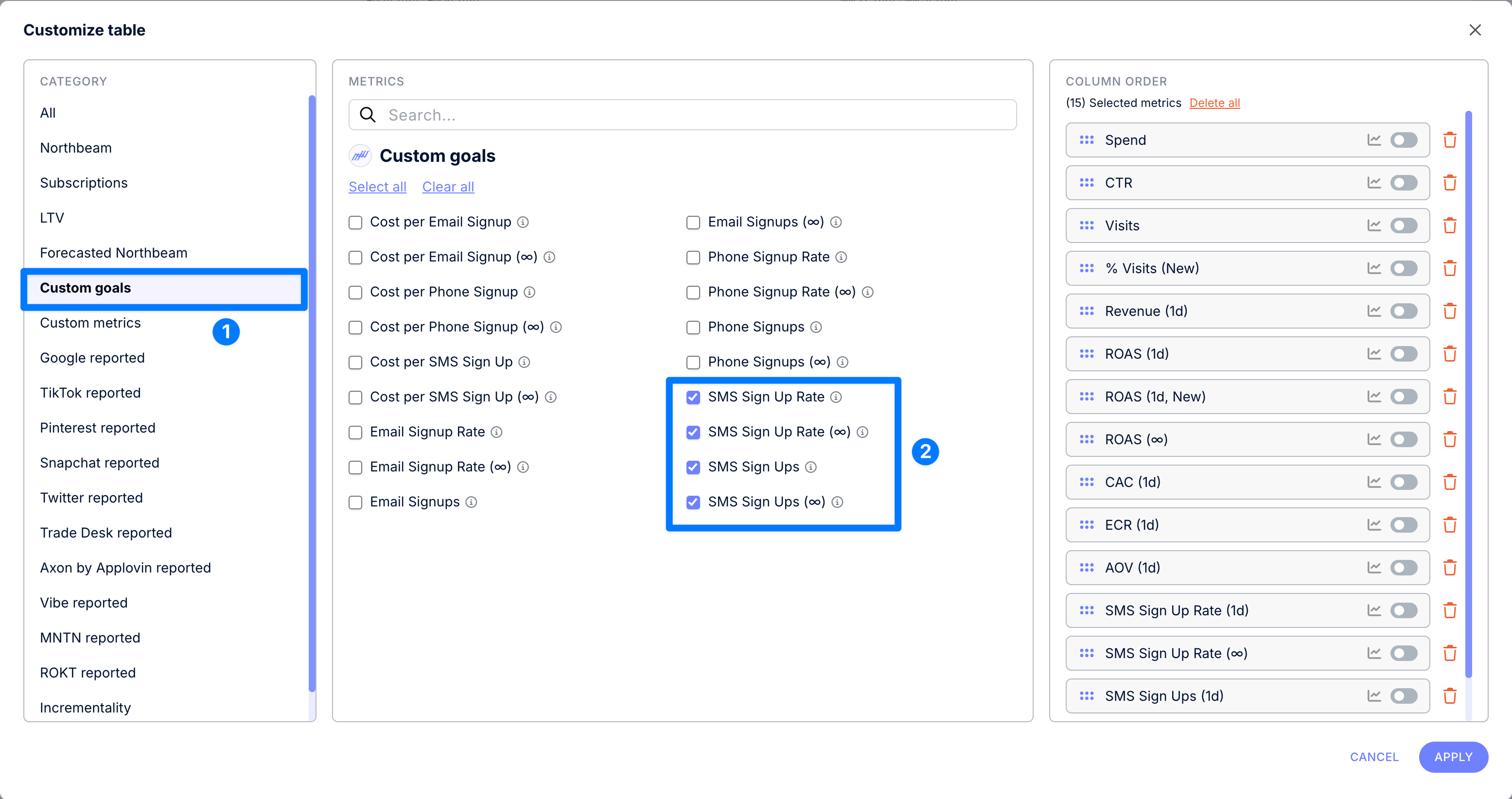
 After the goal fires at least once, it's available as a metric. On the [Sales page](https://dashboard.northbeam.io/sales), click **Customize Table**.
 Click **Custom goals**, select your goal's metrics, then click **Apply**.
 ## Goal ID rules
* Use **lowercase letters, numbers, and underscores** only. Hyphens or spaces stop the goal from showing up in your dashboard.
* The Goal ID in your script and in your dashboard must **match exactly**.
Good examples: `sms_signup`, `email_signup`, `add_to_cart`, `quiz_submit`, `initiate_checkout`.
## Troubleshooting
If a goal isn't showing up, check that:
* The Northbeam Pixel is running on the page where the action happens
* The Goal ID in your dashboard matches the script exactly
* The script runs when the action happens, not on page load or on the wrong trigger
* The action happens on the same domain as the Northbeam Pixel
* At least one processing run has finished since you added the goal
## Goal ID rules
* Use **lowercase letters, numbers, and underscores** only. Hyphens or spaces stop the goal from showing up in your dashboard.
* The Goal ID in your script and in your dashboard must **match exactly**.
Good examples: `sms_signup`, `email_signup`, `add_to_cart`, `quiz_submit`, `initiate_checkout`.
## Troubleshooting
If a goal isn't showing up, check that:
* The Northbeam Pixel is running on the page where the action happens
* The Goal ID in your dashboard matches the script exactly
* The script runs when the action happens, not on page load or on the wrong trigger
* The action happens on the same domain as the Northbeam Pixel
* At least one processing run has finished since you added the goal