> ## Documentation Index
> Fetch the complete documentation index at: https://docs.northbeam.io/llms.txt
> Use this file to discover all available pages before exploring further.

# Purchase Events

> Purchase conversion events are purchases that occur on your website.

## What are Purchase Events?

Purchase conversion events are purchases that occur on your website. It's extremely important that these are captured on all your checkout flows.

## How Do You Track Purchase Events?

We use a single event: `firePurchaseEvent`.

This event fires when a transaction is completed, typically on the Order Confirmation or Thank You page.

This payload includes order details that we match against the backend source of truth (Raw Shopify orders; Orders API data)

<table>
  <thead>
    <tr>
      <th>
        Checkout Type
      </th>

      <th>
        Description
      </th>
    </tr>
  </thead>

  <tbody>
    <tr>
      <td>
        Shopify's Native Checkout
      </td>

      <td>
        Tracks completed purchases that occur on Shopify's checkout.

        Triggered by Shopify's [checkout\_completed](https://shopify.dev/docs/api/web-pixels-api/standard-events/checkout_completed)  Web Pixel standard event.

        *Note: This does not include Shop App*.
      </td>
    </tr>

    <tr>
      <td>
        All Other Checkouts
      </td>

      <td>
        This is our generic Purchase script. Used to track all Non-Shopify Checkout Experiences
      </td>
    </tr>
  </tbody>
</table>

<br />

***

<br />

## Tracking Purchases on Shopify Stores

This script tracks completed purchases from your Shopify Checkout.  This is required for tracking Purchases in Northbeam.

<Frame>
  <iframe src="https://www.loom.com/embed/19bb8e74bae442fab6a72ccc11a01add?sid=d6653fbc-961c-4887-8f9e-8a91eebad9b1" width="100%" height="450" allowfullscreen />
</Frame>

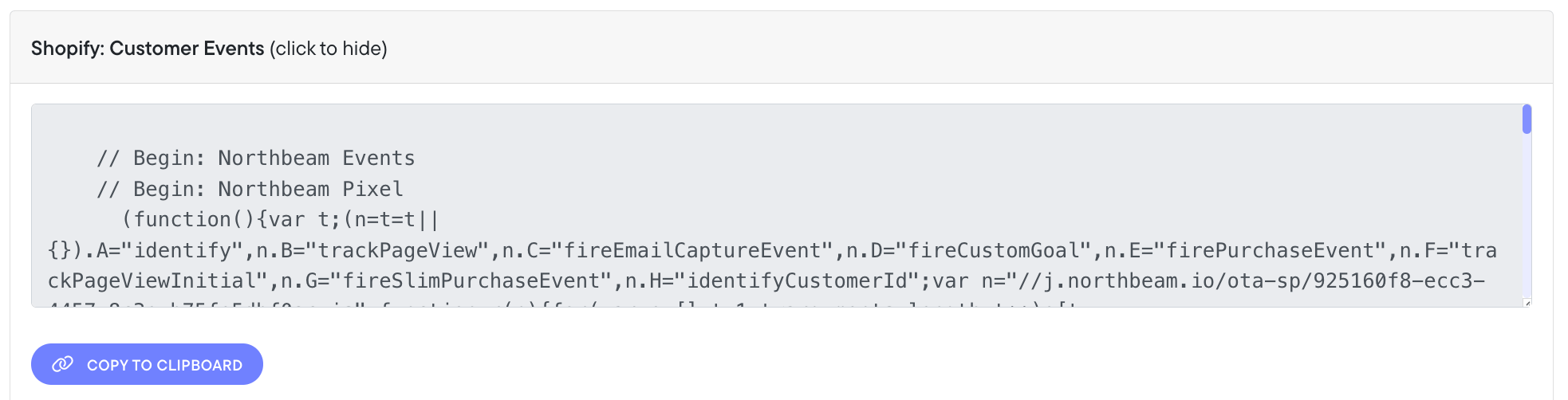
## Step 1: Find the Customer Events script

1. In the Onboarding Flow:
   1. Navigate to **Step 7: Add Pixel**
   2. Find the script called **Shopify: Customer Events**
2. In the Dashboard:
   1. Click on **Settings**
   2. Click on **Northbeam Pixel and Event Tracking**
   3. Find the script called **Shopify: Customer Events**

<Frame caption="Shopify: Customer Events">
  <img src="https://mintcdn.com/northbeam/EpMPeQ8Ec2Yrg9EI/images/readme/073a2348-Screenshot_2025-06-12_at_9.49.52_PM.png?fit=max&auto=format&n=EpMPeQ8Ec2Yrg9EI&q=85&s=cb61c9a4e8f7c966fefc36a48508813e" alt="The script in your dashboard is pre-populated with your unique Client ID" width="1966" height="502" data-path="images/readme/073a2348-Screenshot_2025-06-12_at_9.49.52_PM.png" />
</Frame>

## Step 2: Add the script in your Customer Events

1. Log into your Shopify account, click **Settings**
2. In the side navigation, click **Customer Events**
3. In the top right, click **Add Custom Pixel**
4. Name the pixel anything you'd like (e.g. "Northbeam Event Tracking”), then click **Add Pixel**
5. Paste the script into the **code editor**
6. In the top right corner, click **Save**
7. Below the editor, click **Connect**
8. In the modal, click **Connect** to give the pixel secure access to your online store, checkout, and order confirmation.
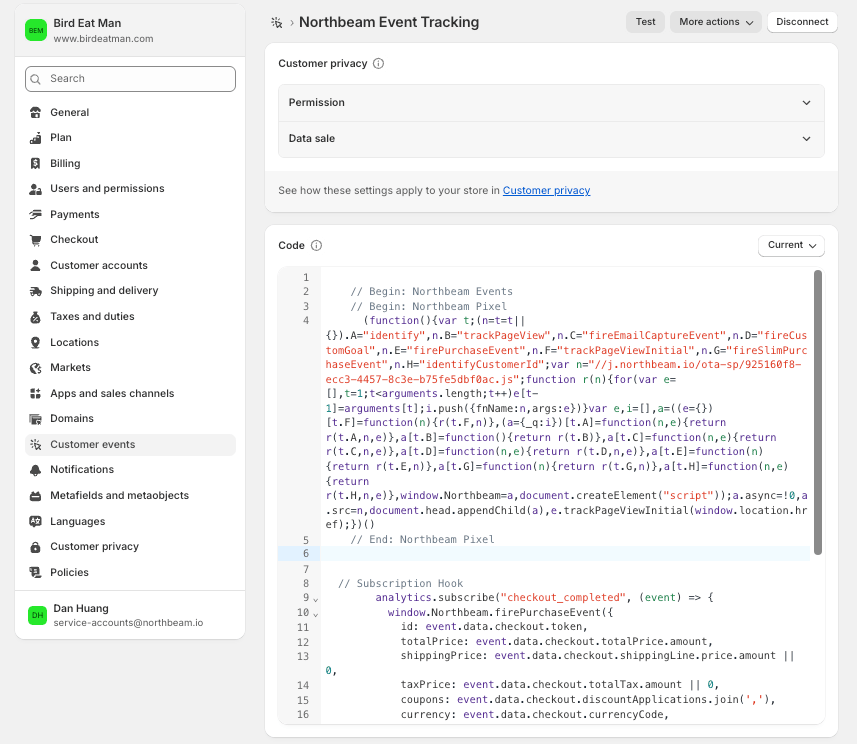
<Frame caption="Settings > Customer Events">
  <img src="https://mintcdn.com/northbeam/EpMPeQ8Ec2Yrg9EI/images/readme/209c2308-Screenshot_2025-06-13_at_4.02.07_PM.png?fit=max&auto=format&n=EpMPeQ8Ec2Yrg9EI&q=85&s=dfa5a1c49a119e5e71048e25f50d3e5b" alt="Settings > Customer Events" data-og-width="857" width="857" data-og-height="744" height="744" data-path="images/readme/209c2308-Screenshot_2025-06-13_at_4.02.07_PM.png" data-optimize="true" data-opv="3" srcset="https://mintcdn.com/northbeam/EpMPeQ8Ec2Yrg9EI/images/readme/209c2308-Screenshot_2025-06-13_at_4.02.07_PM.png?w=280&fit=max&auto=format&n=EpMPeQ8Ec2Yrg9EI&q=85&s=c07bf9d8eb3654ff41f0bb635ee51dac 280w, https://mintcdn.com/northbeam/EpMPeQ8Ec2Yrg9EI/images/readme/209c2308-Screenshot_2025-06-13_at_4.02.07_PM.png?w=560&fit=max&auto=format&n=EpMPeQ8Ec2Yrg9EI&q=85&s=1d6736ac634f49f34b8222b2af27477f 560w, https://mintcdn.com/northbeam/EpMPeQ8Ec2Yrg9EI/images/readme/209c2308-Screenshot_2025-06-13_at_4.02.07_PM.png?w=840&fit=max&auto=format&n=EpMPeQ8Ec2Yrg9EI&q=85&s=921a93330cd1819bb506d3782b341b81 840w, https://mintcdn.com/northbeam/EpMPeQ8Ec2Yrg9EI/images/readme/209c2308-Screenshot_2025-06-13_at_4.02.07_PM.png?w=1100&fit=max&auto=format&n=EpMPeQ8Ec2Yrg9EI&q=85&s=53d42c2c03c6b2e28b3c4cb0e67a5970 1100w, https://mintcdn.com/northbeam/EpMPeQ8Ec2Yrg9EI/images/readme/209c2308-Screenshot_2025-06-13_at_4.02.07_PM.png?w=1650&fit=max&auto=format&n=EpMPeQ8Ec2Yrg9EI&q=85&s=7b7674bf43574fdd0001c08c847c3e8b 1650w, https://mintcdn.com/northbeam/EpMPeQ8Ec2Yrg9EI/images/readme/209c2308-Screenshot_2025-06-13_at_4.02.07_PM.png?w=2500&fit=max&auto=format&n=EpMPeQ8Ec2Yrg9EI&q=85&s=e502d0e1f88f646977fad018979f6273 2500w" />
</Frame>

<br />

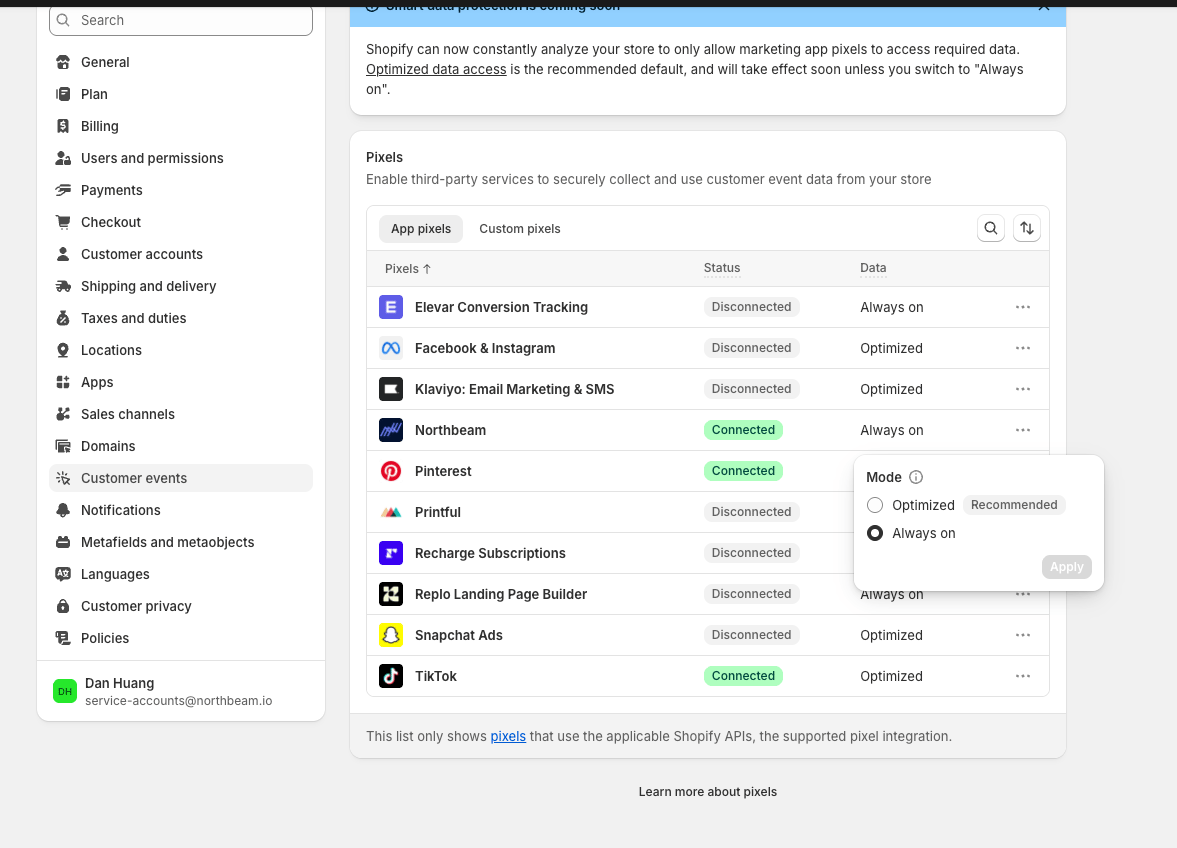
## Step 3: Change data access settings

1. From your Shopify admin, go to Settings > Customer events.
2. Click the App pixels tab.
3. For the Northbeam pixel, click the pixel's current data access setting in the Data column.
4. In the dialog, select Always on, and then click Apply.

<Frame caption="Shopify: Data access settings">
  <img src="https://mintcdn.com/northbeam/EpMPeQ8Ec2Yrg9EI/images/readme/787df7ae-CleanShot_2026-01-14_at_12.07.15.png?fit=max&auto=format&n=EpMPeQ8Ec2Yrg9EI&q=85&s=0f690126bb77ccb6112d22d47c4833d8" alt="" width="1177" height="848" data-path="images/readme/787df7ae-CleanShot_2026-01-14_at_12.07.15.png" />
</Frame>

## Step 4: Customer Privacy

Under **Customer Privacy**, ensure a consent banner is configured.

If data restrictions are enabled without a banner:

* Users cannot opt in
* Tracking may be blocked
* The Customer Events script may not fire
* Conversion tracking may break

Always confirm privacy settings and consent are aligned before going live.

<br />

## Step 5: Notify Northbeam

Once the script is installed, [submit a support ticket](https://www.northbeam.io/submit-a-support-ticket) to let our team know. We'll finalize setup to ensure accurate page view tracking.

<Warning>
  ### Important:

  **Failing to **[notify our team](https://www.northbeam.io/submit-a-support-ticket)** may result in incorrect page view tracking.**

  Page view tracking is a foundational event in Northbeam's conversion tracking system — without it, purchase attribution may be incomplete or inaccurate.
</Warning>

<br />

***

<br />

## Tracking Purchases on Non-Shopify Stores

<br />

Use the `window.Northbeam.fireSlimPurchaseEvent` OR `window.Northbeam.firePurchaseEvent` Northbeam Pixel JavaScript function for any non-Shopify native checkout. These functions **equally** signal that a **conversion** has taken place within the visitor's session, but the target function to use depends on your usage intent, available fields, and actionability requirements.

| Function Name           | Usage                                                                                                                                                                                                          | Complexity |
| :---------------------- | :------------------------------------------------------------------------------------------------------------------------------------------------------------------------------------------------------------- | :--------- |
| `fireSlimPurchaseEvent` | Directly targets an order for attribution if the only guaranteed value is the Order Number and/or when backend revenue data will be sent on time for actionability. **This our default recommended function**. | Low        |
| `firePurchaseEvent`     | Directly targets an order for attribution when revenue values need to be actionable before backend revenue data is sent to us.                                                                                 | Moderate   |

<br />

*Either* event **must** fire when a transaction is completed — once the final order details are available — typically on the **Order Confirmation** or **Thank You** page.  A timely and proper trigger is required for purchase matching in Northbeam, and they can be deployed natively into your site's code or injected externally via Google Tag Manager.

<br />

## Global Requirements  (both `fireSlimPurchaseEvent` and `firePurchaseEvent`)

**Your chosen function must:**

* Fire **after the core Northbeam base pixel.**
* Fire **only after the order is finalized and all charges have been processed** to prevent ingestion of cancelled transactions.
* Fire **once per completed order; do not repeat **`id`** values.**
* Contain **all corresponding keys with defined values**. `NULL` values are invalid.

<br />

## Critical: `id` = `order_id`

We use the value from the `id` key (Please see function requirements below) to match the frontend purchase event (`fireSlimPurchaseEvent` AND/OR `firePurchaseEvent`) to your backend source of truth (orders sent via the [Northbeam Orders API](/reference/post_orders)).

If the value does not exactly match the corresponding server-side order (Case-sensitive): that purchase will not attribute correctly. It is **strongly** recommended that someone with basic JavaScript knowledge implements these scripts.

***Important:*** Historical purchase data cannot be recovered. An improper implementation will result in missing attribution. Thus: It is **critical** that `fireSlimPurchaseEvent` / `firePurchaseEvent` is configured correctly from day one.

<br />

## *window\.Northbeam.fireSlimPurchaseEvent*

### Definitions

This lightweight function signals that the order/transaction number passed in the `id` field is a valid conversion that should be attributed. It only requires a single value for activation. This is our**primary recommended function for most\* implementations**.

<br />

| Key  | Type     | Description                                                                                                                                                                                                                      | Example |
| :--- | :------- | :------------------------------------------------------------------------------------------------------------------------------------------------------------------------------------------------------------------------------- | :------ |
| `id` | *String* | The actual transaction/order number. It must be an exact match to the [Northbeam Orders API](/reference/post_orders) `order_id` value for stitching. Must be a `string` containing at least 1 character and it's case-sensitive. | "A123"  |

<br />

### fireSlimPurchaseEvent example

```javascript theme={null}
<script type="application/javascript">
  window.Northbeam.fireSlimPurchaseEvent("A123" || "Missing - unmatched order")
</script>
```

* Note: The `id` key/field is an **implicit parameter** in `fireSlimPurchaseEvent` and does ***not*** need to be externally defined for the function to operate. It only needs a *value*, which is automatically mapped to the implicit `id` key.
* In the above example: "A123" is a hard-coded string with your order\_id, but this should be a variable that ties to the value.

<br />

### Considerations

* `fireSlimPurchaseEvent` does *not* process monetary values and is therefore not recommended when operational actionability is a crucial consideration -AND- your corresponding backend Northbeam API upsert implementation is not synchronized to your Dashboard processing cycles. On such cases: `firePurchaseEvent` is best used instead of `fireSlimPurchaseEvent`.

<br />

## *window\.Northbeam.firePurchaseEvent*

### Definitions

This full-fledged function not only signals that the order/transaction number passed in the `id` field is a valid conversion that should be attributed, but it also contains transactional information that is actionable for revenue, tax, and shipping calculations in your Northbeam Dashboard. This function **requires** a full transactional object `{}` with distinct keys rather than the `order_id` string alone, which increases complexity and should only be used when actionable data is a crucial concern -AND- your corresponding backend Northbeam API upsert implementation is not synchronized to your Dashboard processing cycles.

<br />

<table>
  <thead>
    <tr>
      <th>
        Key
      </th>

      <th>
        Type
      </th>

      <th>
        Description
      </th>

      <th>
        Example
      </th>
    </tr>
  </thead>

  <tbody>
    <tr>
      <td>
        `id`
      </td>

      <td>
        *String*
      </td>

      <td>
        The actual transaction/order number. It must be an exact match to the [Northbeam Orders API](/reference/post_orders) `order_id` value for stitching. Must be a `string` containing at least 1 character and it's case-sensitive.
      </td>

      <td>
        "ORD98"
      </td>
    </tr>

    <tr>
      <td>
        `totalPrice`
      </td>

      <td>
        *Number*
      </td>

      <td>
        The final paid value *after* taxes, shipping, and discounts. Must be a positive `number`.
      </td>

      <td>
        12
      </td>
    </tr>

    <tr>
      <td>
        `shippingPrice`
      </td>

      <td>
        *Number*
      </td>

      <td>
        The value for shipping charges. Must be a positive `number`.
      </td>

      <td>
        6
      </td>
    </tr>

    <tr>
      <td>
        `taxPrice`
      </td>

      <td>
        *Number*
      </td>

      <td>
        The value for tax charges. Must be a positive `number`.
      </td>

      <td>
        7
      </td>
    </tr>

    <tr>
      <td>
        `coupons`
      </td>

      <td>
        *String*
      </td>

      <td>
        Discount coupons applied to the order. Must be a single `string`, but multiple values can be separated via comma as a single string (EX: `"coupon 1, coupon 2"`).
      </td>

      <td>
        "PROMO 4"
      </td>
    </tr>

    <tr>
      <td>
        `currency`
      </td>

      <td>
        *String*
      </td>

      <td>
        The currency code of the transaction. Must be a 3-digit `string` using the [3-digit ISO-4217 standard](https://www.iso.org/iso-4217-currency-codes.html).
      </td>

      <td>
        "USD"
      </td>
    </tr>

    <tr>
      <td>
        `customerId`
      </td>

      <td>
        *String*
      </td>

      <td>
        The visitor/customer identifier. Must be a `string` containing at least 1 character.
      </td>

      <td>
        "VICTOR12"
      </td>
    </tr>

    <tr>
      <td>
        `lineItems`
      </td>

      <td>
        \_Array *`[]`* of Objects \_`{}`
      </td>

      <td>
        The list of individual items purchased in the order. This is a ***single*** array `[]` composed of individual objects `{}` (One per product) all nested within the array. The object uses the following keys (Which must all exist and contain a value): `productId`, `variantId`, `productName`, `variantName`, `price` and `quantity`.
      </td>

      <td>
        `[{productId: "SKU-0001",
                                                                      variantId: "0001-A",
                                                                      productName: "Pants",
                                                                      variantName: "Blue",
                                                                      price: 10,
                                                                      quantity: 1}]`
      </td>
    </tr>

    <tr>
      <td>
        `productId`
      </td>

      <td>
        *String*
      </td>

      <td>
        The identifier for the global parent product. Must be a `string` containing at least 1 character. Belongs to the `lineItems` array `[]` of objects `{}` and can not be used outside the object.
      </td>

      <td>
        "SKU-01"
      </td>
    </tr>

    <tr>
      <td>
        `variantId`
      </td>

      <td>
        *String*
      </td>

      <td>
        An identifier used if the global parent product has an alternative identifier or sub-type identifier. Must be a `string`. Belongs to the `lineItems` array `[]` of objects `{}` and can not be used outside the object.
      </td>

      <td>
        "VAR-01"
      </td>
    </tr>

    <tr>
      <td>
        `productName`
      </td>

      <td>
        *String*
      </td>

      <td>
        The commercial product name for the purchased item. Must be a `string` containing at least 1 character. Belongs to the `lineItems` array `[]` of objects `{}` and can not be used outside the object.
      </td>

      <td>
        "Hat"
      </td>
    </tr>

    <tr>
      <td>
        `variantName`
      </td>

      <td>
        *String*
      </td>

      <td>
        An identifier used if the item name has a sub-type or alternative name. Must be a `string`. Belongs to the `lineItems` array `[]` of objects `{}` and can not be used outside the object.
      </td>

      <td>
        "Green Hat"
      </td>
    </tr>

    <tr>
      <td>
        `price`
      </td>

      <td>
        *Number*
      </td>

      <td>
        The gross merchandise value of the item in the current object. Must be a positive `number`. Belongs to the `lineItems` array `[]` of objects `{}` and can not be used outside the object.
      </td>

      <td>
        12
      </td>
    </tr>

    <tr>
      <td>
        `quantity`
      </td>

      <td>
        *Number*
      </td>

      <td>
        The number of times the item in the current object was purchased. Must be a positive `number`. Belongs to the `lineItems` array `[]` of objects `{}` and can not be used outside the object.
      </td>

      <td>
        2
      </td>
    </tr>
  </tbody>
</table>

<br />

### firePurchaseEvent example

```javascript theme={null}
<script type="application/javascript">
  window.Northbeam.firePurchaseEvent({
  id: "ORD98" || "Missing - unmatched order",
  totalPrice: 100 || 0,
  shippingPrice: 10 || 0,
  taxPrice: 5.5 || 0,
  coupons: "SALE20, FAMILY10" || "",
  currency: "USD" || "USD",
  customerId: "customer-93" || "UNKNOWN VISITOR",
  lineItems: [
    {
      productId: "SKU-0001" || "UNKNOWN PRODUCT",
      variantId: "0001-A" || "",
      productName: "Pants" || "UNKNOWN VARIANT",
      variantName: "Blue" || "",
      price: 10 || 0,
      quantity: 1 || 0,
    }]
	})
</script>
```

* Note: The payload must be structured as an object and thus wrapped in curly brackets `{}`.
* In the above example: "ORD98" is a hard-coded string with your order\_id, but this should be a variable that ties to the value.

<br />

### Considerations

* Values from `totalPrice`, `shippingPrice` and `taxPrice` will directly power Northbeam Dashboard metrics tied to revenue, shipping, and taxes respectively.
* The Northbeam Orders API is the ultimate source of truth. In case of a value conflict with the corresponding `order_id` payload: Values from `firePurchaseEvent` will be overwritten and replaced by the Northbeam API value.
* Timely/synchronized Northbeam Orders API upserts negate the need to use `firePurchaseEvent`. We recommend using `fireSlimPurchaseEvent` with synchronized API Upserts when possible.

<br />

## Validation and testing

A valid/fully-compliant event trigger for *either* `fireSlimPurchaseEvent` or `firePurchaseEvent` shows a network request (**nb-collector**) with a payload containing the data object **ue** (`data: [{e: "ue",…}]`) alongside second payload containing the data object **se** (`data: [{e: "se",…}]`). The **se\_la** key of the **se** object **contains the order number we received** .

These 2 events and network requests are only ever seen together as requests when the trigger is valid.

These events can can only be reviewed if the network console is open *before* the event fires. They can not be reviewed after the fact.

<br />

## Sequencing

The [Northbeam base pixel](/docs/add-pixel) must fire **before** `firePurchaseEvent`.

If deploying via Google Tag Manager, configure tag sequencing correctly: [https://support.google.com/tagmanager/answer/6238868?hl=en](https://support.google.com/tagmanager/answer/6238868?hl=en)

Improper sequencing may prevent the purchase event from registering.

<br />

## Publishing

If deploying via Google Tag Manager:

* Ensure the tag is configured correctly
* Publish the container

Unpublished containers will prevent tracking.

<br />

## Final Checklist

Before going live, confirm:

* `firePurchaseEvent` fires on the confirmation page
* It fires once per order
* The Order ID matches backend data exactly (Orders API)
* The base pixel fires first
* GTM container is published

If these conditions are met, purchase matching will function correctly.

<br />

## Best Practices

* Wrap `fireSlimPurchaseEvent` or `firePurchaseEvent` in a function that logs if the script was successful or if it failed. This eases debugging and validation.
* Wrap `fireSlimPurchaseEvent` or `firePurchaseEvent` in a function that checks if `window.Northbeam` is defined and ready to push the function, or retry if it isn't. This helps with scrip sequencing issues.

### fireSlimPurchaseEvent with debug function example

```javascript theme={null}
<script type="application/javascript">
(function northbeamPurchaseRetry() {

    function attemptPurchaseEvent() {
        if (
            window.Northbeam &&
            typeof window.Northbeam.fireSlimPurchaseEvent === 'function'
        ) {
            console.log('Northbeam fireSlimPurchaseEvent fired');

            window.Northbeam.fireSlimPurchaseEvent(
                "A123" || "Missing - unmatched order"
            );

            console.log('Northbeam fireSlimPurchaseEvent successful');
        } else {
            console.log('Northbeam fireSlimPurchaseEvent not ready, retrying in 3 seconds...');

            setTimeout(attemptPurchaseEvent, 3000);
        }
    }

    attemptPurchaseEvent();

})();
</script>
```