> ## Documentation Index
> Fetch the complete documentation index at: https://docs.northbeam.io/llms.txt
> Use this file to discover all available pages before exploring further.

# Order Tags

> Order Tags are used to label orders within Northbeam. This begs the question -- why would I need to label my orders?

## What are Order Tags?

Order Tags is a piece of data (usually a word or words) attached to an order. In Northbeam, they're used to label special type of orders type of orders.

## What are Order Tags used for?

Order Tags have two primary uses within Northbeam:

1. Addressing Unattributed Orders
2. Subscription Orders

## 1. Addressing Unattributed Orders

Order Tags are meant to exclude any Unattributed Orders that we expect to be Unattributed. This is an extremely important step of the Onboarding Process called Data Validation. Learn more about Unattributed [here](/docs/differences-in-unattributed-data#orders-appear-as-unattributed).

## 2. Subscription Orders

Order Tags are also used for Subscription Orders. We use tags to distinguish between One-Time Orders and Subscription Orders. To take it one step further, tags are also used to distinguish between First Time Subscription Orders and Recurring Subscription Orders.

***

## Step 1: Placing Order Tags

Tags are to be placed through your Order Management System, which will sync with Northbeam.

* **Shopify Brands** -- Tags placed on the Order level (or Customer level). See Shopify docs [here](https://help.shopify.com/en/manual/shopify-flow/reference/actions/add-order-tags). Once tags are placed on your respective orders, our native Shopify connector will import the tags.
* **All Other Platforms (WooCommerce, Magento, Custom)** -- Tags are to be passed through the Orders API. During your onboarding process, a REST API was set up to send POST requests to our server. Within our [API docs](https://northbeam-orders-api.readme.io/reference/post_orders), you'll see an object called `order_tags`. Please pass tags using this object for all appropriate orders.

## Step 2: Checking Order Tags

Once the Tags are set up in your Order Management System (ex. Shopify or Orders API), it's important to make sure they're getting pulled into your dashboard.

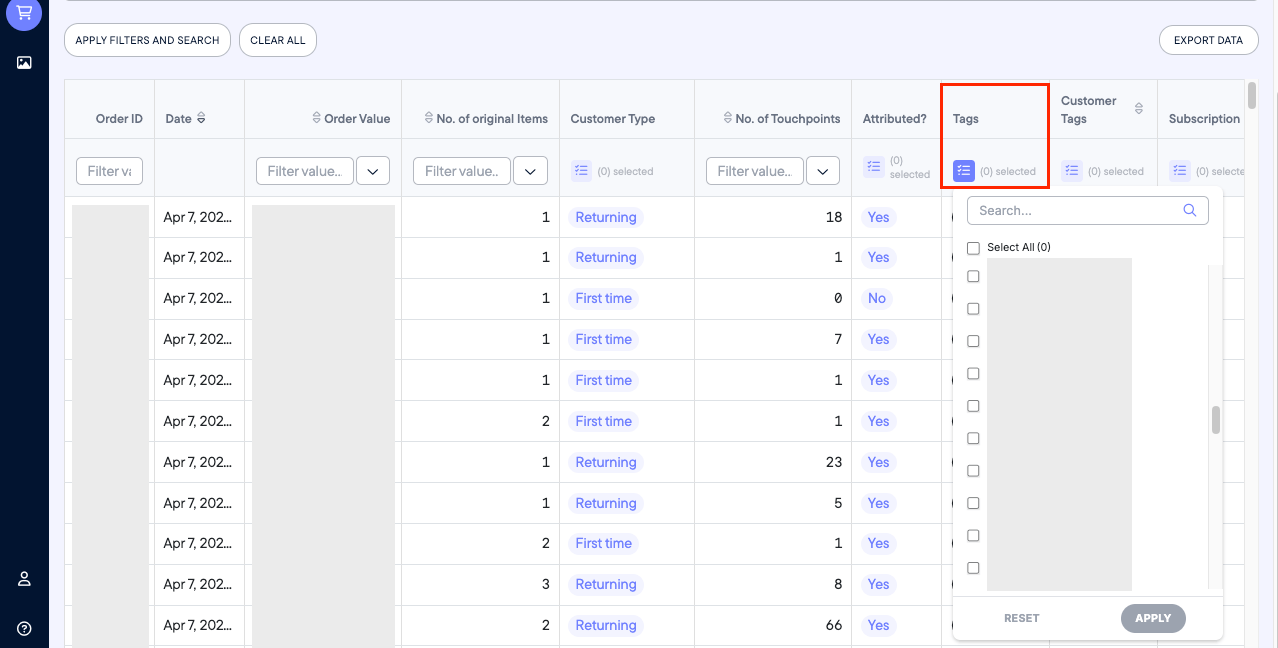
The [Orders page](https://dashboard.northbeam.io/orders) is a perfect place to do this.

1. On the left navigation, click the **Shopping Cart icon**
2. Scroll down to the **table**
3. Click the column called **"Tags"** and see if they're getting pulled through for all necessary orders
4. **If there's lots of volume**, it may be easier to export the data by clicking **"Export Data"**
<Frame caption="Orders Page > Tags">
  <img src="https://mintcdn.com/northbeam/EpMPeQ8Ec2Yrg9EI/images/readme/72c1740a-b0744ee-Screen_Shot_2024-04-08_at_4.46.56_PM.png?fit=max&auto=format&n=EpMPeQ8Ec2Yrg9EI&q=85&s=75e5b80f9b8c62251262cc8b0d925b95" alt="Orders Page > Tags" data-og-width="1278" width="1278" data-og-height="648" height="648" data-path="images/readme/72c1740a-b0744ee-Screen_Shot_2024-04-08_at_4.46.56_PM.png" data-optimize="true" data-opv="3" srcset="https://mintcdn.com/northbeam/EpMPeQ8Ec2Yrg9EI/images/readme/72c1740a-b0744ee-Screen_Shot_2024-04-08_at_4.46.56_PM.png?w=280&fit=max&auto=format&n=EpMPeQ8Ec2Yrg9EI&q=85&s=96cebe3f9251dbc78fa9243fc6016b63 280w, https://mintcdn.com/northbeam/EpMPeQ8Ec2Yrg9EI/images/readme/72c1740a-b0744ee-Screen_Shot_2024-04-08_at_4.46.56_PM.png?w=560&fit=max&auto=format&n=EpMPeQ8Ec2Yrg9EI&q=85&s=feadf98977e83af046493bc3bfa7bc56 560w, https://mintcdn.com/northbeam/EpMPeQ8Ec2Yrg9EI/images/readme/72c1740a-b0744ee-Screen_Shot_2024-04-08_at_4.46.56_PM.png?w=840&fit=max&auto=format&n=EpMPeQ8Ec2Yrg9EI&q=85&s=38e333c4b01c470436336bbb84048f6c 840w, https://mintcdn.com/northbeam/EpMPeQ8Ec2Yrg9EI/images/readme/72c1740a-b0744ee-Screen_Shot_2024-04-08_at_4.46.56_PM.png?w=1100&fit=max&auto=format&n=EpMPeQ8Ec2Yrg9EI&q=85&s=3db22c697e3ac0b8612f37c1f0f5f13c 1100w, https://mintcdn.com/northbeam/EpMPeQ8Ec2Yrg9EI/images/readme/72c1740a-b0744ee-Screen_Shot_2024-04-08_at_4.46.56_PM.png?w=1650&fit=max&auto=format&n=EpMPeQ8Ec2Yrg9EI&q=85&s=0f4adf1d263c5f789cbf30df96a5d53e 1650w, https://mintcdn.com/northbeam/EpMPeQ8Ec2Yrg9EI/images/readme/72c1740a-b0744ee-Screen_Shot_2024-04-08_at_4.46.56_PM.png?w=2500&fit=max&auto=format&n=EpMPeQ8Ec2Yrg9EI&q=85&s=54748bc662b4cd84e33470bc0f89eda4 2500w" />
</Frame>

## Step 3: Applying Order Tag Exclusions

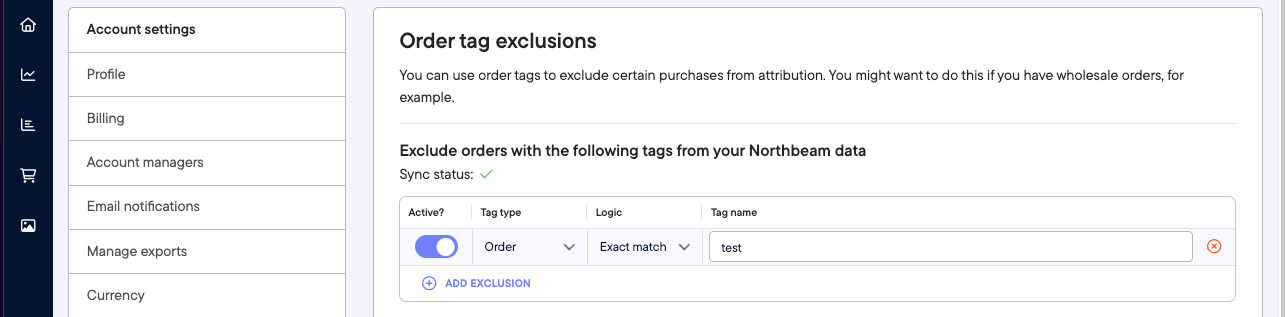
Great! Once you've confirmed that the tags are in, let's exclude using the Order Exclusion tool.

To find Order Exclusion tool:

1. Open [Excluded Orders](https://dashboard.northbeam.io/settings/excluded-orders).
2. Click **Add Exclusion**
3. Populate the **Tag Type, Logic**, and **Tag Name**
4. Don't forget to toggle it to **Active**
<Frame caption="Settings > Exclude Orders by Tag">
  <img src="https://mintcdn.com/northbeam/EpMPeQ8Ec2Yrg9EI/images/readme/a37ab12d-e150f34-Screen_Shot_2024-04-08_at_4.55.34_PM.png?fit=max&auto=format&n=EpMPeQ8Ec2Yrg9EI&q=85&s=8b7d3126a299ea8fb97a695b2890d63f" alt="Settings > Exclude Orders by Tag" data-og-width="1285" width="1285" data-og-height="317" height="317" data-path="images/readme/a37ab12d-e150f34-Screen_Shot_2024-04-08_at_4.55.34_PM.png" data-optimize="true" data-opv="3" srcset="https://mintcdn.com/northbeam/EpMPeQ8Ec2Yrg9EI/images/readme/a37ab12d-e150f34-Screen_Shot_2024-04-08_at_4.55.34_PM.png?w=280&fit=max&auto=format&n=EpMPeQ8Ec2Yrg9EI&q=85&s=db991f4fcdffef3e06d1cb0adabd6916 280w, https://mintcdn.com/northbeam/EpMPeQ8Ec2Yrg9EI/images/readme/a37ab12d-e150f34-Screen_Shot_2024-04-08_at_4.55.34_PM.png?w=560&fit=max&auto=format&n=EpMPeQ8Ec2Yrg9EI&q=85&s=2849c6175cf3e0b17ef274c178aaacb7 560w, https://mintcdn.com/northbeam/EpMPeQ8Ec2Yrg9EI/images/readme/a37ab12d-e150f34-Screen_Shot_2024-04-08_at_4.55.34_PM.png?w=840&fit=max&auto=format&n=EpMPeQ8Ec2Yrg9EI&q=85&s=654dff7bf68e5b1335194e2753311ffa 840w, https://mintcdn.com/northbeam/EpMPeQ8Ec2Yrg9EI/images/readme/a37ab12d-e150f34-Screen_Shot_2024-04-08_at_4.55.34_PM.png?w=1100&fit=max&auto=format&n=EpMPeQ8Ec2Yrg9EI&q=85&s=46e66516b007d587abc8f3537b5ffb91 1100w, https://mintcdn.com/northbeam/EpMPeQ8Ec2Yrg9EI/images/readme/a37ab12d-e150f34-Screen_Shot_2024-04-08_at_4.55.34_PM.png?w=1650&fit=max&auto=format&n=EpMPeQ8Ec2Yrg9EI&q=85&s=41516070903c4c40303b5f2303b0a43d 1650w, https://mintcdn.com/northbeam/EpMPeQ8Ec2Yrg9EI/images/readme/a37ab12d-e150f34-Screen_Shot_2024-04-08_at_4.55.34_PM.png?w=2500&fit=max&auto=format&n=EpMPeQ8Ec2Yrg9EI&q=85&s=1b73e322ae7a2ed59e796c471fdff8fa 2500w" />
</Frame>

## Step 4: Seeing your Excluded Orders

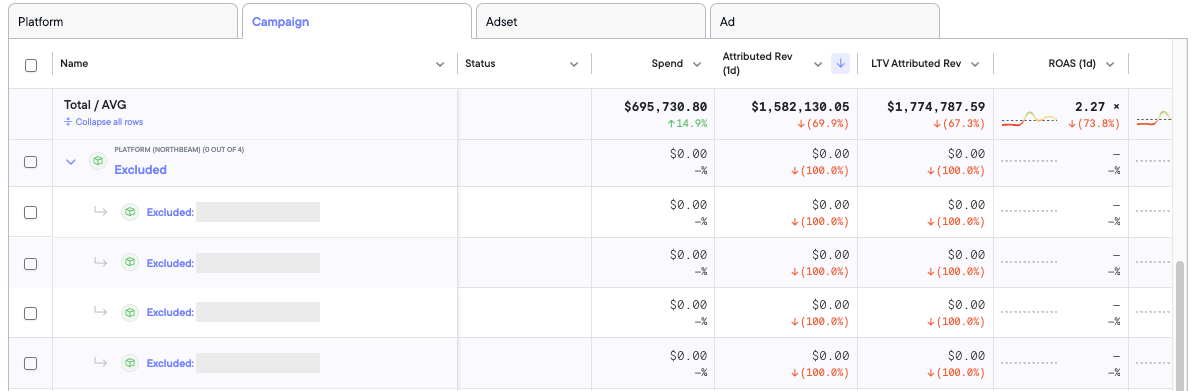
As a result, all orders with an excluded tag will be grouped into the platform called "Excluded". These can be seen on the Sales Page.

1. Open the [Sales page](https://dashboard.northbeam.io/sales).
2. Toggle to the **Campaign Level** and apply the **Platform breakdown**
3. Expand the **Excluded** group and you'll see the individual tags, along with associated transactions and revenue
   1. Labeled as `Excluded: [Tag Name]`
<Frame caption="Sales Page > Campaign Level > &#x22;Excluded&#x22; Platform">
  <img src="https://mintcdn.com/northbeam/EpMPeQ8Ec2Yrg9EI/images/readme/dfdaccc2-616c33d-Screen_Shot_2024-04-08_at_4.59.24_PM.png?fit=max&auto=format&n=EpMPeQ8Ec2Yrg9EI&q=85&s=588e1cb166ea90cb810f5765b893d3c1" alt="Sales Page > Campaign Level > &#x22;Excluded&#x22; Platform" data-og-width="1194" width="1194" data-og-height="391" height="391" data-path="images/readme/dfdaccc2-616c33d-Screen_Shot_2024-04-08_at_4.59.24_PM.png" data-optimize="true" data-opv="3" srcset="https://mintcdn.com/northbeam/EpMPeQ8Ec2Yrg9EI/images/readme/dfdaccc2-616c33d-Screen_Shot_2024-04-08_at_4.59.24_PM.png?w=280&fit=max&auto=format&n=EpMPeQ8Ec2Yrg9EI&q=85&s=d2df6db26b53a28ae91cd9e9a62e5ea7 280w, https://mintcdn.com/northbeam/EpMPeQ8Ec2Yrg9EI/images/readme/dfdaccc2-616c33d-Screen_Shot_2024-04-08_at_4.59.24_PM.png?w=560&fit=max&auto=format&n=EpMPeQ8Ec2Yrg9EI&q=85&s=f09c09201140067c34e3c3c744ddb630 560w, https://mintcdn.com/northbeam/EpMPeQ8Ec2Yrg9EI/images/readme/dfdaccc2-616c33d-Screen_Shot_2024-04-08_at_4.59.24_PM.png?w=840&fit=max&auto=format&n=EpMPeQ8Ec2Yrg9EI&q=85&s=27e6e871b497e639337e440dafe59c25 840w, https://mintcdn.com/northbeam/EpMPeQ8Ec2Yrg9EI/images/readme/dfdaccc2-616c33d-Screen_Shot_2024-04-08_at_4.59.24_PM.png?w=1100&fit=max&auto=format&n=EpMPeQ8Ec2Yrg9EI&q=85&s=82f3b06a0f721aa1b36496f73ba88ea8 1100w, https://mintcdn.com/northbeam/EpMPeQ8Ec2Yrg9EI/images/readme/dfdaccc2-616c33d-Screen_Shot_2024-04-08_at_4.59.24_PM.png?w=1650&fit=max&auto=format&n=EpMPeQ8Ec2Yrg9EI&q=85&s=3bfb0b1007c66757745003f083f621dc 1650w, https://mintcdn.com/northbeam/EpMPeQ8Ec2Yrg9EI/images/readme/dfdaccc2-616c33d-Screen_Shot_2024-04-08_at_4.59.24_PM.png?w=2500&fit=max&auto=format&n=EpMPeQ8Ec2Yrg9EI&q=85&s=bd1b0e50e5e40e7914af2030aa8e69fc 2500w" />
</Frame>

## Step 5: Filtering out Excluded (Optional)

When an order is Excluded, it's moved to the group named "Excluded" and the associated Transactions and Revenue are still included in the view.

If we want to remove these, we can use the **Filter** function.

### Filtering in the Sales Page
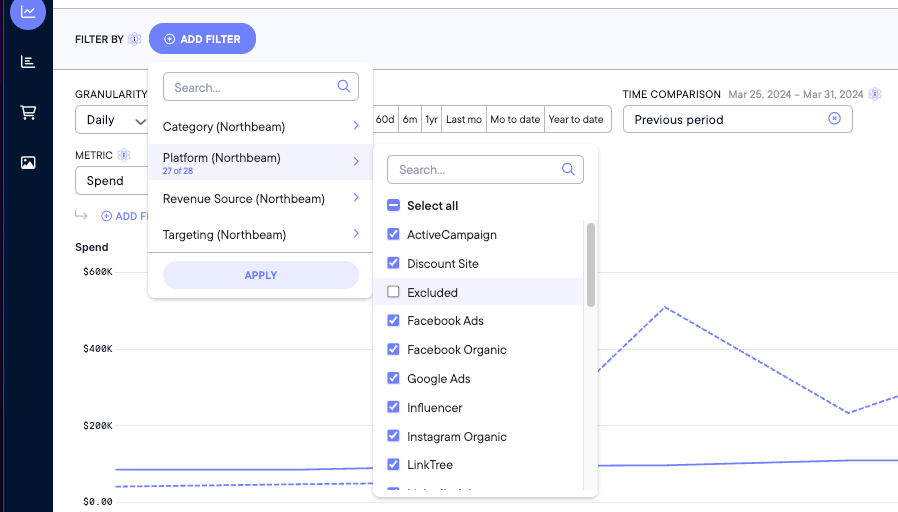
<Frame caption="Filter function in the Sales Page  (Add Filter > Platform > Untick &#x22;Excluded&#x22; > Apply)">
  <img
    src="https://mintcdn.com/northbeam/EpMPeQ8Ec2Yrg9EI/images/readme/f7923273-fe9197a-Screen_Shot_2024-04-08_at_5.06.51_PM.png?fit=max&auto=format&n=EpMPeQ8Ec2Yrg9EI&q=85&s=8060bbbf06cc3e2f08edb5936f1f484a"
    alt="Filter function in the Sales Page

(Add Filter > Platform > Untick &#x22;Excluded&#x22; > Apply)"
    data-og-width="898"
    width="898"
    data-og-height="512"
    height="512"
    data-path="images/readme/f7923273-fe9197a-Screen_Shot_2024-04-08_at_5.06.51_PM.png"
    data-optimize="true"
    data-opv="3"
    srcset="https://mintcdn.com/northbeam/EpMPeQ8Ec2Yrg9EI/images/readme/f7923273-fe9197a-Screen_Shot_2024-04-08_at_5.06.51_PM.png?w=280&fit=max&auto=format&n=EpMPeQ8Ec2Yrg9EI&q=85&s=68b1f3ed2e034386b38d6bc3fc8e717e 280w, https://mintcdn.com/northbeam/EpMPeQ8Ec2Yrg9EI/images/readme/f7923273-fe9197a-Screen_Shot_2024-04-08_at_5.06.51_PM.png?w=560&fit=max&auto=format&n=EpMPeQ8Ec2Yrg9EI&q=85&s=82b5f9b3624c655116f0551a93a016a2 560w, https://mintcdn.com/northbeam/EpMPeQ8Ec2Yrg9EI/images/readme/f7923273-fe9197a-Screen_Shot_2024-04-08_at_5.06.51_PM.png?w=840&fit=max&auto=format&n=EpMPeQ8Ec2Yrg9EI&q=85&s=ab949fe440852b20f69b6438607328f4 840w, https://mintcdn.com/northbeam/EpMPeQ8Ec2Yrg9EI/images/readme/f7923273-fe9197a-Screen_Shot_2024-04-08_at_5.06.51_PM.png?w=1100&fit=max&auto=format&n=EpMPeQ8Ec2Yrg9EI&q=85&s=ed64d59f1551e15d8dee68eaf99ac824 1100w, https://mintcdn.com/northbeam/EpMPeQ8Ec2Yrg9EI/images/readme/f7923273-fe9197a-Screen_Shot_2024-04-08_at_5.06.51_PM.png?w=1650&fit=max&auto=format&n=EpMPeQ8Ec2Yrg9EI&q=85&s=80e86f34e5eaa9aecbc9312322fb4dd8 1650w, https://mintcdn.com/northbeam/EpMPeQ8Ec2Yrg9EI/images/readme/f7923273-fe9197a-Screen_Shot_2024-04-08_at_5.06.51_PM.png?w=2500&fit=max&auto=format&n=EpMPeQ8Ec2Yrg9EI&q=85&s=9fa211e514b3ddfb9e4cd3f0c8b05763 2500w"
  />
</Frame>

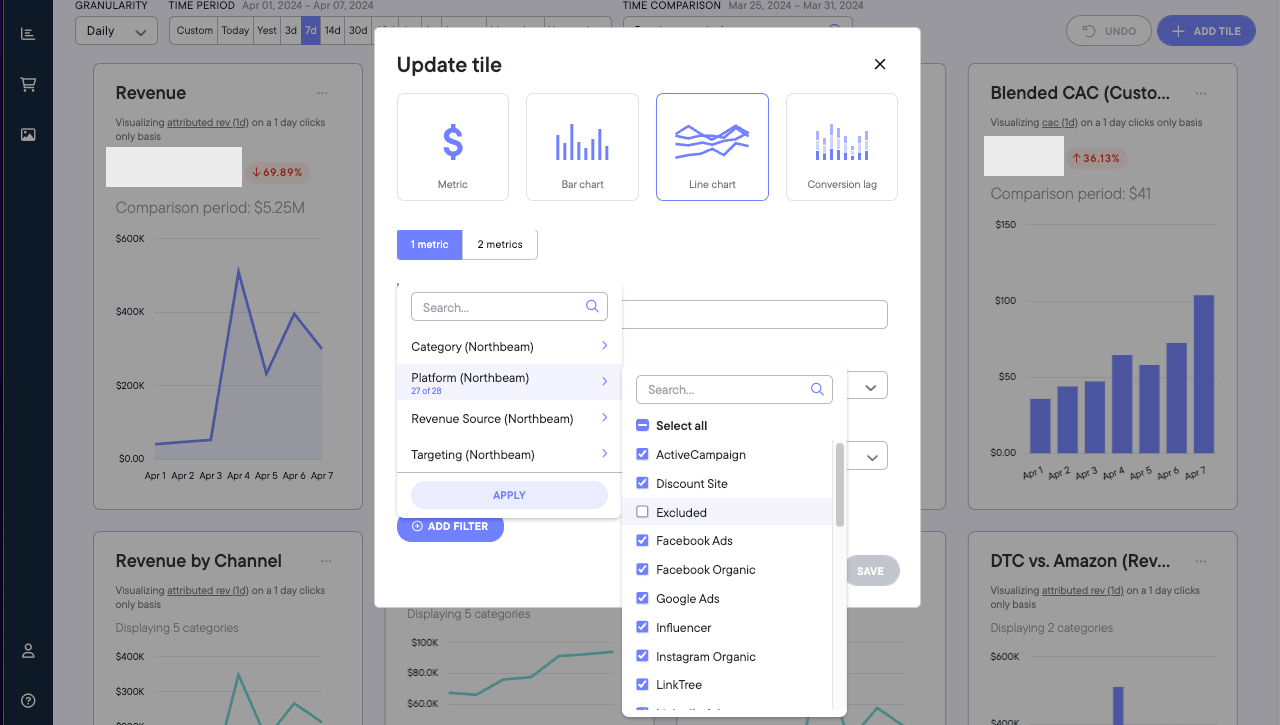
### Filtering in the Overview Page

<Frame caption="Filter function in Overview Page  (3 dots the tile > Tile Settings > Add Filter > Platform > Untick &#x22;Excluded&#x22; > Apply)">
  <img
    src="https://mintcdn.com/northbeam/EpMPeQ8Ec2Yrg9EI/images/readme/8fc35386-a17f4bb-Screen_Shot_2024-04-08_at_5.07.51_PM.png?fit=max&auto=format&n=EpMPeQ8Ec2Yrg9EI&q=85&s=526b5767914c733e36645029444e0513"
    alt="Filter function in Overview Page

(3 dots the tile > Tile Settings > Add Filter > Platform > Untick &#x22;Excluded&#x22; > Apply)"
    data-og-width="1280"
    width="1280"
    data-og-height="725"
    height="725"
    data-path="images/readme/8fc35386-a17f4bb-Screen_Shot_2024-04-08_at_5.07.51_PM.png"
    data-optimize="true"
    data-opv="3"
    srcset="https://mintcdn.com/northbeam/EpMPeQ8Ec2Yrg9EI/images/readme/8fc35386-a17f4bb-Screen_Shot_2024-04-08_at_5.07.51_PM.png?w=280&fit=max&auto=format&n=EpMPeQ8Ec2Yrg9EI&q=85&s=d9dbcfe791e22914957cf28dbb5bc835 280w, https://mintcdn.com/northbeam/EpMPeQ8Ec2Yrg9EI/images/readme/8fc35386-a17f4bb-Screen_Shot_2024-04-08_at_5.07.51_PM.png?w=560&fit=max&auto=format&n=EpMPeQ8Ec2Yrg9EI&q=85&s=146ad30469f5d3d33e055860544794f8 560w, https://mintcdn.com/northbeam/EpMPeQ8Ec2Yrg9EI/images/readme/8fc35386-a17f4bb-Screen_Shot_2024-04-08_at_5.07.51_PM.png?w=840&fit=max&auto=format&n=EpMPeQ8Ec2Yrg9EI&q=85&s=6f4940917f0e3a8087b9269c00fa2e3e 840w, https://mintcdn.com/northbeam/EpMPeQ8Ec2Yrg9EI/images/readme/8fc35386-a17f4bb-Screen_Shot_2024-04-08_at_5.07.51_PM.png?w=1100&fit=max&auto=format&n=EpMPeQ8Ec2Yrg9EI&q=85&s=e7e7fa27a7f64ad9b74ab5c2bf6cee64 1100w, https://mintcdn.com/northbeam/EpMPeQ8Ec2Yrg9EI/images/readme/8fc35386-a17f4bb-Screen_Shot_2024-04-08_at_5.07.51_PM.png?w=1650&fit=max&auto=format&n=EpMPeQ8Ec2Yrg9EI&q=85&s=716de1de24e6585bc44c0c7f7e7e8392 1650w, https://mintcdn.com/northbeam/EpMPeQ8Ec2Yrg9EI/images/readme/8fc35386-a17f4bb-Screen_Shot_2024-04-08_at_5.07.51_PM.png?w=2500&fit=max&auto=format&n=EpMPeQ8Ec2Yrg9EI&q=85&s=c7ff80399afe0c486c4c47ea0f7a0bd5 2500w"
  />
</Frame>