> ## Documentation Index
> Fetch the complete documentation index at: https://docs.northbeam.io/llms.txt
> Use this file to discover all available pages before exploring further.
# Exporting Data
> There are three primary ways to export your data from Northbeam -- let's review them!
1. CSV file
2. Google Cloud Storage (GCS)
3. Data Export API
## CSV File
Exporting your data to a CSV file can easily be done within the Sales page.
Frequency
CSV files can be exported either on a **one-time basis** or on a **regular schedule** (daily, weekly, or monthly).
* **One-Time Basis:** Select your metrics, click "Export Now," then go to the Documents menu to download your file.
* **Regular Schedule:** After choosing your metrics, click "Schedule Export" and configure your preferences. You will receive emails with a link to download your file once the export is scheduled.
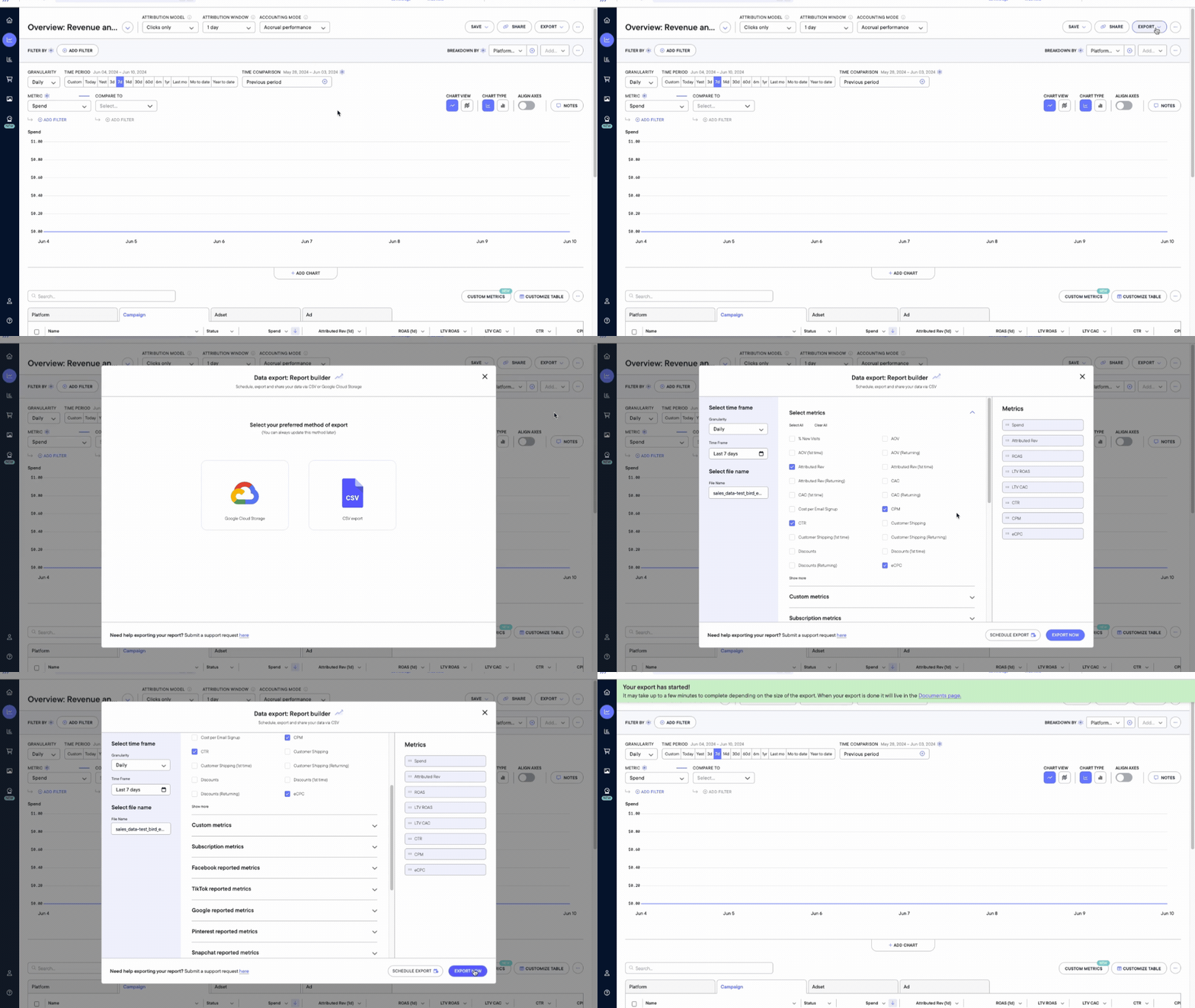 ### Step by Step Instructions
1. Navigate to the **Sales page**
2. Click **Export**
3. Select **Chart values** or **Table Values**
1. Chart Values - data from the line graph
2. Table Values - data from the table
4. If **Table Values** is selected, click **CSV Export**
5. Use the **Report Builder** to create your report
6. **Export Now** or **Schedule the Report**
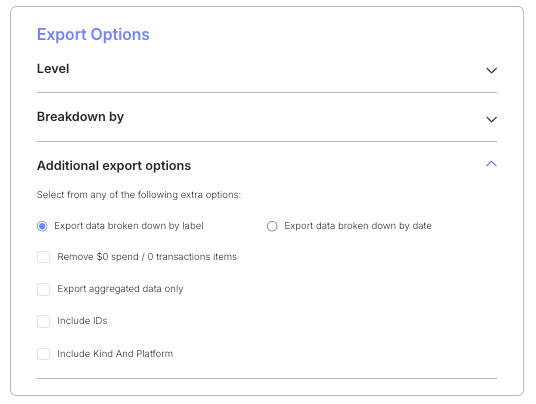
### Data Export Options
| Option | Description | Examples // Extra Context |
| :- | :- | :- |
| Export data broken down by label | Does not break out by date | - |
| Export data broken out by date | Breaks data down by the Granularity selected (Daily is the default) | If Weekly is selected, data from Sunday to Saturday will be combined. We report data starting on each Sunday. |
| Remove \$0 / 0 transaction items | Removes any line items valued at \$0 or 0 transactions | - |
| Export aggregated data only | Ignores the Level that is selected. | If Campaign level is selected, all campaigns will be consolidated. |
| Include IDs | Includes a column for Campaign, Adset, and/or Ad IDs (dependent on the selected "Level") | - |
| Include Kind and Platform | Includes columns Northbeam-specific details that further describe the traffic source | - |
### Step by Step Instructions
1. Navigate to the **Sales page**
2. Click **Export**
3. Select **Chart values** or **Table Values**
1. Chart Values - data from the line graph
2. Table Values - data from the table
4. If **Table Values** is selected, click **CSV Export**
5. Use the **Report Builder** to create your report
6. **Export Now** or **Schedule the Report**
### Data Export Options
| Option | Description | Examples // Extra Context |
| :- | :- | :- |
| Export data broken down by label | Does not break out by date | - |
| Export data broken out by date | Breaks data down by the Granularity selected (Daily is the default) | If Weekly is selected, data from Sunday to Saturday will be combined. We report data starting on each Sunday. |
| Remove \$0 / 0 transaction items | Removes any line items valued at \$0 or 0 transactions | - |
| Export aggregated data only | Ignores the Level that is selected. | If Campaign level is selected, all campaigns will be consolidated. |
| Include IDs | Includes a column for Campaign, Adset, and/or Ad IDs (dependent on the selected "Level") | - |
| Include Kind and Platform | Includes columns Northbeam-specific details that further describe the traffic source | - |
 ## Google Cloud Storage
You could also export your data from Northbeam directly into Google Cloud Storage bucket.
### Step by Step Instructions
1. Navigate to the **Sales page**
2. Click **Export**
3. Select **Table Values**
1. Chart Values - data from the line graph
2. Table Values - data from the table
4. Click **Google Cloud Storage**
5. In the "Storage Object Admin", add the following email: [nb-data-export@north-beam-io.iam.gserviceaccount.com](mailto:nb-data-export@north-beam-io.iam.gserviceaccount.com)
6. Under **Add Your Bucket**, enter the name of your bucket to receive the data
7. Click **Validate** to confirm that the connection works
## Data Export API
Lastly, you could set up an API request using our [Data Export API](/docs/northbeam-api-data-export-1).
***
## FAQs
### 1. How can I receive CSV file exports attached to emails?
Currently, our scheduled export functionality only provides a link to your dashboard for file downloads. Our Product team is aware of the request to attach files directly to emails, but there is no timeline for this feature at the moment.
### 2. How can I get Northbeam data into Google Sheets?
Currently, we do not have a product feature that automatically exports data into Google Sheets.
However, if you have development resources available, here are a few methods:
* Method 1: Use[ Google Apps Script](https://developers.google.com/apps-script) with our [Data Export API](/docs/northbeam-api-data-export-1) to export data to Sheets
* Method 2: Export to GCS then using the GCS Connector in Sheets ([Google's official documentation](https://support.google.com/docs/answer/9702507?hl=en))
* Method 3: Export to CSV and import or copy/paste into Google Sheets
Please Note
Unfortunately, we cannot provide further guidance on setting this up. Please consult your development team or refer to the documentation linked above for assistance.
### 3. How can I get Northbeam data into BigQuery?
The easiest way to get data into BigQuery is to export the data into a custom Google Cloud Storage bucket (via dashboard or API), then import it from GCS into BigQuery ([Google's official documentation](https://cloud.google.com/bigquery/docs/loading-data-cloud-storage-csv))
Please Note
Unfortunately, we cannot provide further guidance on setting this up. Please consult your development team or refer to the documentation linked above for assistance.
## Google Cloud Storage
You could also export your data from Northbeam directly into Google Cloud Storage bucket.
### Step by Step Instructions
1. Navigate to the **Sales page**
2. Click **Export**
3. Select **Table Values**
1. Chart Values - data from the line graph
2. Table Values - data from the table
4. Click **Google Cloud Storage**
5. In the "Storage Object Admin", add the following email: [nb-data-export@north-beam-io.iam.gserviceaccount.com](mailto:nb-data-export@north-beam-io.iam.gserviceaccount.com)
6. Under **Add Your Bucket**, enter the name of your bucket to receive the data
7. Click **Validate** to confirm that the connection works
## Data Export API
Lastly, you could set up an API request using our [Data Export API](/docs/northbeam-api-data-export-1).
***
## FAQs
### 1. How can I receive CSV file exports attached to emails?
Currently, our scheduled export functionality only provides a link to your dashboard for file downloads. Our Product team is aware of the request to attach files directly to emails, but there is no timeline for this feature at the moment.
### 2. How can I get Northbeam data into Google Sheets?
Currently, we do not have a product feature that automatically exports data into Google Sheets.
However, if you have development resources available, here are a few methods:
* Method 1: Use[ Google Apps Script](https://developers.google.com/apps-script) with our [Data Export API](/docs/northbeam-api-data-export-1) to export data to Sheets
* Method 2: Export to GCS then using the GCS Connector in Sheets ([Google's official documentation](https://support.google.com/docs/answer/9702507?hl=en))
* Method 3: Export to CSV and import or copy/paste into Google Sheets
Please Note
Unfortunately, we cannot provide further guidance on setting this up. Please consult your development team or refer to the documentation linked above for assistance.
### 3. How can I get Northbeam data into BigQuery?
The easiest way to get data into BigQuery is to export the data into a custom Google Cloud Storage bucket (via dashboard or API), then import it from GCS into BigQuery ([Google's official documentation](https://cloud.google.com/bigquery/docs/loading-data-cloud-storage-csv))
Please Note
Unfortunately, we cannot provide further guidance on setting this up. Please consult your development team or refer to the documentation linked above for assistance.